A weekday incident brief
Set up a routine that reads Slack and Jira every weekday morning, writes an incident brief, and prepares a Slack post that waits for your approval.
On this page
Every weekday at 08:30 you want a short brief on open incidents, and a Slack update for your leads ready to post. Nothing should be posted until you have read it.
This guide asks for a routine in Ask that reads your connected Slack and Jira, writes the brief, and prepares one Slack post per run.
You’ll need:
- Slack connected with company context enabled. See Slack.
- Jira connected, so its issues are a company source. See Jira.
- The web app or the desktop app. Routines can’t be started on the phone.
Step by step#
Ask for it#
Open Team → Routines and press + New routine, or start a new conversation in Ask. Make sure the conversation uses your Slack and Jira sources, then describe the job:
Every weekday at 8:30, read the incident channels in Slack and the OPS
Jira project. List open incidents with their status and owner, what
changed since the previous weekday, and anything that needs a decision
today. Keep it under 15 lines. Then prepare one Slack post for
#eng-leads with the same summary.
Write the time with its minutes, as 8:30: the schedule is read from your
words, in your time zone. See Schedules.
Check the card#
Ysra answers, and a routine card appears under the answer. Check it:
| Row | Should say |
|---|---|
| When | “Every weekday at 08:30” |
| Reads | Your Slack and Jira sources |
| Does | “Writes you a short report with its sources.” and “Prepares the Slack message to post.” |
| Asks first | “Every Slack message, with the exact text, before it’s posted.” |
To rename it, press Change something and change Name, for example to “Incident brief”, then Done. If Reads is missing a source, say “Slack” or “Jira” in the job, or add the source to the conversation, and the card is brought up to date under the next answer.
Start it and try it#
Press Start this routine. The routines panel opens beside the conversation; press Run now on the routine.
When the run reaches the Slack post, its card in the conversation says “1 waiting for your approval”. Open it: the panel shows “Post this to Slack?” with the exact message, under Waiting for your approval. Open the run under Runs to read the brief.
- If the post is right, press Approve & send. That exact text is posted once.
- If it isn’t, press Reject. Nothing is posted.
If the instructions need changing, press Edit. See Edit a routine.
Approve each morning, from your phone#
From then on it runs each weekday at 08:30, and each run is posted into the conversation. The proposed post also waits on the phone’s Routines screen: Approve posts that exact text once, No discards it.
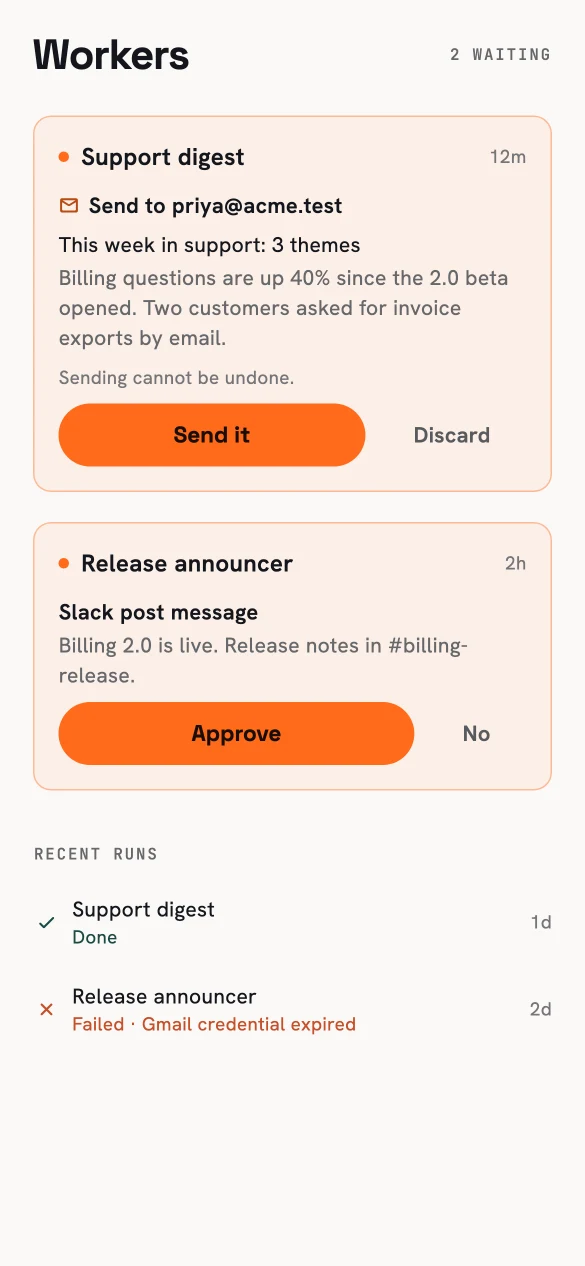
The morning post, waiting for you.
What this routine covers#
- It reads Jira and writes the brief. To act on an incident in Jira — create an issue, comment, move it — ask in Ask: Ysra proposes the change there for you to approve.
- It posts to Slack with your OK. Every post waits for your approval of the exact text.
Later#
- Turn it off with its switch in the routines panel during a freeze, and on again when you’re back.
- Want a brief for another team? Ask for a second routine, in a conversation with that team’s sources, naming its channel.
- Archive it on its page when you no longer need it. Its run history is kept.
Related#
- How routines work — states, approvals and caps.
- Schedules — weekday times and time zones.
- Slack — connecting the channels the brief reads.