Install on a server or edge device
Install Ysra on a server or edge device, sign it in with a code, share a folder, and keep it running after you log out.
On this page
Installing on a device puts the same ysra program as on your computer
onto another one — an edge box with a GPU and camera, a build server, a lab
computer — signs it in with a short code, and shares a folder you can work
on from your laptop. Before you start you need SSH access to the device as
the user who will run Ysra, and the desktop app on your own computer to
approve the sign-in. Can’t install anything there (network gear, an ESXi
host, a locked server)? Add it as a machine
instead; for what a device can reach, see Devices.
| Supported | Builds |
|---|---|
| Linux | x64 and arm64 (Jetson, Raspberry Pi) |
| macOS | Yes; no background service |
1. Install#
On the device:
curl -fsSL https://ysra.ai/install.sh | sh -s -- --device
It is the same checksum-verified install as on a laptop (see
Install the CLI). With --device it also lists what the device is
missing and the next steps.
2. Add what Ysra needs to contain commands#
On Linux, every command runs in a contained space: it can write only in the shared folder and has no network unless a step needs a package registry. That needs three programs:
sudo apt install bubblewrap socat ripgrep
Use dnf, pacman or apk with the same names on other systems. ripgrep
is in apt from Ubuntu 20.04 and Debian 11; on older systems use the release
from github.com/BurntSushi/ripgrep.
Without them, Ysra says so and only reads and edits files: it never runs a
command it can’t contain.
Check the device at any time with ysra doctor. Each line is one check:
| Mark | Means |
|---|---|
| ✓ | Fine |
| ✗ | Needs fixing; the line names the command that fixes it (for commands, exactly what is missing) |
| · | Information, such as not signed in as a device |
“Package managers” lists only the ones Ysra may use itself with your OK (for
example Homebrew), so none is normal on a typical Ubuntu device.
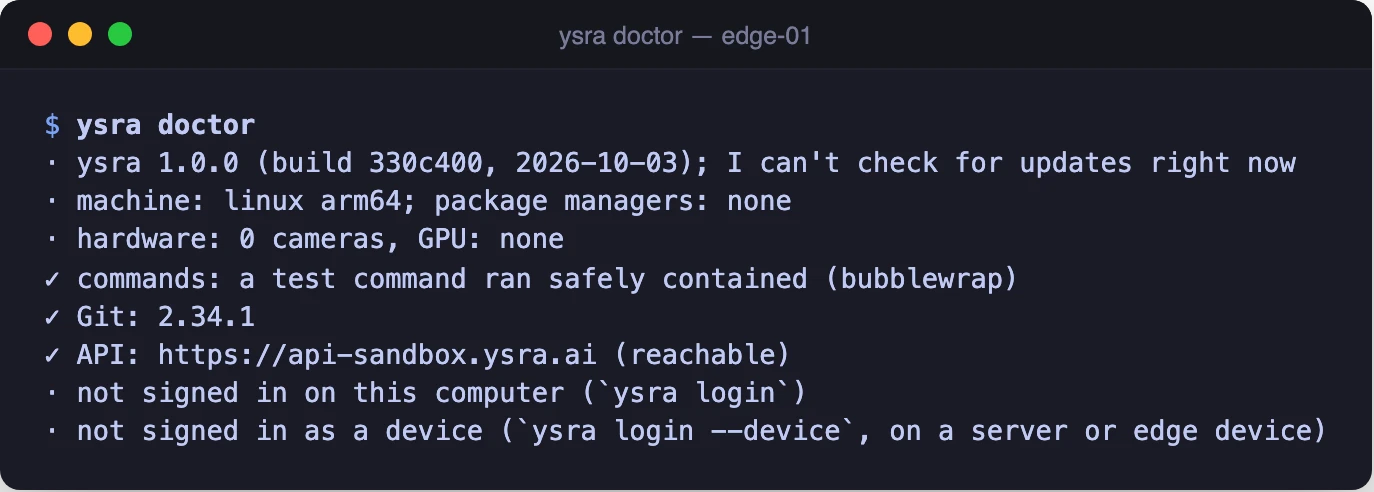
ysra doctor on a fresh Linux device, before it is signed in
3. Sign the device in#
-
On the device:
ysra login --deviceIt shows a code such as
ABCD-EFGH, valid for 10 minutes. -
On your computer, open the desktop app → Settings → Devices → Approve a device, type the code and choose Find it.
- Check the device’s name and system, then choose Approve.
A device’s sign-in is separate from yours: it works on folders on that device and can’t see or change your account, your balance or your other devices.
4. Share a folder#
| To | Run on the device |
|---|---|
| Work there now, in your SSH session | cd /opt/app && ysra |
| Start work from your laptop | ysra serve --folder /opt/app (repeat --folder to share more) |
While ysra serve runs, the folder appears in the desktop app under
Settings → Devices.
5. Keep it available after you log out (Linux)#
ysra serve --folder /opt/app --install-service
Ysra shows the exact service file and asks before writing anything.
| Property | Value |
|---|---|
| Kind | A systemd user service, ~/.config/systemd/user/ysra-serve.service; runs as you, not root |
| Network | Connects out to Ysra only; no port is opened |
| After you log out | Run loginctl enable-linger once |
| Stop and remove | systemctl --user disable --now ysra-serve |
On macOS there’s no background service: keep ysra serve running in a
terminal.
Update#
ysra --version   # ysra 1.20.0 (build …)
ysra update
ysra update checks the download against its published checksum before
replacing itself. A device never updates on its own.
Remove a device#
| From | How | What it does |
|---|---|---|
| The device | ysra uninstall |
Removes the device from your account, stops and removes the service, deletes its stored sign-in and removes ysra. Then asks whether to delete ~/.ysra (default: keep; --purge deletes, --keep-data keeps, without asking). Never touches your project folders or ~/.ssh |
| Anywhere else | Desktop app → Settings → Devices → Remove | Signs the device out at once, wherever it is |
If it doesn’t work#
| Symptom | What to do |
|---|---|
| The code expired before you approved it | Run ysra login --device again; a code lasts 10 minutes |
ysra doctor shows ✗ on commands |
Install what the line names (usually bubblewrap socat ripgrep) |
| The folder isn’t in Settings → Devices | Check ysra serve --folder … is running on the device |
| It stops when you log out | Use --install-service and loginctl enable-linger (step 5) |
Related#
- Devices — modes, hardware and what a device can reach.
- Install the CLI — the same program on your own computer.
- Machines and gateways — a device that also reaches other machines.