Mobile app
Use the Ysra phone app to ask questions, follow and approve Code threads and routines, and talk with Ysra, and see what stays on the web and desktop.
On this page
The Ysra phone app is Ysra on an iPhone or Android phone: ask questions, start and follow Code threads and Mayz reviews, talk with Ysra by voice, and answer what your routines are waiting on. Use it away from your desk; set-up work (connectors, permissions, billing, people) stays in the web and desktop apps, and so does Learn. This page lists what the phone does, what it doesn't, and what to do when something goes wrong.
Not the apps you build
This page is about Ysra's own phone app. For a phone app you build with Code and open in Expo Go, see Previews.
What the phone app does#
| You want to | On the phone |
|---|---|
| Ask a question | The box on Home, with Ask chosen. Choose who answers (Ysra or a colleague), the sources, and Deep dive; questions are answered on Auto, or on the colleague’s own speed. See below. |
| Change code | Code on Home: describe the work, then choose Folder or repository: a GitHub repository, a folder on one of your computers, or New cloud project. See Code. |
| Review work | Mayz on Home, where reviews are offered: choose a repository and what to look at (Everything, Security, Quality, Design). Nothing is changed. See Mayz. |
| Follow a Code thread | Approve its plan (Approve & build or Approve only), steer it, Stop it, see Changes, the Preview and the Report; commit, push, open a pull request or undo. |
| Talk instead of type | Talk with Ysra in a thread or on Home. See Voice. |
| Open an app you're building on your computer | Running on your computer on Home lists Expo apps you can open in Expo Go (phone on the same Wi-Fi as the computer). |
| Answer a routine | Approve, or for an email Send it / Discard (“Sending cannot be undone.”). |
| Change a routine | Name, description, instructions and schedule. See below. |
| See what happened | Notices in the menu. See below. |
| Look after colleagues and memory | Team; Settings → What Ysra remembers (Remember something, Forget). |
| Get help | Settings → Help: free, no credits. See Ysra help. |
| Check credits | Settings → Usage: credits left, plan, Credits used per day, By kind of work, What used them. |
Ask a question#
| Control | What it does |
|---|---|
| Who answers | Ysra, or one of your colleagues. |
| Sources (“Sources for this question”) | What Ysra may read for this question. |
| Deep dive | On: “Reads more sources. Slower.” Off: “One pass over the selected sources.” |
| + | Attach files, spreadsheets (CSV, TSV, Excel) included. |
Answers cite their sources. When an answer has a chart or an interactive View, the phone shows a picture of it with Open the View, which opens the interactive version in your browser. A line above a finished answer, such as “Worked for 4m 12s · …”, opens the steps. A proposed action (a Slack message, for example) shows Approve, Edit and No; nothing happens until you approve the exact action. See Proposed actions.
Open and edit a routine#
A routine's page shows its Schedule (next and last run), Instructions, Permissions and its plan as a read-only chart. Edit opens Edit Routine:
| Field | Notes |
|---|---|
| Name | |
| Description | What it is for |
| Instructions | “Runs already started keep the instructions they started with.” |
| Schedule | When asked, Every so often (minutes or hours), or At a time of day; “Times are in …” names the time zone |
If the routine was changed elsewhere first, the phone says so, loads the latest version and asks you to check and save again. See A routine's plan.
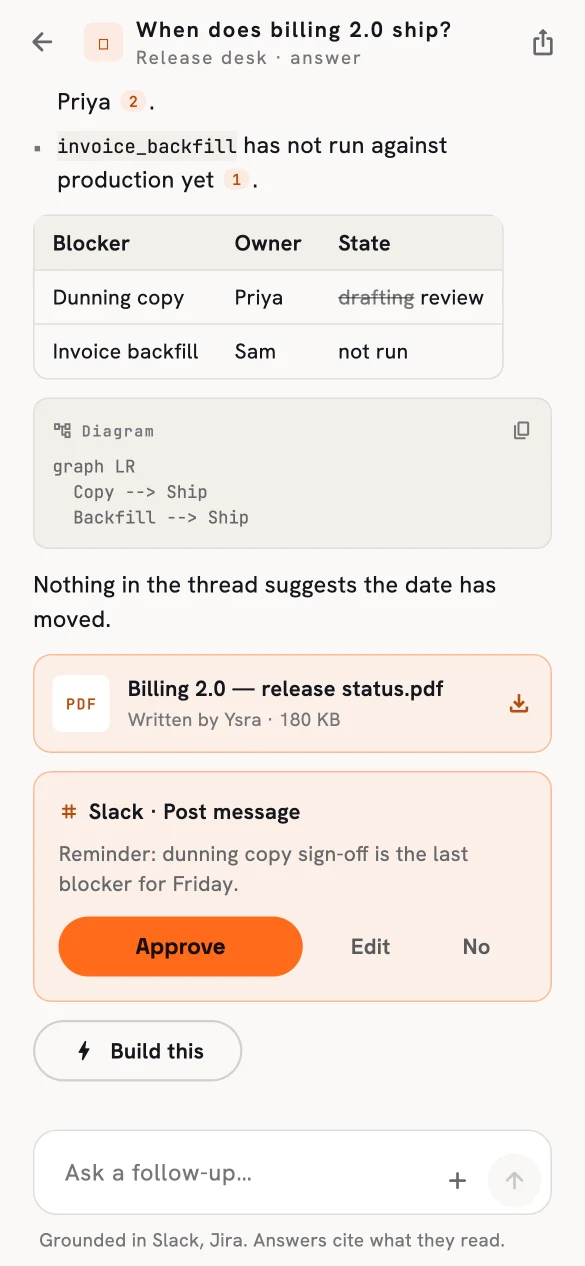
An answer with a proposed Slack message.
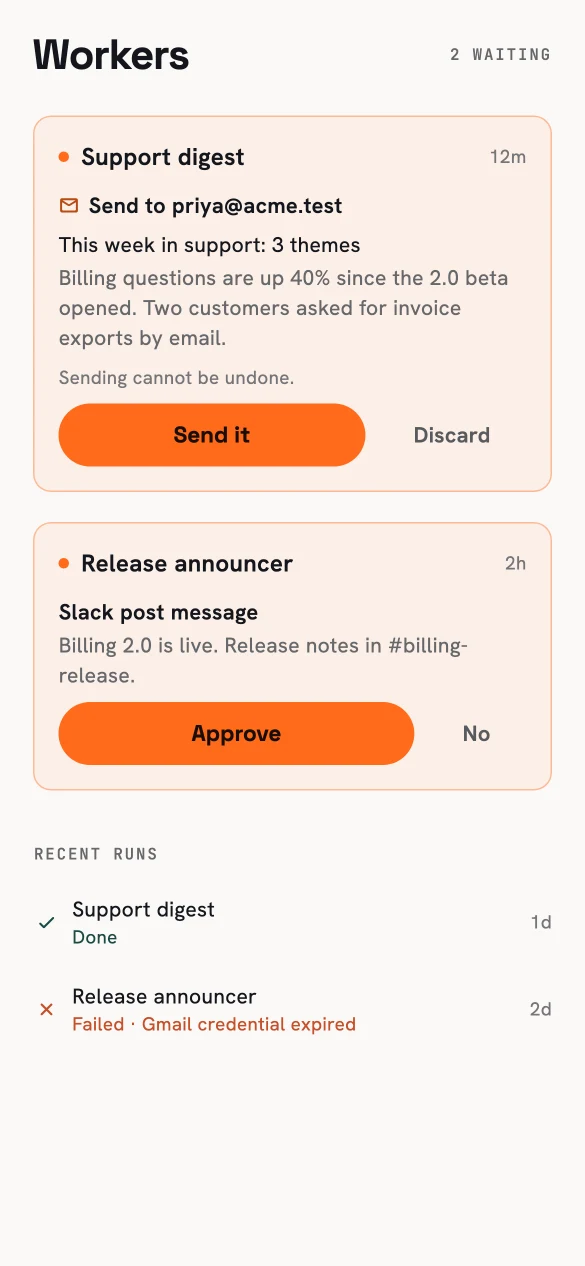
Routine approvals.
In the web and desktop apps#
| Done in | Where |
|---|---|
| Creating, pausing, resuming or running a routine (Run now), and changing its permissions (“Permissions are changed in the web app.”) | Web app |
| Connecting GitHub and preparing a repository | Web app; it then shows in Folder or repository |
| Cloud environments, their secrets and allowed domains | Desktop or web (“Secrets and allowed domains: set this up on the desktop or web.”) |
| Reconnecting hosting for a deploy | Desktop or web (“Reconnect hosting on the desktop or web.”) |
| Setting up connectors and adding MCP servers | Desktop or web; the phone lists them |
| Signing, viewing and withdrawing machine approvals | Desktop app |
| Answering a question a thread asks on a computer (“Something is needed on your computer”) | Ysra on that computer (“Answer this in Ysra on that computer.”) |
| Managing people | Web or desktop (“Manage people on the web or desktop.”) |
| Changing the plan, credits, payment methods and automatic top-ups | Web app's Billing page; Manage subscription opens it. See Billing in each app. |
| Alerts | Notices in the app |
Signed out#
| You see | Why | What to do |
|---|---|---|
| Signed out, with a reason, on the sign-in screen | The sign-in ended (it expired, was ended elsewhere, or the password changed). | Sign in again with email and password. |
| “That email and password do not match.” | Wrong email or password. | Check them, or Forgot password? |
| Unlock with biometrics or passcode | Settings → Require unlock is on. | Unlock, or Sign out instead. |
Sign out in Settings asks first: “This device will forget your credentials. Routines keep running.” See Sign in.
Notices#
Notices in the menu lists what your routines did: a run finished, failed or stopped to ask, and for an uptime routine, an outage or a recovery. The menu shows the unread count.
| Situation | What happens |
|---|---|
| You tap a notice | It is marked read and opens its routine; one waiting on you opens Routines, where the decisions are. |
| Many unread | Mark all read at the top; Show earlier at the bottom. |
| The app is open | The list updates by itself. |
| The app is closed | Notices wait in the app for the next time you open it, and the ones that are also emailed arrive by email; see Which notices are emailed. |
Voice#
Talk with Ysra opens a voice call in a thread, or from the box on Home, where the first thing you say starts the thread (“Ask your question. It starts the thread.” or “Say what to build. Your first request starts the thread.”). A notice says what it costs before anything connects: Start voice or Keep typing. Nothing is spent until Start voice.
| Situation | What happens |
|---|---|
| During a call | The orb shows Connecting…, Listening or Ysra is speaking; Mute, End and Minimise. Minimised, a small orb floats over the app; tap it to go back. |
| You leave the app | The call ends: it doesn't go on where you can't see or stop it. |
| The call ends | The thread shows a line such as “Voice · 4 min · 12 credits”. |
| It ended on its own | “Voice stopped at the time limit.” · “Voice stopped after a quiet minute.” · “Voice stopped because the credits ran out.” |
| Limit | Value |
|---|---|
| Cost | About 12 credits a minute (about 4 with the economy voice), billed on actual use |
| To start | 2 minutes' worth of credits |
| Longest call | 15 minutes |
| Silence | 60 seconds ends the call |
| Minutes a month | No plan 10 · Starter 60 · Pro 300 · Max 1,000 · Team 120 |
If it doesn't work#
The phone still shows Build, or work doesn't start#
Why: an old version of the app. What to do: update from the App Store or Google Play. An old app may say “Code runs on your own computer now. Open the Ysra desktop app or the command line in your project's folder to start it.”
Code, Mayz or voice is missing#
Why: each is shown only when the Ysra service offers it; cloud work also depends on your plan (no plan, no cloud). What to do: update the app; for cloud limits per plan see Limits and costs.
“This computer is offline” when choosing a folder#
Why: the folder is on a computer where Ysra isn't running. What to do: open the desktop app or the CLI on that computer, or choose a repository or New cloud project instead.
Voice won't start#
| Message | What to do |
|---|---|
| “The microphone isn't available. Allow it in Settings, then try again.” | Allow the microphone for Ysra in the phone's settings. |
| “Voice couldn't connect in time. Try again.” / “The voice connection dropped. Try again.” | Check the connection and try again. |
| “Voice stopped because the credits ran out.” | Add credits on the web; see When credits run out. |
“Open in Expo Go” doesn't open#
Why: the phone and the computer aren't on the same Wi-Fi, or Expo Go isn't installed or runs another SDK. What to do: join the same Wi-Fi; see Phone apps and the Expo SDK.
No credits#
Home shows a line when credits are low (Hide until tomorrow closes it). A question asked with none left says why. See Credits.
Related#
- Sign in — passwords, where you're signed in, verifying your email.
- Notices — what each notice says and which are emailed.
- Code — what a Code thread does, wherever it is started.
- Routines — creating routines and setting their permissions, on the web.
- Limits and costs — voice minutes, cloud hours and every cap.