Workspaces and files
Find your way around a workspace — the Library and Settings pages, uploading and finding files, using them in Ask, Learn and Code, and archiving or deleting a workspace.
On this page
A workspace holds the files, colleagues, memory, routines and plugins that your work draws on. Use separate workspaces to keep one client's or one team's work apart from another's. This page shows where everything is, how files work, and how to archive or delete a workspace. For sharing a workspace with other people, see Members and roles.
Switch workspaces from the switcher at the top of the panel, in the web app and the desktop app. My files is your personal workspace and is never shared.
What's in a workspace is private to it and its members. Files are never exposed as public links. Archiving a workspace keeps everything; only deleting removes it.
Your own workspace#
Everyone works in a workspace of their own. A workspace you only belong to as a member, or My files, doesn't count.
If you have none when you sign in, the web app and the desktop app ask you to make one first: Create your workspace (“Your chats, threads, files and connections live in a workspace. Anything you made without one moves into it.”). Keep the suggested name, such as “Sam's workspace”, or type your own, then choose Create workspace.
Your earlier chats, Learn topics and voice calls that weren't in a workspace move into it. Only your own move; nothing of anyone else's does. From then on, a new chat started without a workspace goes into your own workspace.
Where things are in the web app#
The rail lists Home, Code, Ask, Learn, Team and Routines, then Library. Library holds the workspace's own material:
| Page | What it's for |
|---|---|
| Files | Documents, spreadsheets and images for Ask, Learn and Code. See Files. |
| Rules & instructions | Standing instructions for Code work. See Rules. |
| Memory | Facts and preferences Ysra carries across Ask conversations. See Memory. |
| Projects | Multi-milestone plans. See Projects. |
Team has its own place on the rail, with Team and Visitor questions. See Colleagues.
Settings opens from the account menu at the foot of the rail:
| Group | Page | What it's for |
|---|---|---|
| Personal | General | Notice emails, error reports and what Ysra may do on its own. See Settings. |
| Signed in on | Every app signed in to your account. See Sign in. | |
| Devices | Computers and servers signed in as devices. See Devices. | |
| Usage | Credits left and what used them. See Credits and usage. | |
| Billing | Plan, extra credits, payment methods, automatic top-ups and invoices. See Plans and billing. | |
| Workspace | This workspace | Name, description, archive and delete. See Managing a workspace. |
| People | Your organisation and the workspace's members. See Members and roles. | |
| Connectors | Apps (GitHub, Slack, Jira, Gmail and about thirty more), MCP servers and skills. See Plugins, connectors and skills. |
Files#
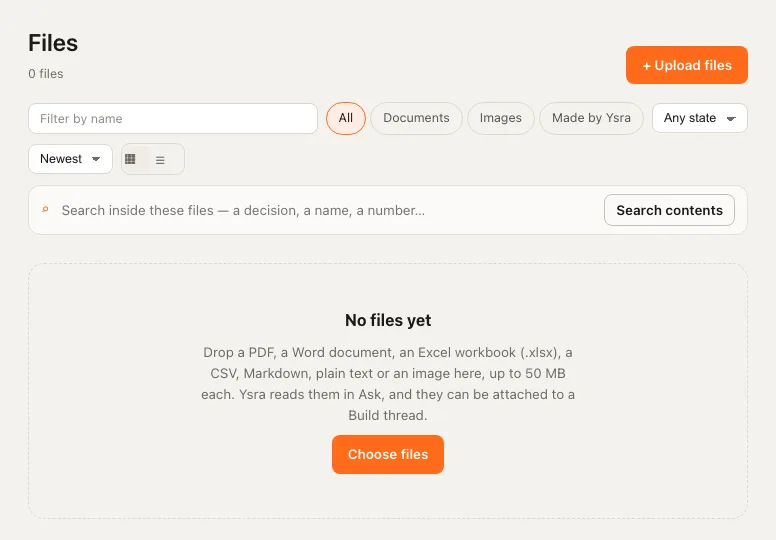
Workspace files are read by Ysra so their contents can be searched, not just their names. Accepted types, the 100 MB limit and every other limit are on Files you can upload.
Uploading a file#
Drop files on the page or use Upload files. On the phone, add files from the camera, your photos or documents.
| State | Meaning | What to do |
|---|---|---|
| Reading | Being read | Wait; most files take seconds |
| Ready | Searchable | — |
| Failed | The reason shows in red, for example "This PDF is locked with a password. Remove the password and upload it again." or "Upload failed" | In its details: Retry indexing reads the same file again; Re-upload replaces it. Failed in the state filter lists them |
Finding a file#
| Tool | Finds |
|---|---|
| Filters | By name, type (Documents, Images, Made by Ysra), state and order; grid or list |
| Search inside these files | A decision, a name or a number in the contents |
| Made by Ysra | Files Ysra created for you, such as documents, decks and spreadsheets from Ask |
Using a file#
| Where | How |
|---|---|
| Ask | Files are a source: Ysra searches and cites them. See Sources |
| Learn | Course files become a notebook. See Study with a notebook |
| Code (desktop app, CLI) | Attach a file to a thread — a spec, a screenshot of a bug, a design — so the work can use it |
| Anywhere | Preview, download or open in a new tab, on iPad and in Safari too; on the phone, open in the system viewer or share |
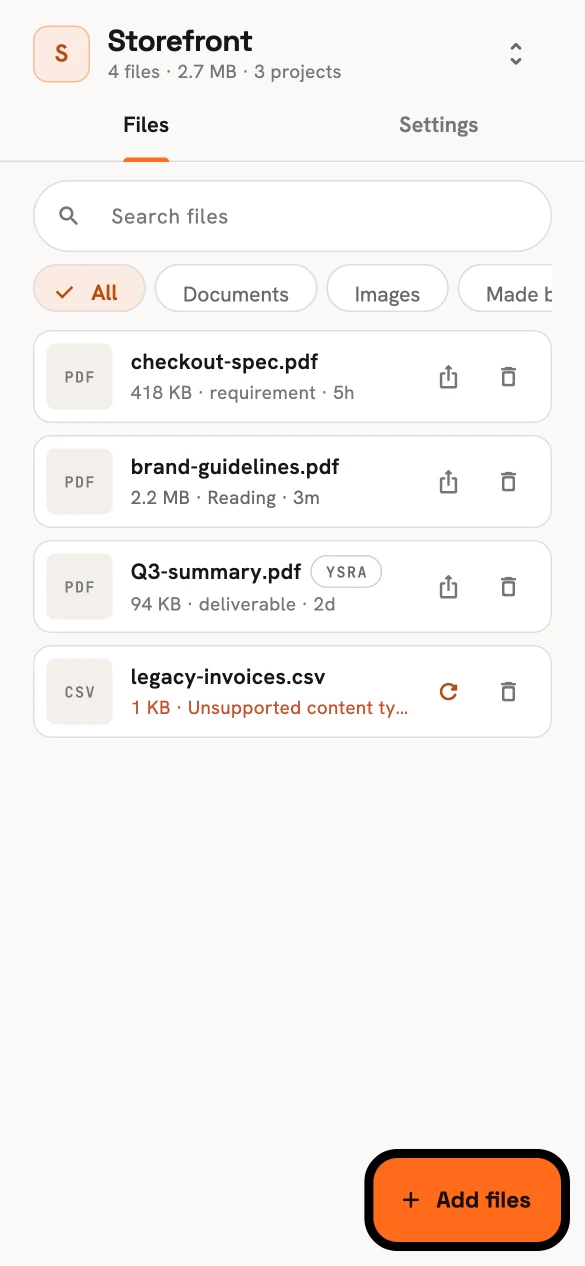
Files on the phone.
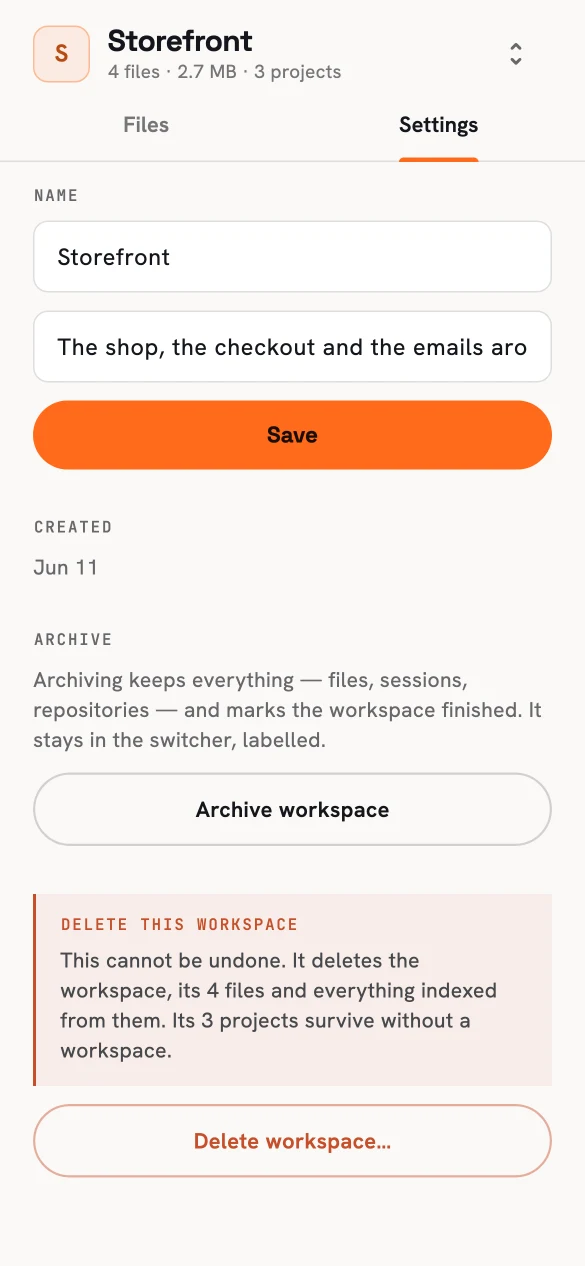
This workspace: rename, archive or delete.
Managing a workspace#
This workspace holds three actions:
| Action | What happens |
|---|---|
| Rename | Changes the name and description |
| Archive | Everything is kept (files, conversations and the rest). The workspace stays in the switcher, labelled archived and listed last |
| Delete | Type the workspace's name, then Delete permanently. The workspace, its files and everything read from them are removed at once and erased after 30 days. You can't undo it from the app. Projects survive without a workspace |
Deleting can't be undone from the app
Archive a workspace you've finished with; delete only what you never need again. See Data, privacy and deletion.
Related#
- Files you can upload — types, limits and notes on a file.
- Settings — what Ysra may do on its own.
- Members and roles — who shares the account and the workspace.
- Credits and usage — what work costs.