12 recipes for real work
On this page
Each recipe starts with a small, reviewable version. Keep external changes on Ask first until you have checked several results.
1. Triage an inbox with Pulse#
What you need: Pulse, Gmail, Starter or higher.
- Hire Pulse from Browse colleagues.
- Connect Gmail and leave sending on Ask first.
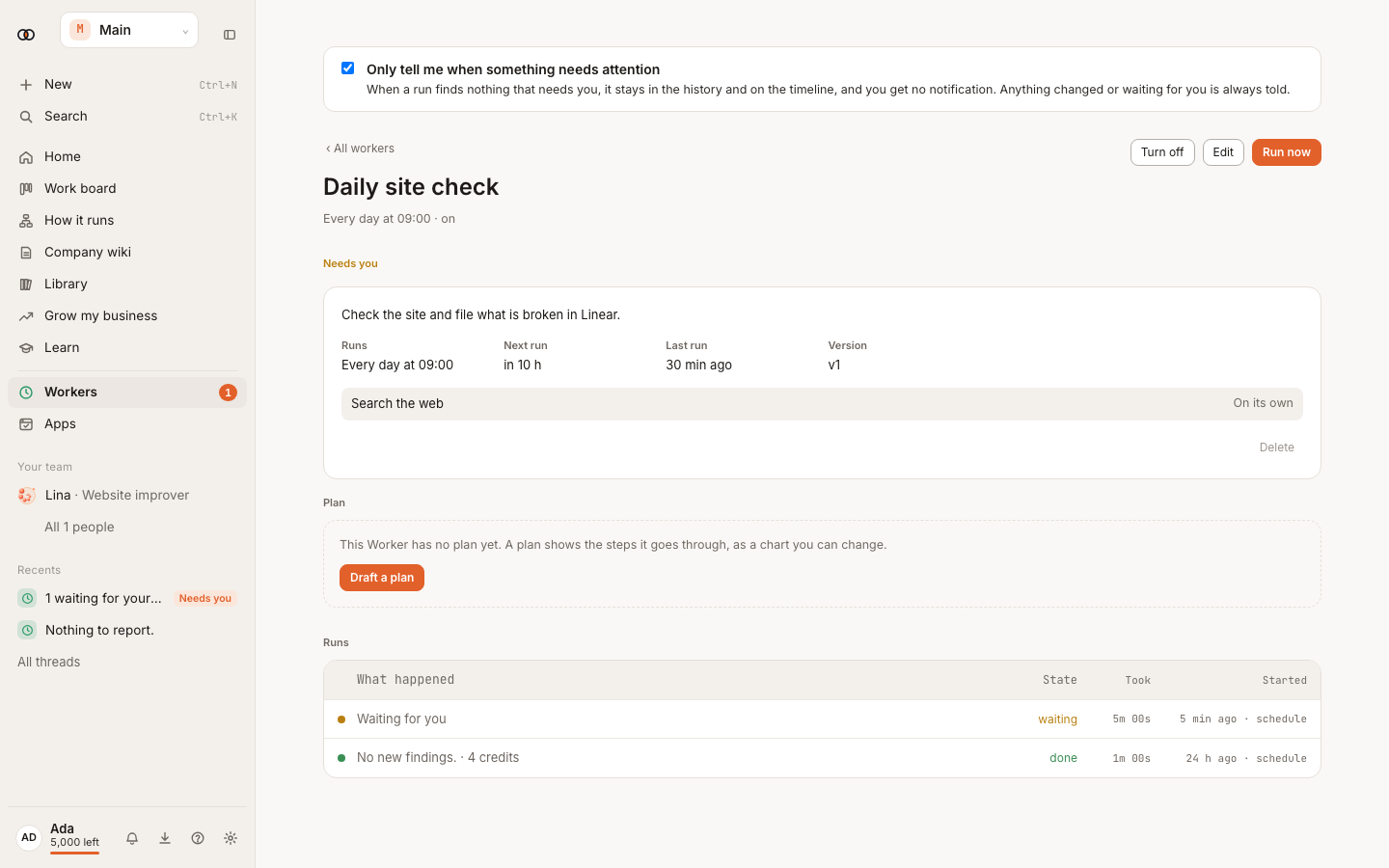
- Create a weekday routine: “Summarise messages that need me today. If nothing needs me, report nothing.”
- Turn on Only tell me when something needs attention.
Result: a short inbox brief; replies remain drafts until you approve them.
2. Collect receipts for the accountant#
What you need: the Accountant, Gmail and Google Drive.
- Hire Accountant and connect Google Workspace.
- Ask it to find new receipt and invoice emails and prepare a Finance folder list.
- Review each Drive change in Needs you before it is made.
Result: a reviewed receipt list and approved files in Drive. Automatic Drive writes from a routine are not claimed here because that flow is not confirmed.
3. Watch competitor prices#
What you need: Rival Watch and the competitor URLs.
- Hire Rival Watch.
- Put the URLs and products to compare in What the team knows about us, on the Company page.
- Turn on its Monday routine and request only changes from the previous run.
Result: a weekly change report; quiet weeks stay in history.
4. Turn website findings into Linear issues#
What you need: Website Improver, Linear, Pro or higher for hourly checks.
- Hire Website Improver and connect Linear.
- Add the site and test areas to its instructions.
- Turn on Daily site check.
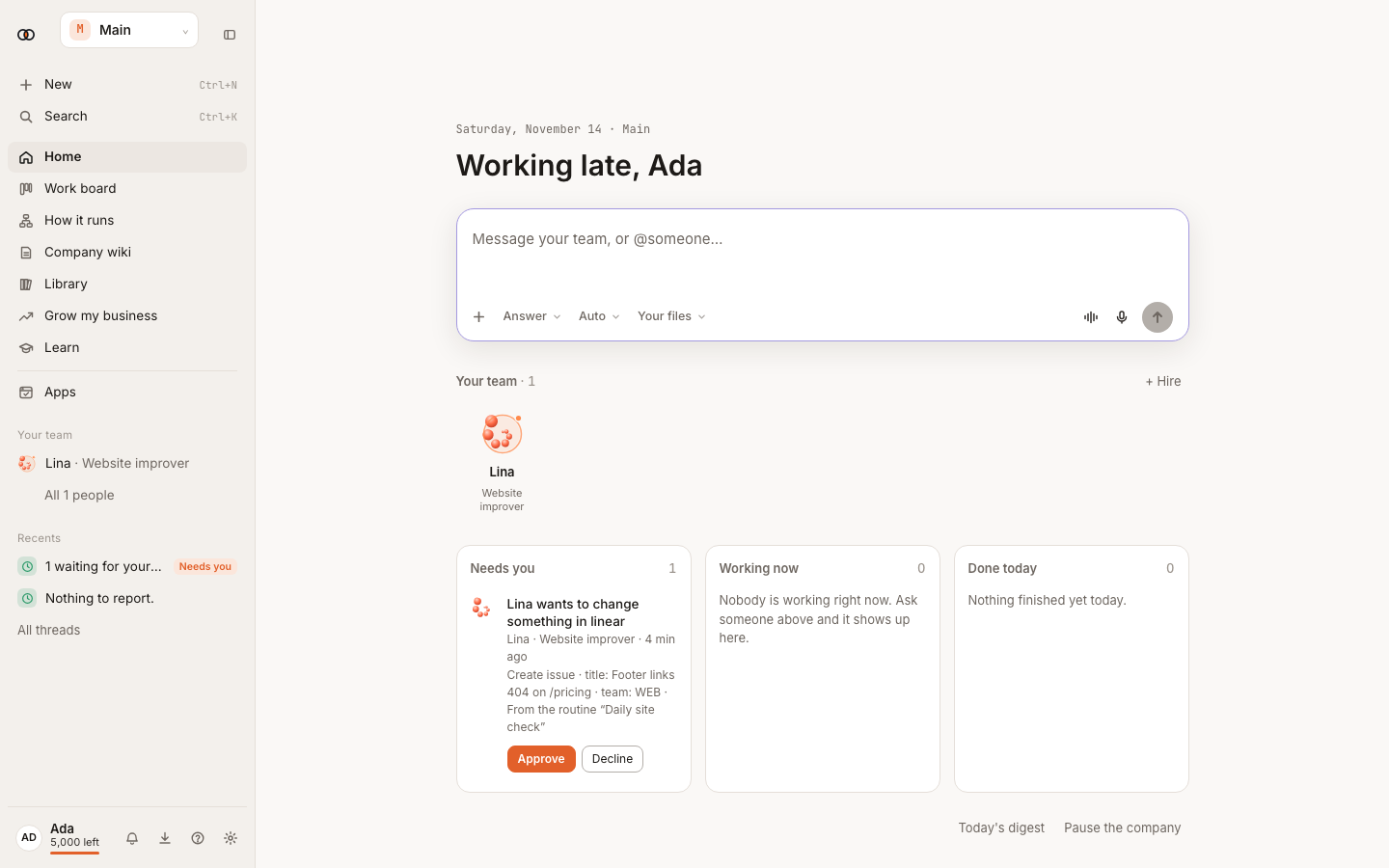
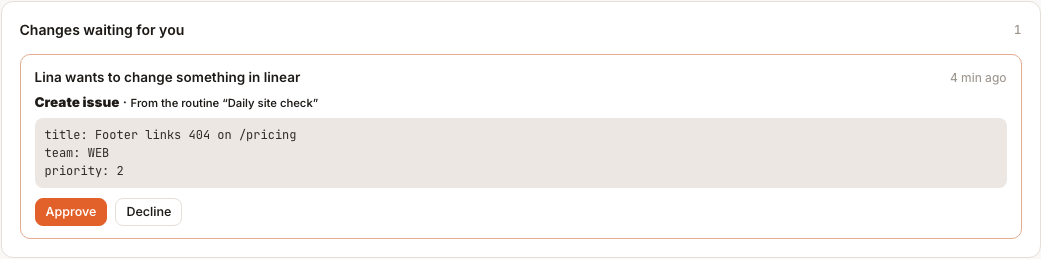
- Read the issue title, team and priority in Needs you, then select Approve.
Result: only reviewed findings become Linear issues.
5. Answer online-shop customers#
What you need: the Shop pack, product and policy files.
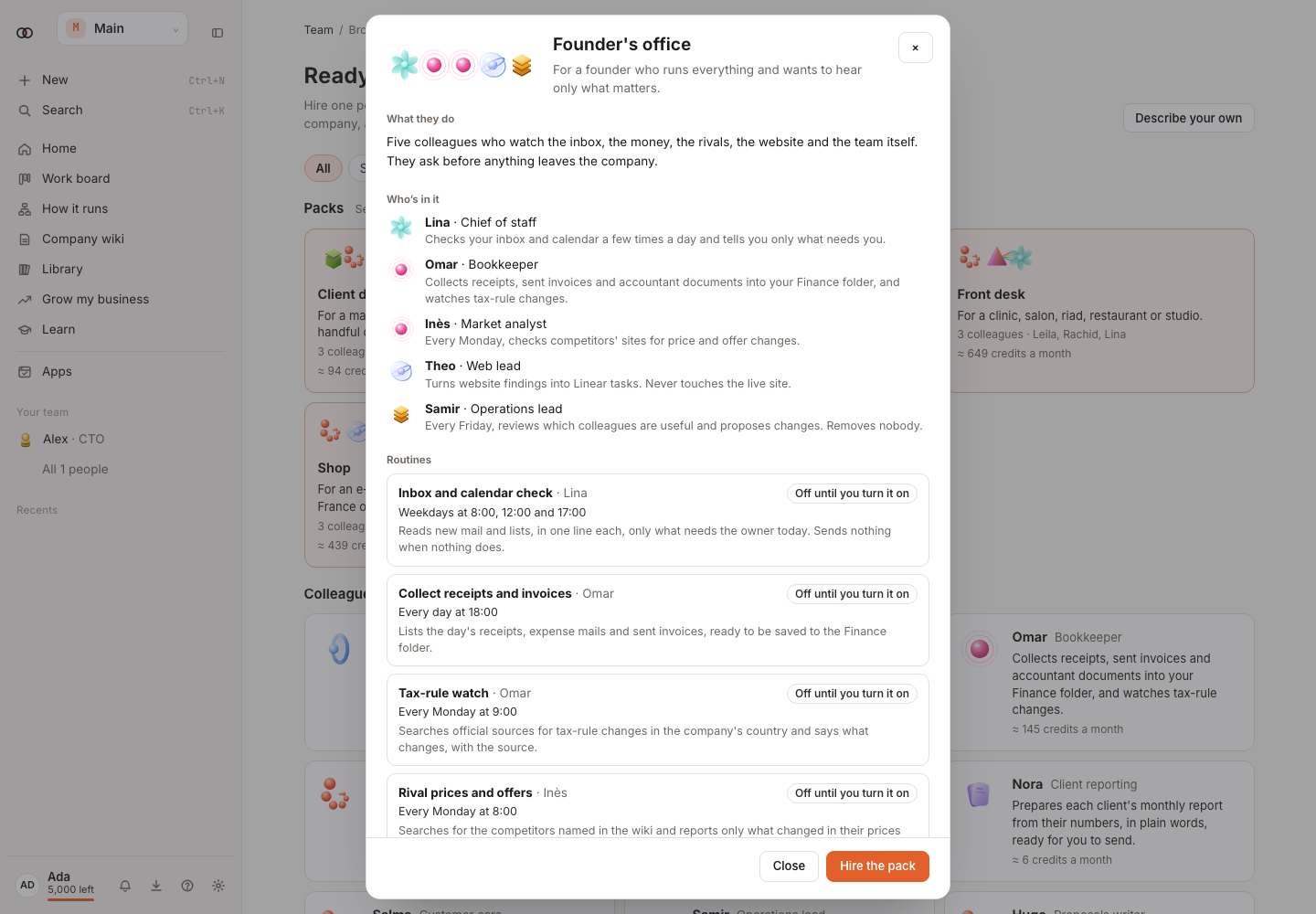
- Hire the Shop pack from Browse colleagues.
- Review its colleagues and leave its routines off while you add product, delivery and return facts.
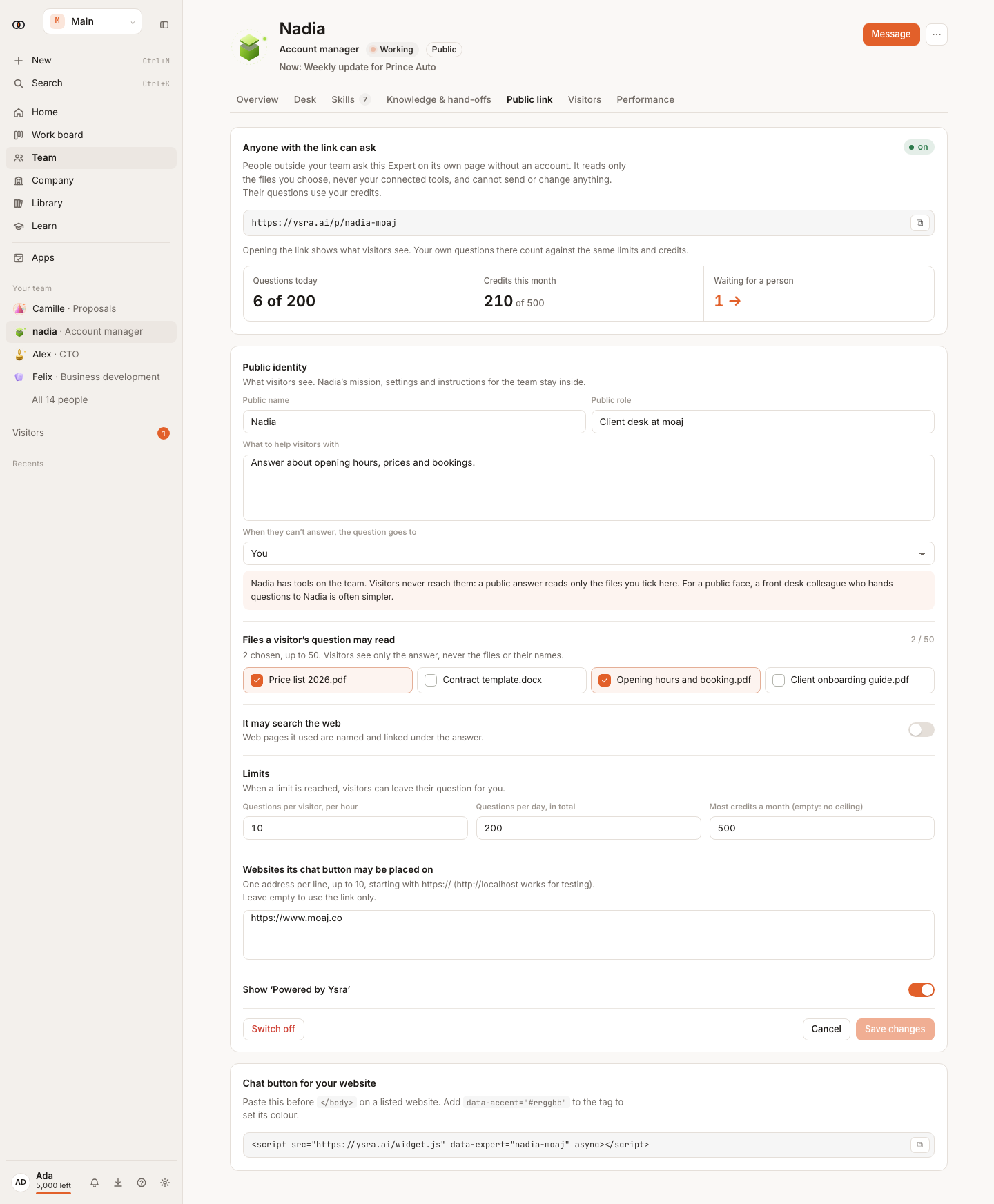
- Put the customer-care colleague on a public link.
- Review visitor questions under Team → Visitors.
Result: public answers use only the sources you selected; difficult cases hand off into your team.
6. Let a clinic front desk answer visitors and hand bookings to you#
What you need: a front-desk colleague, a public link, and approved clinic files.
- Add current prices, opening hours and services as that colleague's public sources.
- Turn on the public link and test those three kinds of question while signed out.
- In its instructions, say: “Never confirm a booking. Ask for the request and hand it to me.”
- Choose yourself as the hand-off. Review booking requests in Needs you or Slack.
Result: visitors get answers from clinic files; a person decides every booking.
7. Prepare an agency client report#
What you need: Client Reporting and the approved source files.
- Hire Client Reporting.
- Add the reporting period, metrics and writing style to its instructions.
- Attach the source files in Ask and request the report.
- Check the source cards and download the finished document.
Result: a client-ready draft whose figures can be traced to the supplied files.
8. Review security before launch#
What you need: a repository and Mayz; Pro or higher for a live test.
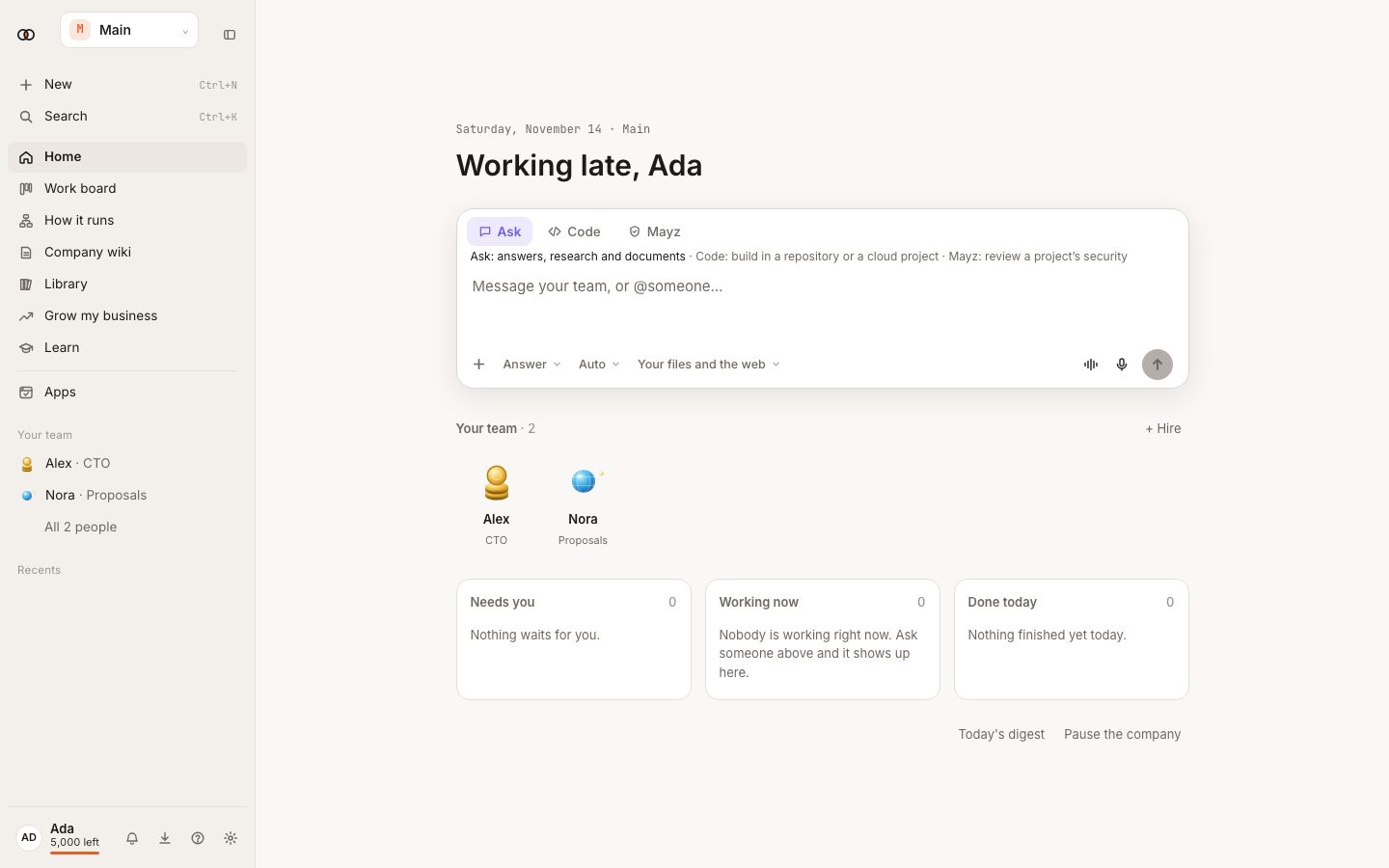
- Choose Mayz above the message box.
- Select the repository and the security review.
- For a live test, review every setup line and use fake test data.
- Confirm the setup, then read the report and evidence.
Result: a review report with findings, proof and next actions.
9. Start a code change from Slack#
What you need: Pro, Max, Team or Enterprise; Slack; a colleague with Code; a repository.
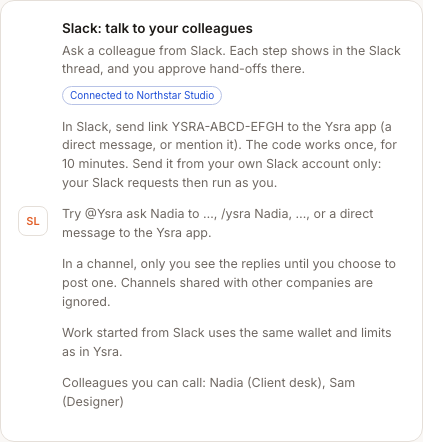
- Connect Slack and link your Slack identity.
- Mention
@Ysra, name the colleague and describe the change and check. - Approve a waiting hand-off in Slack if shown.
- Open the Code thread in Ysra to review the diff and pull request.
Result: the request reaches the same workspace and controls as a web request; you review code before merging.
10. Fill a supplier web form#
What you need: Pro or higher and a colleague allowed to use a computer.
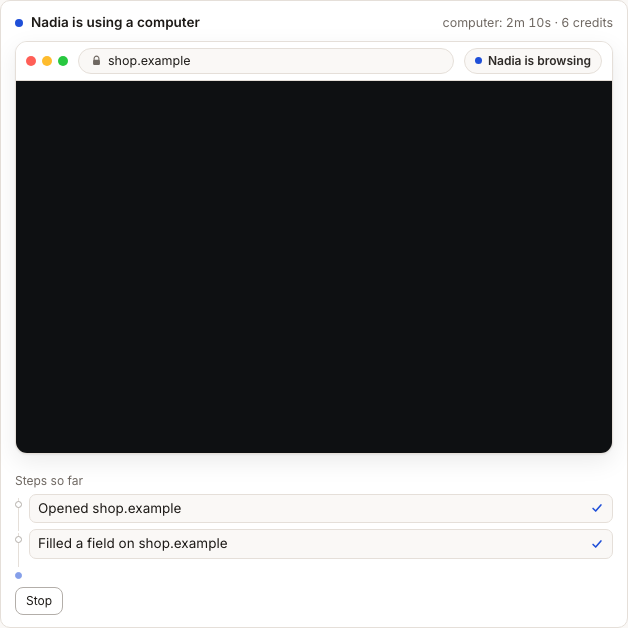
- Send the form URL, the approved values and the instruction “stop before submit”.
- Watch each plain-language step in the live view.
- Select Take over to sign in if the supplier requires an account.
- Check the final screen, then approve the submit.
Result: the form is submitted only after your final approval; sign-in details are typed by you and end with the computer session.
11. Put a public FAQ colleague on your site#
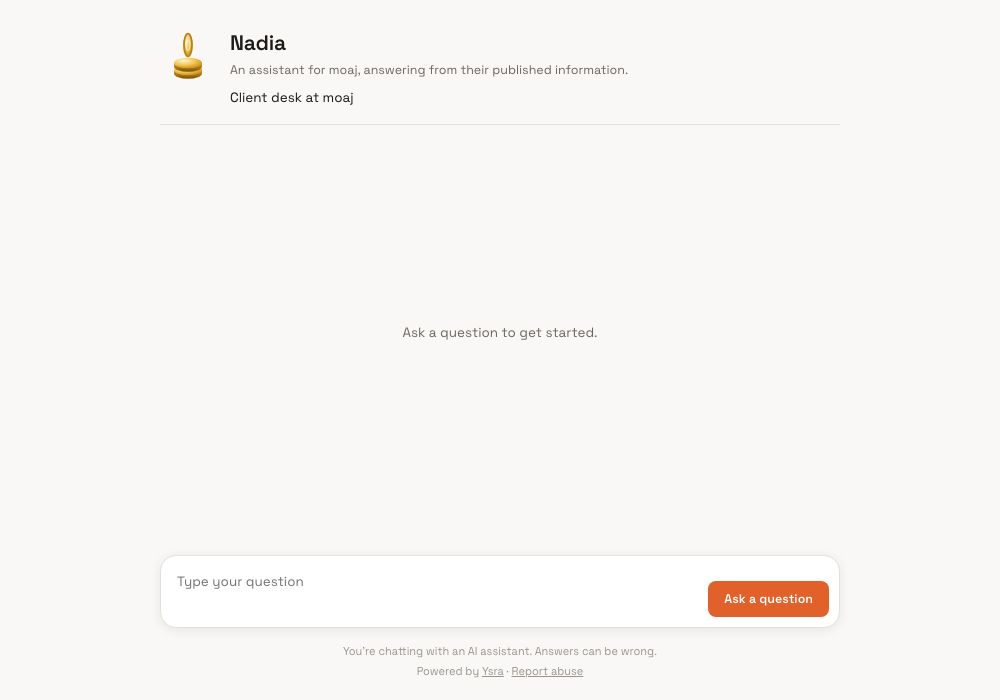
What you need: a colleague and approved FAQ or policy files.
- Choose the colleague's public settings.
- Select only the files visitors may use.
- Turn on the public link and test it while signed out.
- Add the link to your site and review Visitors.
Result: visitors ask without an account; you keep internal sources out of the public colleague.
12. Ask for a nightly attendance check-in#
What you need: a colleague and, optionally, a table with an attendance column.
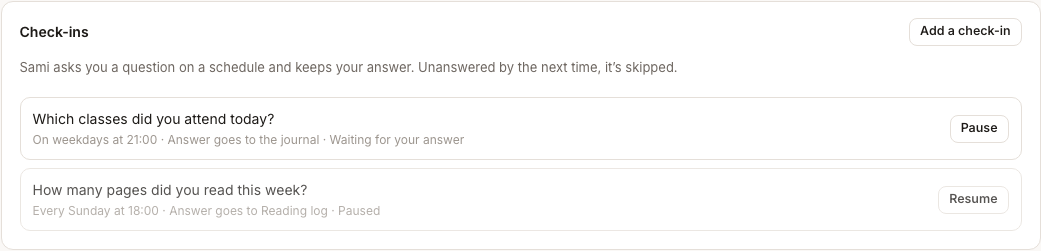
- Open the colleague's Desk → Check-ins and select Add check-in.
- Ask “Were you present today?” and schedule it for the end of each workday.
- Choose the colleague's journal or the attendance table as the destination.
- Answer the first check-in from Needs you, Slack or Telegram, then confirm that the journal or table received it.
Result: one scheduled question records each answer in the place you chose.
Limits and troubleshooting#
Each recipe uses the limits of its colleague, routine, app, chat connection or computer. If a step is refused, open the message: it names the missing app, waiting approval or plan limit. See Wallet, plans and limits and Approvals and control.