Approve work and keep control
On this page
Use Asks you before…, Needs you, and monthly limits to decide which work runs automatically and which work waits for you.
Before you start#
You must own the colleague to change their controls. Owners and people allowed to manage billing can change monthly limits.
Choose what asks first#
- Open Team, choose a colleague, then open their controls.
- Under Asks you before…, review actions such as sending outside your company, spending over budget, publishing, hiring, changing tools, starting routines, or handing work to another colleague.
- Choose the available setting. Sending outside your company and hiring always keep a human decision.
The same choices read as one level on the Team map: Ask, Approve or Auto. A colleague on a team does at most what the team allows, and the team's approvers decide what they ask. See Organise your team on the Team map.
Answer Needs you#
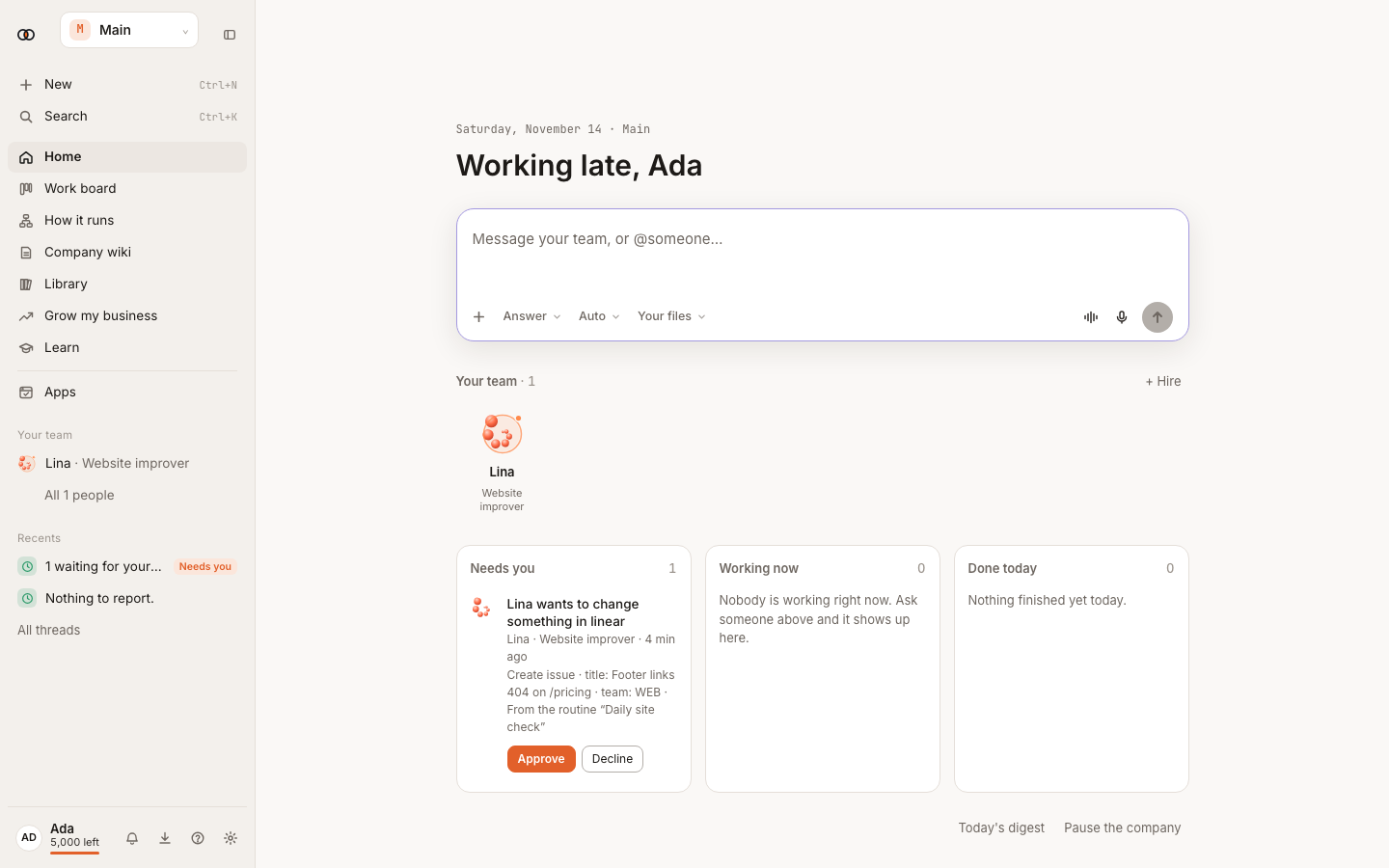
- Open Home, the colleague's Desk, or What's happening on the Team map.
- Under Needs you, read who wants to act, the exact action, its reason and any credit amount.
- Select Approve to continue or Decline / Not now to stop that action. Approving once does not approve a different future action.
Set a monthly limit#
- Open Settings → People & colleagues.
- Find the colleague and enter their monthly credit limit.
- Leave the field empty to remove the limit.
When a colleague would go past the limit, they ask in Needs you with the amount and reason. Nothing stops without telling you.
What happens next#
An approved item continues in its original conversation or routine. A declined item changes nothing. The decision remains visible in the work history.
Tips#
- Start with more actions asking first, then relax a control after you have reviewed several good results.
- Use a monthly limit for spend control, not as a substitute for action-level approval.
Limits by plan#
Approval controls are available wherever the related feature is available. Monthly limits do not add credits to the wallet and cannot exceed what the workspace can spend.
Troubleshooting#
- Why is this waiting? Open the card. It names the control, line rule, monthly limit or missing sign-in that caused the wait.
- You cannot change a limit: ask the workspace owner or billing manager.
- Approve is no longer available: the item was already decided or the underlying work ended. Refresh Needs you.