Use a colleague's page
On this page
A colleague's page is where you see who they are, give them work and control how they work. Start here before changing tools, sources, hand-offs or public access.
Before you start#
Hire a colleague from Team. You can message any colleague you may use; only their owner can change all their settings.
Open the page#
- Open Team.
- Select the colleague's card.
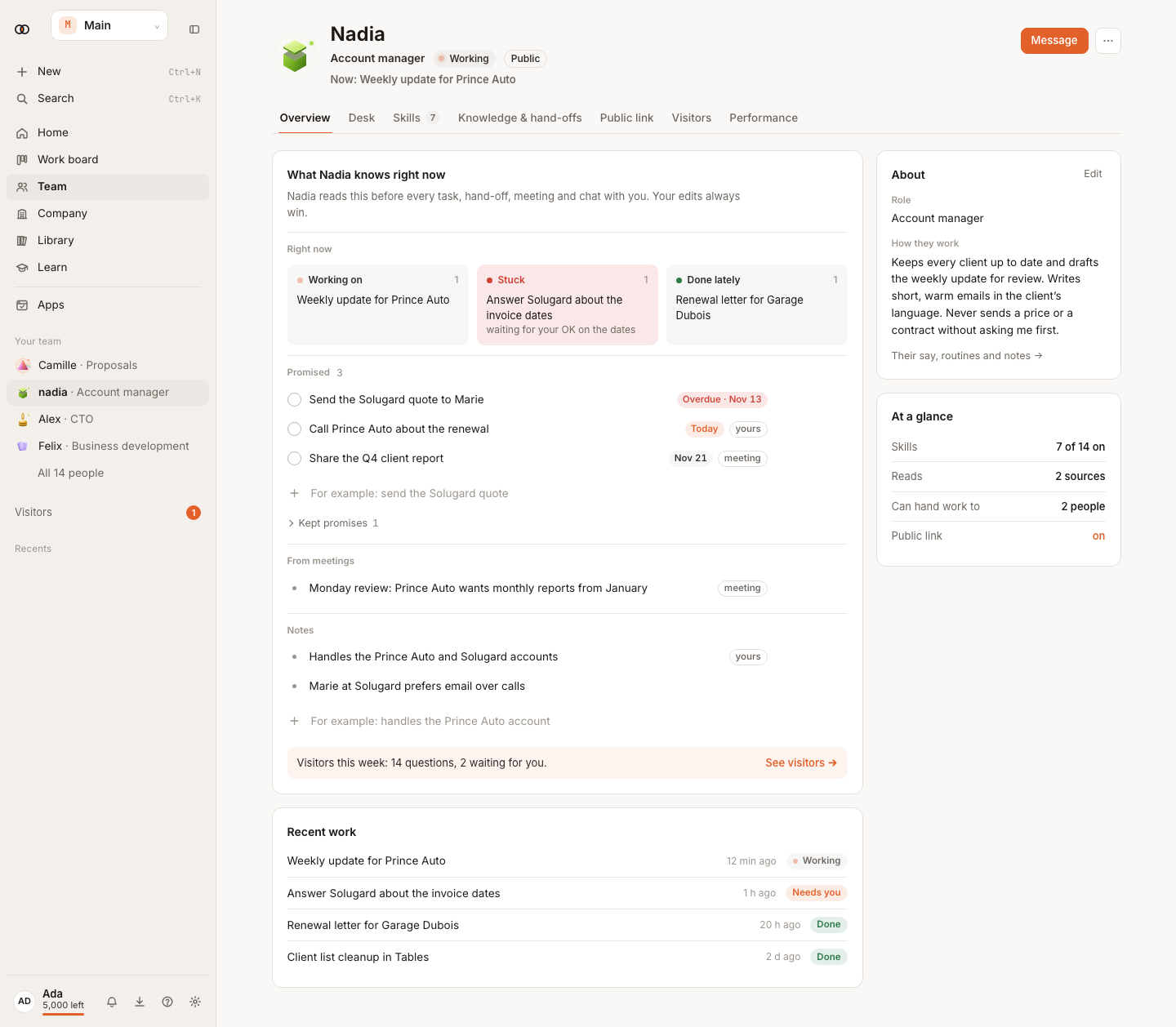
- Check the status beside their role: Working, Needs you, Available, Off, or Paused.
- Select Message to open Home already speaking to that colleague.
Use each section#
- Overview shows what they are doing, recent work, their role and how they work. Select Edit to change their role or instructions.
- Desk shows their week, waiting decisions, suggestions, check-ins and Look for work. It appears for the person who hired them.
- Skills controls what they may find, make, change and schedule.
- Knowledge & hand-offs controls what they read and who may receive part of their work.
- Public link chooses what visitors see and which files answer them.
- Visitors appears when the public link is on.
- Performance shows completed work, failures, waits, approvals, answers and credits for the selected period.
Turn a colleague off#
Open More, then select Turn off. They take no new work and their public link stops, but their settings and history stay. Select Turn back on when you want them to work again. Remove from the team is permanent and asks for confirmation.
What happens next#
Changes to a skill are saved immediately. Instruction, source and hand-off changes apply to new work; work already running keeps the setup it started with.
Tips#
- Use Message for a one-time correction; edit instructions for a standing rule.
- Check Desk before changing a colleague who is waiting for you.
- Turn off before removing when you may want the colleague back later.
Limits by plan#
The page itself has no charge. Work, connected apps and active-colleague limits follow your plan.
Troubleshooting#
- A section is read-only: you may use the colleague but do not own them.
- Visitors is missing: turn on Public link first.
- A colleague says Off: open More → Turn back on.
Related#
Hire and shape colleagues · Choose a colleague's tools · Talk to a colleague