Let a colleague use a computer
On this page
A colleague's computer lets them work through a website while you watch. You see each step, keep control of irreversible actions and type sign-in details yourself.
Before you start#
You need Pro, Max, Team or Enterprise. Turn on the relevant skill for the colleague and give them the website, values to use and a clear stopping point.
Start and watch the work#
- Message the colleague with the website task. For a form, say whether to stop before Submit.
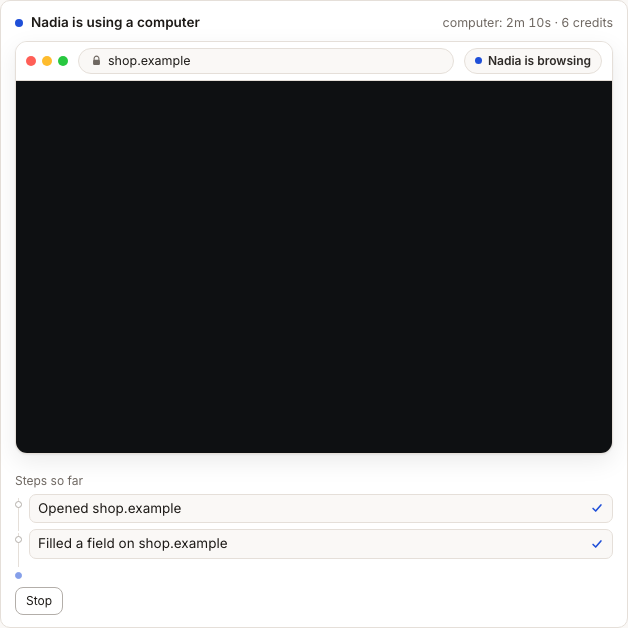
- Watch the live website, the colleague's reason, plain-language steps, elapsed time and running credits.
- Select Stop if the steps no longer match your request.
Approve an irreversible step#
Opening, reading and clicking through pages never asks for your OK. A submit, payment, purchase, deletion, publication or signature pauses with a picture of the screen. Read the step and select the displayed decision.
- A step you approve isn't asked again in the same task. A send is asked each time it is sent.
- For a send or a publication, Approve all on {site} for this task approves that kind of step on that site for the rest of the task.
- Payments, uploads and deletions always ask, and Approve all is never offered when the page shows an amount or a file is attached.
Sign in yourself#
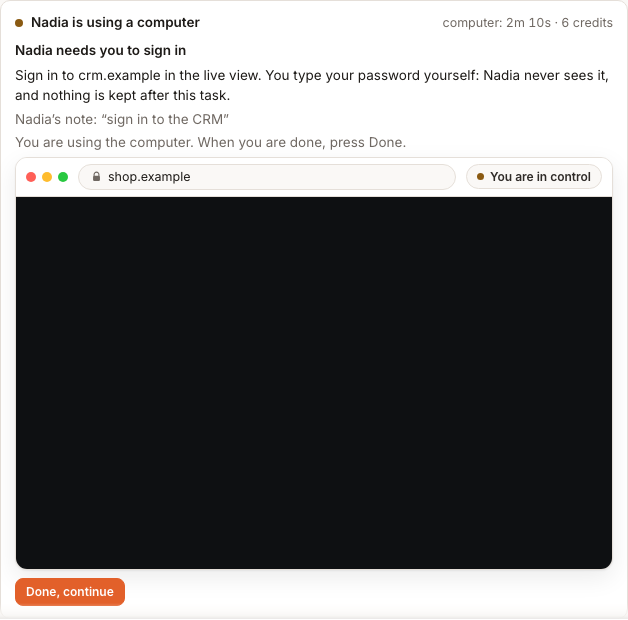
- When the sign-in card appears, select Take over to sign in.
- Wait until the live view says You are in control.
- Type the username, password and any verification code yourself.
- Hand control back so the colleague can continue.
The colleague never sees or types your password. The sign-in session ends with that computer task and is not kept for later.
What happens next#
When the task finishes, the conversation keeps the last screen, every step, elapsed time and credits. A task that could not start charges nothing and offers Try again.
Tips#
- Include expected final values so you can compare the last screen.
- Ask the colleague to stop before submitting when you want a final review.
- Never paste a password into the conversation.
- A link into one of your apps, such as a Google Drive folder, offers that app's Connect card: connecting it is usually faster than clicking through it on the computer.
Limits by plan#
Pro allows one computer at a time for up to five minutes. Max allows two at a time. Team allows at least one and adds capacity by seat count. Free and Starter do not include the computer.
Troubleshooting#
- The live view is coming: wait for startup; do not send the task twice.
- The computer couldn't start: select Try again; nothing was charged.
- Take over no longer works: the computer closed; start the task again.