Put a colleague on your website
On this page
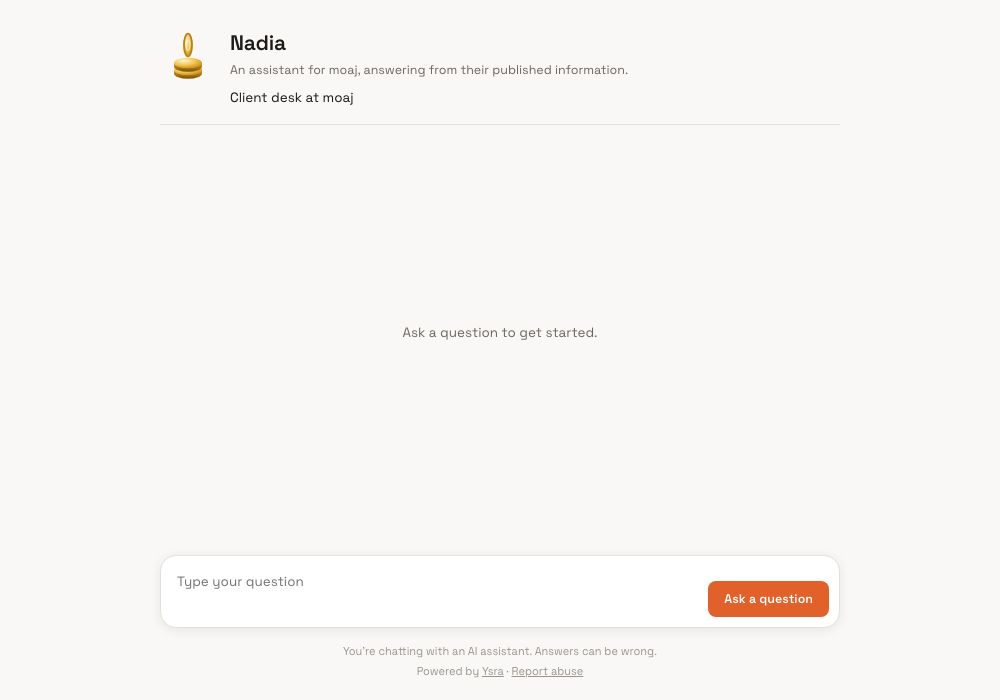
Give visitors a public link to one colleague. Choose the files and knowledge they may use, then review visitor conversations and hand-offs in Ysra.
Before you start#
Hire the colleague and prepare the files visitors may receive answers from. Do not include private workspace sources in the public colleague's selection.
Create the public link#
- Open Team and choose the colleague.
- Open their public or visitor settings.
- Choose the files and sources they may use for visitor answers.
- Review their public introduction and starter questions.
- Turn on the public link and copy it to your website.
Review and hand off visitors#
Open Team → Visitors to see what visitors asked. A colleague may hand work to you or another colleague only through the same hand-off and approval rules as internal work.
What happens next#
Anyone with the public link can ask without signing in. Visitor work appears in the colleague's activity and on the Team map. Removing a source stops it from being used for future answers.
Tips#
- Test the public link in a signed-out browser before placing it on your site.
- Use a separate colleague for public answers when internal instructions or sources are broader.
Limits by plan#
Public answers use the workspace wallet. The public colleague also counts toward your plan's active-colleague limit.
Troubleshooting#
- An answer lacks a fact: add the approved file or source, then ask again.
- A private fact appeared: turn off the link, remove the source, review the visitor conversation and update the colleague's instructions.
- The link is unavailable: confirm the colleague is active and public access is still turned on.