Choose what a colleague can use
On this page
The Skills section on a colleague's page controls what that colleague may use. It does not give them every connected account or let them skip approvals.
Before you start#
Open Team, choose the colleague, then open Skills. You must be allowed to edit that colleague. Connect external apps from Settings → Connectors.
Turn skills on or off#
- Read the skill's description before switching it on.
- Turn on only what the colleague needs for their job.
- The switch saves immediately.
- Open Knowledge & hand-offs to choose specific sources and people.
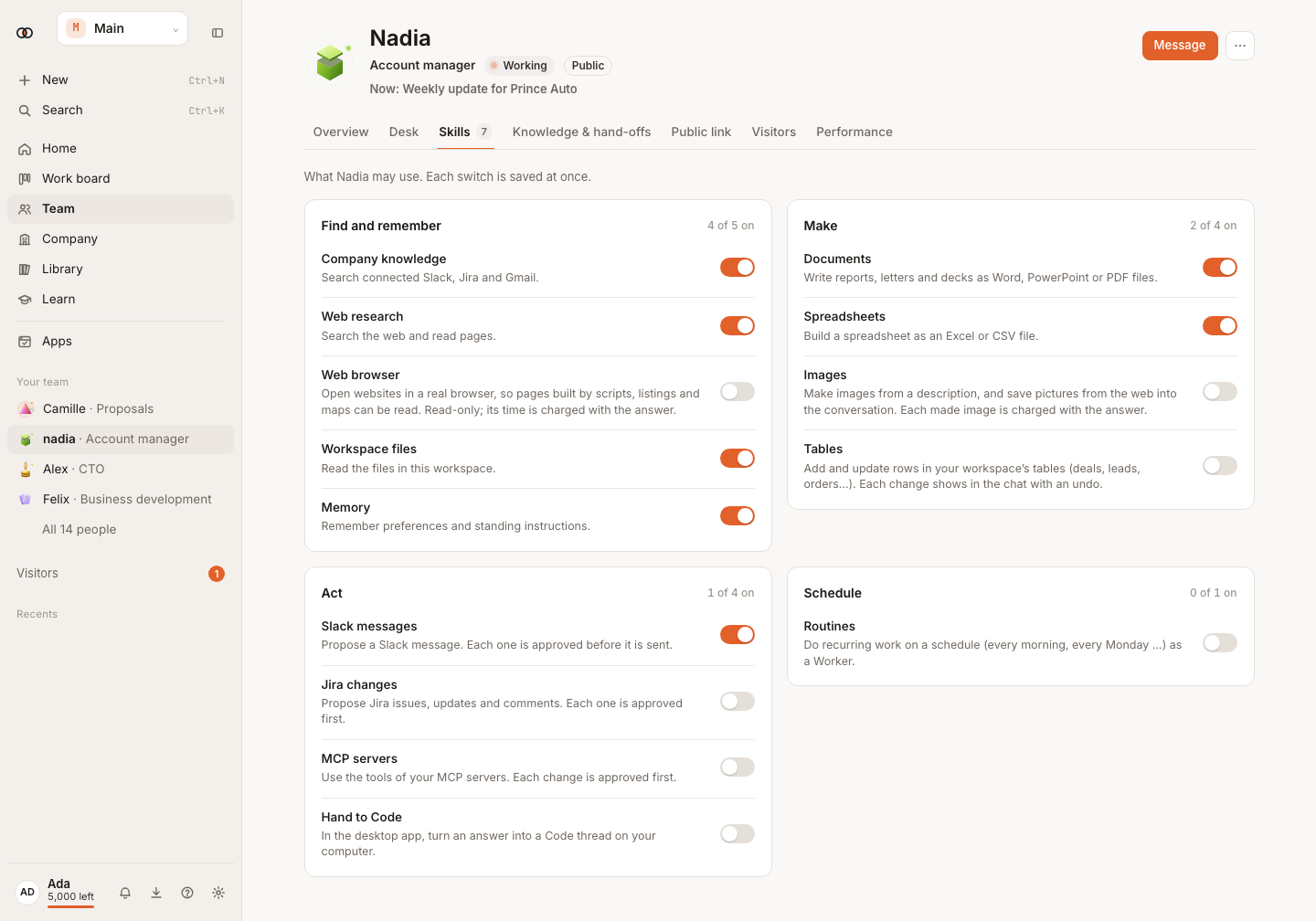
Find and remember#
These skills can include company knowledge, web research, the web browser, workspace files and Own notes. A skill permits the kind of work; the sources selected under Knowledge & hand-offs decide which connected information the colleague searches.
Own notes lets the colleague keep notes of its own from your conversations. Your own memory, what you ask to remember, is always on for every colleague. See Memory.
Make#
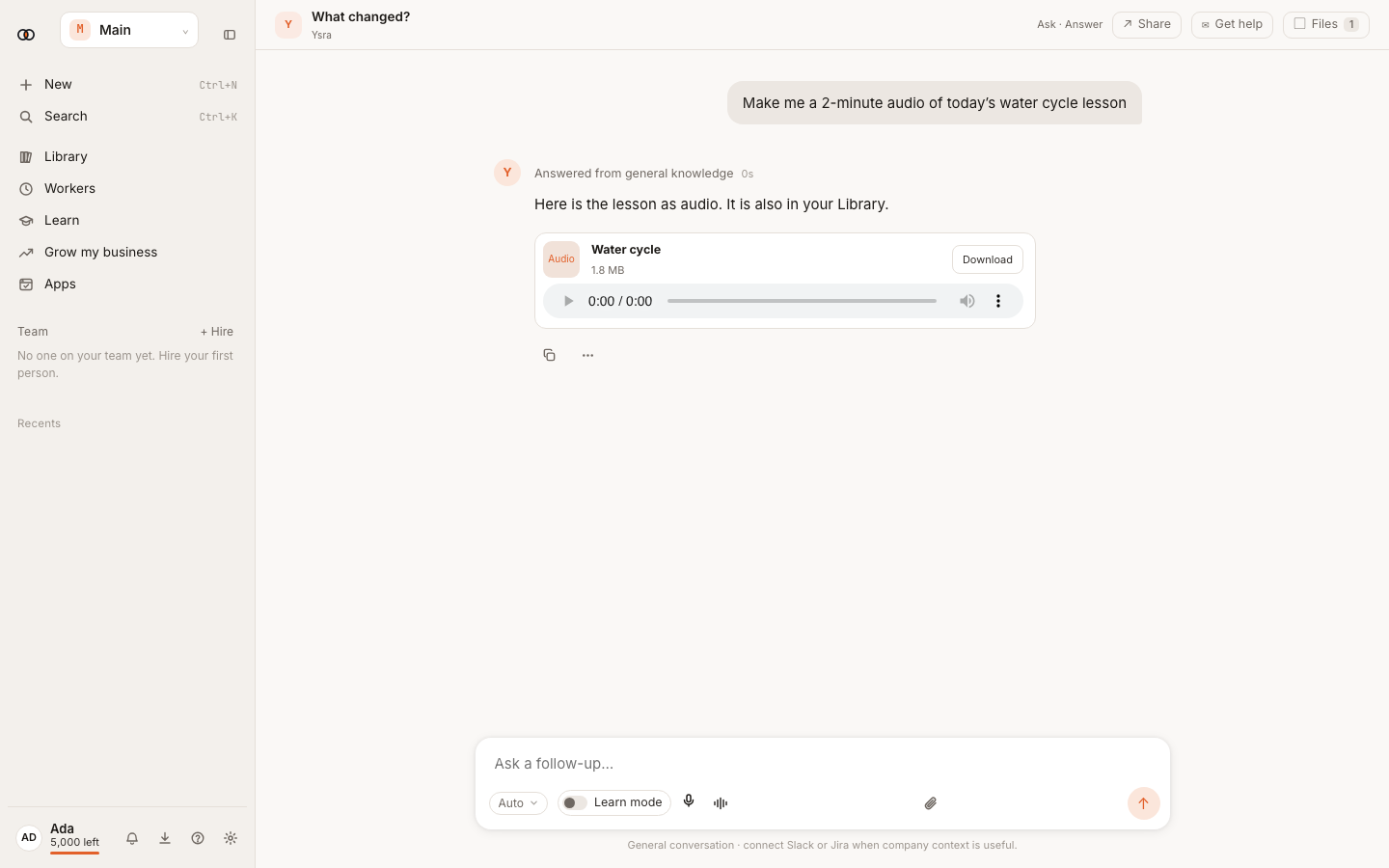
A colleague can make reports, documents, spreadsheets, tables, images and audio when those skills are available. For audio, ask them to read the final text aloud. Ysra creates an MP3, shows a player in the conversation and keeps the file in the Library. Audio over five minutes shows its minutes and credit cost first; nothing is made or charged until you confirm.
Act#
These skills can draft or make changes in connected apps, send approved messages, hand work to Code, or use a colleague's computer. A skill being on does not remove Asks you before…. The exact external change can still wait in Needs you.
Schedule#
Scheduling skills let the colleague own routines and check-ins. The routine's own schedule, app permissions and approvals still apply.
What happens next#
The colleague can use an enabled skill on new work. Turning a skill off removes it from future work; it does not delete files or past results.
Tips#
- Start with the smallest useful set of skills.
- Use Knowledge & hand-offs for source and colleague scope.
- Test a new skill with a small request before adding it to a routine.
Limits by plan#
Your plan can limit connected apps, routines, the computer and Mayz live. Audio is charged to the workspace wallet.
Troubleshooting#
- A switch is unavailable: ask the colleague's owner.
- A connected app is not listed: connect it in Settings → Connectors.
- The colleague still asks first: the action is protected by their approval setting; decide it in Needs you.
Related#
Use a colleague's page · Approvals and control · A colleague's computer