Talk to a colleague anywhere
On this page
Start on the colleague's page, then keep the conversation going in Home, Slack or Telegram. Slack is the full work channel. Telegram is for check-ins, notifications and an approved Ask message.
Before you start#
Slack requires Pro, Max, Team or Enterprise. Telegram requires Starter or higher. A workspace owner connects Slack; each person then links their own chat identity to their Ysra account.
Connect Slack#
- Open Settings → Connectors → Slack and select Connect.
- Approve the Slack installation and return to Ysra.
- Open the colleague's page and select Link my Slack account.
- Enter the one-time code in Slack. Ysra then shows the linked Slack account.
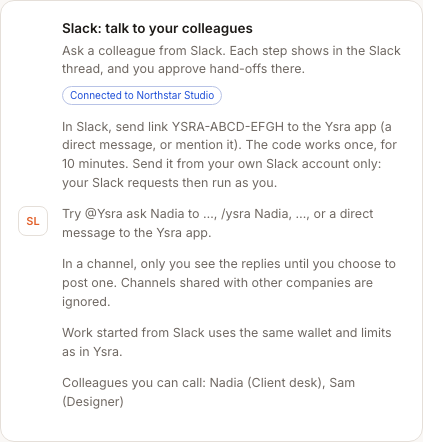
Ask from Slack#
- In a channel, mention
@Ysraand say which colleague you need, or let Ysra choose from the colleagues you may use. - In a direct message, send the request to Ysra.
- Use
/ysrawhen the slash command is available.
The answer is private to you first. Select Post to channel only after you have checked that it contains nothing private.
Approve in Slack#
A hand-off or limit that waits shows Approve and Not now. The button decides that one waiting item. The colleague posts the result after the work finishes.
Use Telegram for check-ins and notifications#
- Open Settings → Connectors → Telegram and follow the connection steps.
- When a scheduled check-in arrives, reply to it in Telegram. The answer is written to that colleague's journal or selected table.
- Read colleague notifications there.
- In Ask, approve Send to Telegram when you want that answer sent to you.
Telegram does not choose a named colleague or approve a hand-off. Use Slack or Ysra for those jobs.
What happens next#
Requests run as your linked Ysra account, in its workspace, with the same colleague access, limits and credits as the web app. Shared channels with outside people receive no colleague reply.
Tips#
- Name the colleague in the request when several people have similar jobs.
- Keep private-source answers private unless you deliberately post them.
Limits by plan#
Free has neither chat connection. Starter has Telegram. Pro, Max and Team have Telegram and Slack. Team app connections made by the organisation owner are shared with the team.
Troubleshooting#
- Connect your account: use the one-time linking code from the colleague's Slack card.
- Waiting for the owner: a workspace owner must install Slack first.
- No answer in a shared channel: Ysra does not reply where outside members could receive workspace information.