Plans and billing
Choose a plan, buy extra credits, set up automatic top-ups, manage payment methods and find invoices — and see who can pay in an organisation.
On this page
Billing is where you manage your plan, extra credits, payment methods, automatic top-ups and invoices. This page is for whoever pays for an account or an organisation. Open Settings → Billing in the web or desktop app; everything is paid inside the page. What uses credits is on Credits and usage.
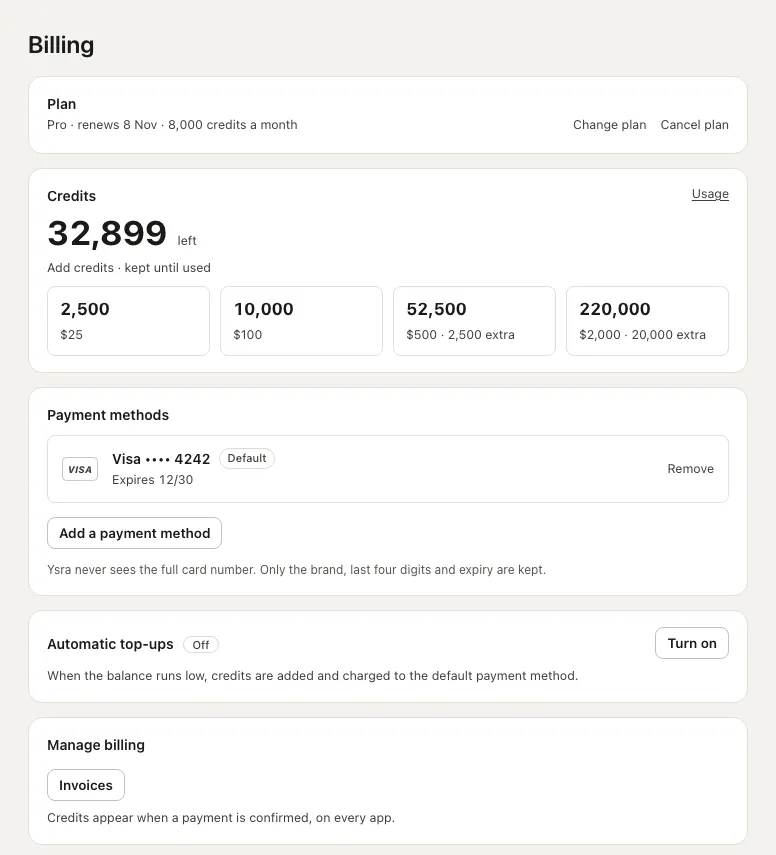
Billing in the web app.
How credits are priced#
100 credits = $1. A plan adds credits every month, and they end on the renewal date; extra credits are kept until used. Plan credits are used first.
Plans#
| Plan | Price | Credits each month | For |
|---|---|---|---|
| Starter | $20 a month | 1,500 | One person |
| Pro | $100 a month | 8,000 | One person |
| Max | $300 a month | 25,000 | One person |
| Team | $40 a seat, a month | 3,000 a seat, shared by the team | An organisation, 1 to 500 Seats |
Without a plan there is no cloud; plans also set cloud hours, machine sizes and voice minutes. See Limits and costs.
Before your first purchase#
Before you start a plan or buy credits, you tick one box:
I want my credits available now, and I understand I lose my 14-day right to withdraw for credits I use.
The box is required: it lets your credits work at once. The Terms set out the right to withdraw in full.
Extra credits#
Credit packs add credits on top of a plan, or without one, and are kept until used.
| Credits | Price | Extra |
|---|---|---|
| 2,500 | $25 | — |
| 10,000 | $100 | — |
| 52,500 | $500 | 2,500 (+5%) |
| 220,000 | $2,000 | 20,000 (+10%) |
Other amount#
In the web app, Other amount buys credit for any whole-dollar amount from $5 to $5,000, at 100 credits a dollar, with no extra credits. An amount equal to a pack's price is that pack, extra included. Outside the range, or not in whole dollars: "Choose an amount between $5 and $5,000, in whole dollars."
Buy credits#
- Under Credits, choose a pack (or Other amount). Add credits on the Usage page opens the same packs.
- Under Pay with, pick a saved payment method, or A new card. Tick Keep this card for next time to save it. An expired card can't be chosen.
- Choose Pay.
| Result | Meaning |
|---|---|
| "2,500 credits added." | The credits are there, in every app |
| "The bank is still confirming the payment." | Added as soon as the bank confirms |
| "The payment didn’t go through, so no credits were added." | Nothing was charged; try another payment method |
Start a plan#
- Under Plan, choose Choose on the plan's card.
- Pick a saved payment method, or enter a new card. The plan renews with this card each month.
- Choose Start. The credits are added at once.
If the payment is refused, the plan doesn't start and nothing is charged. Once on a plan, its row shows the renewal date and monthly credits, with Change plan and Cancel plan.
Change a plan#
Change plan works both ways; on Team, seats are changed there too.
| Change | When it applies | Payment |
|---|---|---|
| A bigger plan, or more seats | At once; the extra credits are added at once | The difference for the rest of this month, now. Needs a payment method; if refused, nothing changes |
| A smaller plan, or fewer seats | At the next renewal | None now. Until then the plan shows the change coming, with Keep to undo it |
Cancel or resume#
| Situation | What happens |
|---|---|
| You cancel | Cancel plan asks first. The plan and its credits stay until the renewal date; nothing is refunded; extra credits are kept |
| Before that date | Resume plan keeps the plan |
| After that date | No plan: no monthly credits, no cloud |
| A renewal payment fails | "The last payment didn’t go through. Update the payment method to keep the plan." See Payment methods |
Payment methods#
Up to 10 saved cards. The Default is charged for extra credits, automatic top-ups and plan renewals. Each shows its brand, last four digits and expiry, or Expired; where offered, a Link entry shows its email address.
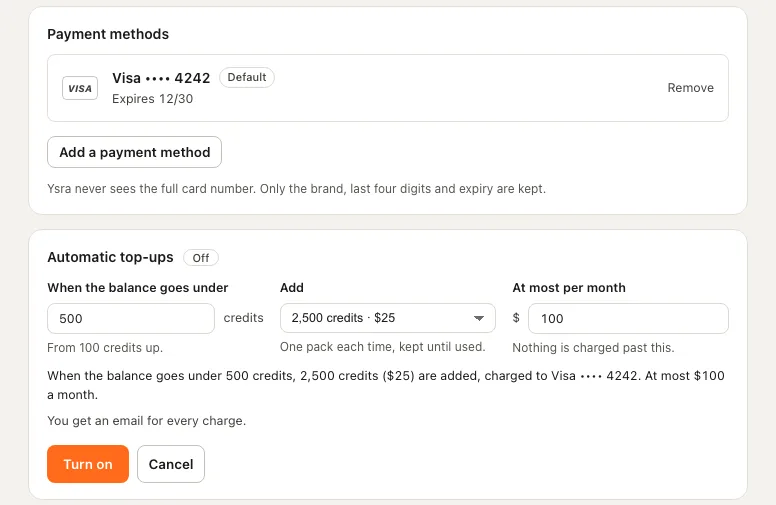
Payment methods, and automatic top-ups being turned on.
| To | Do this |
|---|---|
| Add one | Add a payment method, enter the card, Save. Tick Use for charges from now on to make it the default. The same card twice is kept once |
| Change the default | Make default on another one |
| Remove one | Remove, then Remove it. Removing the default makes another one the default |
The last payment method can't be removed while a plan renews with it: "The plan renews with this card. Add another card, or cancel the plan first." Removing the last one also turns automatic top-ups off.
Ysra never sees the full card number: only the brand, last four digits and expiry are kept. Only the person who pays sees payment methods.
Automatic top-ups#
Automatic top-ups add credits when the balance runs low, so work doesn't stop. They're Off until turned on and need a payment method.
| Setting | Values |
|---|---|
| When the balance goes under | A number of credits, from 100 up |
| Add | A credit pack, or in the web app Other amount… (whole dollars, from $5), each time |
| At most per month | A dollar limit, at least one pack's price; nothing is charged past it |
To turn them on: Turn on, set the three values, check the rule read back, then Turn on. An email is sent for every charge, for a refused payment, and when the month's limit is reached.
| Status | Meaning | What to do |
|---|---|---|
| Off | Nothing is added automatically | Turn on |
| On | Credits are added whenever the balance goes under your number | Nothing |
| Paused | "The payment was refused, so automatic top-ups are paused." | Change payment method, or save the settings again |
| Limit reached | "This month’s limit is reached. Credits won’t be added automatically until next month." | Raise the limit, or wait for the next calendar month |
A paused account is never topped up.
Invoices#
Every plan payment, credit pack and automatic top-up has an invoice with its own number and a PDF, listed under Manage billing → Invoices. View opens one; PDF downloads it.
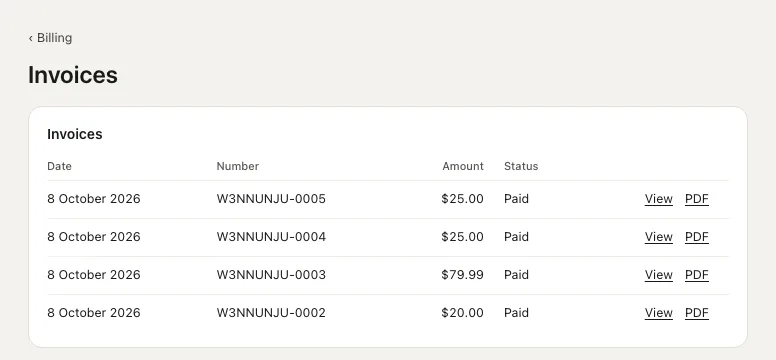
Invoices in the web app.
Each row shows Date, Number, Amount and Status: Paid, Not paid yet or Not collected. A payment that was started but not finished, or refused, has no invoice.
Who pays in an organisation#
An organisation's credits are used by everyone in it.
| Person | Can |
|---|---|
| Owners, and anyone an owner gave the Billing switch | See and change everything on this page |
| Everyone else, admins included | See credits left and what used them on the Usage page; not change the plan, payment methods or top-ups, nor see invoices. Billing reads "Billing for this account is managed by someone else. Ask them." |
Only an owner gives or takes away Billing. When credits run out, a member's thread says who to ask instead of offering Add credits. See Members and roles.
Billing in each app#
| App | What you can do |
|---|---|
| Web app | Everything: Settings → Billing, Settings → Usage and Invoices |
| Desktop app | Everything, in Settings → Usage and Settings → Billing; cards, payments and invoices open in a secure window of the app |
| Phone, Settings → Usage | See credits, the plan, usage, payment methods and top-ups. Nothing is changed from the phone: Manage subscription opens Billing in the web app |
| Command line | ysra usage (--json for scripts); ysra billing prints the plan, card and top-up lines and opens Billing in the web app; ysra billing plans, ysra billing credits; /usage and /billing in a conversation |
A paused account#
Ysra can pause an account, for example while a payment is disputed with the bank. Nothing is taken away or deleted.
| Still works | Stops |
|---|---|
| Signing in, reading everything, managing billing | New work that uses credits; running work stops before its next step, with everything kept; automatic top-ups |
Every app shows "This account is paused. Write to support@ysra.ai." and the sidebar shows Account paused. Write to support@ysra.ai; once the account is resumed, tell Ysra to continue and the work picks up where it paused.
Related#
- Credits and usage — what costs what, the Usage page, running out.
- Limits and costs — what each plan includes beyond credits.
- Members and roles — owners, admins and the Billing switch.
- Sign in and where you're signed in — account access.