Sign in and where you're signed in
Get an account, sign in the desktop app and the CLI from your browser, see and end every sign-in, reset your password and verify your email.
On this page
A sign-in is one app or browser holding access to your Ysra account. You sign in once in the web app at app.ysra.ai with your work email and password; the desktop app and the command line then sign in from your browser, so they never see your password. This page covers getting an account, each way to sign in, the list of sign-ins and support visits, and passwords.
Code works on folders on your computer with the desktop app or the command line, signed in with the same account, and in Ysra’s cloud from the web, desktop and phone apps.
Your sign-ins at a glance#
Every app signed in to your account is listed with where it is and when it was last used, and any of them can be ended from another. Changing your password ends them all.
Get an account#
Ysra is in early access, by invitation only.
| You have | What to do |
|---|---|
| An invitation | Open the link in the email someone on your team sent. See Members and roles. |
| No invitation | Request access from the Ysra team. |
The web app’s sign-in page offers the same under Sign in (“New to Ysra? Request access, or open the invitation link someone on your team sent you.”). The sign-up page, app.ysra.ai/signup, says “Sign-up isn’t open yet.” with Request access, and the desktop app’s sign-in screen offers Request access too.
If you have no workspace yet#
After you sign in, the web app and the desktop app ask you to Create your workspace when you don't have one of your own. Your earlier chats move into it. See Your own workspace.
Ways to sign in#
| App | Default | Alternatives |
|---|---|---|
| Web app | Email and password | — |
| Desktop app | Sign in to Ysra with your browser | Use a password instead; Use the ysra CLI login (reuses the command line’s sign-in on this computer) |
| Command line | ysra login (opens your browser) |
ysra login --no-browser (a code, for SSH); ysra login --password |
Sign in the desktop app#
Start from the app#
Choose Sign in to Ysra with your browser. The app shows Finish signing in in your browser while it waits.
Allow it in the browser#
The web app’s Allow this app to sign in? page names the app asking and the account it will sign in as, and says It was opened from an app on this computer. Choose Allow.
Go back to the app#
The tab says Signed in to Ysra. You can close this tab and go back to the app. The app is signed in.
Sign in the command line#
ysra login
The browser opens on the same Allow this app to sign in? page. After Allow, the terminal confirms:
Signed in as you@example.com. Your sign-in is kept in the Keychain.
| System | Where the sign-in is kept |
|---|---|
| macOS | The Keychain |
| Linux | The system keyring, or a file only you can read |
| Windows | A file only your Windows account can decrypt |
Without a browser, for example over SSH#
With no browser on that computer, or with ysra login --no-browser, the
command line prints a code:
On any device, open https://…/link and enter this code: ABCD-EFGH
Approve it only if you started this sign-in yourself.
Open the address in the web app on any device, enter the code under Enter
the code from the app., choose Continue, then Allow. A code is valid
for 10 minutes; if it expires, run ysra login again.
A typed code can come from another computer
The page warns: This request came from a typed code, so the app may be on another computer. Allow it only if you started it yourself, on your own terminal. If someone gave you this code, don't allow it.
Sign out#
ysra logout
ends this computer’s sign-in: Signed out of Ysra on this computer. A device
sign-in made with ysra login --device is separate and stays; ysra
uninstall removes it.
Where you're signed in#
| App | Where | What you can end |
|---|---|---|
| Web app | Settings → Signed in on: each sign-in with How (Password, Allowed from a browser, Invite), First signed in and Last used | Sign out on each |
| Desktop app | Settings → Accounts → Signed in on | Sign out on the others; Sign out everywhere… |
| Phone | Settings → Signed in on | Sign out on the others; Sign out everywhere |
| Command line | ysra sessions, under Where you're signed in:, marking (this one) |
Nothing: end one from the web app, the desktop app or the phone |
Sign out everywhere ends every sign-in, the app you are using included. The desktop app and the phone ask first; running work is not affected.
Apps signed in before this release
An app still holding a sign-in from before this release signs out everywhere when you choose Sign out, until you have signed in once on the new version.
Support access#
Ysra support can look at an account, read-only, to help. Each visit is listed for the account’s people, under a Support access heading with the note Read-only. Nothing was changed., as a line such as Ysra support viewed this account, 8 Oct. The last 90 days are shown.
| App | Where |
|---|---|
| Web app | Settings → Signed in on |
| Desktop app | Settings → Accounts → Signed in on |
| Phone | Settings → Signed in on |
| Command line | ysra sessions, after the sign-ins; nothing is printed when support hasn’t viewed the account |
Support access (read-only, nothing was changed):
  Ysra support viewed this account, 8 Oct
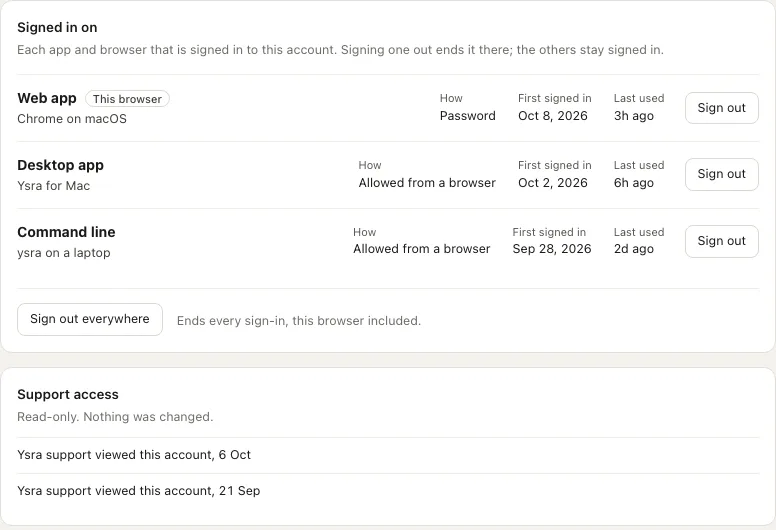
Signed in on, with Support access below the sign-ins.
Passwords#
| Rule | Value |
|---|---|
| Length | 8 to 128 characters |
| Too many wrong passwords | Sign-in for that email address pauses for a few minutes: “Too many wrong passwords. Try again in N minutes, or reset your password.” (N is the minutes left) |
| What ends the pause | Waiting the minutes shown, or a reset |
Forgot your password#
Ask for a link#
On the sign-in page choose Forgot password?, enter your email and choose Send the link. If the address has an account, a link arrives by email.
Set a new password#
The link works once and lasts one hour. It opens Set a new password.: enter it twice and choose Set the password.
Sign in again everywhere#
Changing the password signs every app out. Sign in again with the new one.
A link that has been used or has expired says so, with Send a new link.
Verify your email#
| Rule | Value |
|---|---|
| The verification link | Sent to a new account; works once and lasts 24 hours |
| Until it’s opened | A banner in the web app, with Send the link again |
| When opened | The email address is verified. |
| An invitation to a workspace | Counts as verification |
A confirmed email address is needed to create or join an organisation, and gives the account its trial credits; see Credits and usage.
Related#
- Install the CLI —
ysra loginafter installing. - Install the desktop app — first launch.
- Install on a server or edge device — device sign-in with
ysra login --device, which works differently. - Members and roles — invitations and roles.
- Troubleshooting — sign-in problems by symptom.