Install on a server or edge device
Put Ysra on the machine where your work really runs, sign it in without a browser, and keep a folder available.
On this page
Use this when the work lives on another machine: an edge box with the GPU and camera, a build server, a lab machine. For what a device is and what it can reach, see Devices.
Can't install anything on the machine (network gear, an ESXi host, a locked server)? Use a target instead.
1. Install#
On the device, usually over your own SSH session:
curl -fsSL https://ysra.ai/install.sh | sh -s -- --device
It is the same ysra program as on your computer. On a device you sign in
with ysra login --device in place of ysra login, and share folders with
ysra serve.
This is the same checksum-verified install as on a laptop (see
Install the CLI). With --device it also lists what the
machine is missing and the next steps. Builds exist for Linux x64 and arm64
(Jetson, Raspberry Pi) and for macOS.
2. What I need to run commands safely#
On Linux I run every command in a contained space: it can write only in the folder you share, and it has no network unless a step needs a package registry. That needs three small programs:
sudo apt install bubblewrap socat ripgrep
On other systems use dnf, pacman or apk with the same package names.
ripgrep is in apt from Ubuntu 20.04 and Debian 11; on older systems use the
release from github.com/BurntSushi/ripgrep.
If they're missing, I say so plainly and only read and edit files. I never run a command I can't contain.
Check the machine at any time:
ysra doctor
✓ ysra 1.0.0 (build 330c400, 2026-10-03) (the latest)
· machine: linux arm64; package managers: none
· hardware: 0 cameras, GPU: none
✓ commands: a test command ran safely contained (bubblewrap)
✓ Git: 2.34.1
✓ API: https://api-sandbox.ysra.ai (reachable)
· not signed in on this computer (`ysra login`)
· not signed in as a device (`ysra login --device`, on a server or edge device)
Each line is one check: ✓ is fine, ✗ needs fixing, · is information. A ✗ line
says what's wrong and the command that fixes it; if something is missing for
running commands, the commands line names exactly what.
"Package managers" lists only the ones I may use myself with your OK (for
example Homebrew), so none is normal on a typical Ubuntu device.
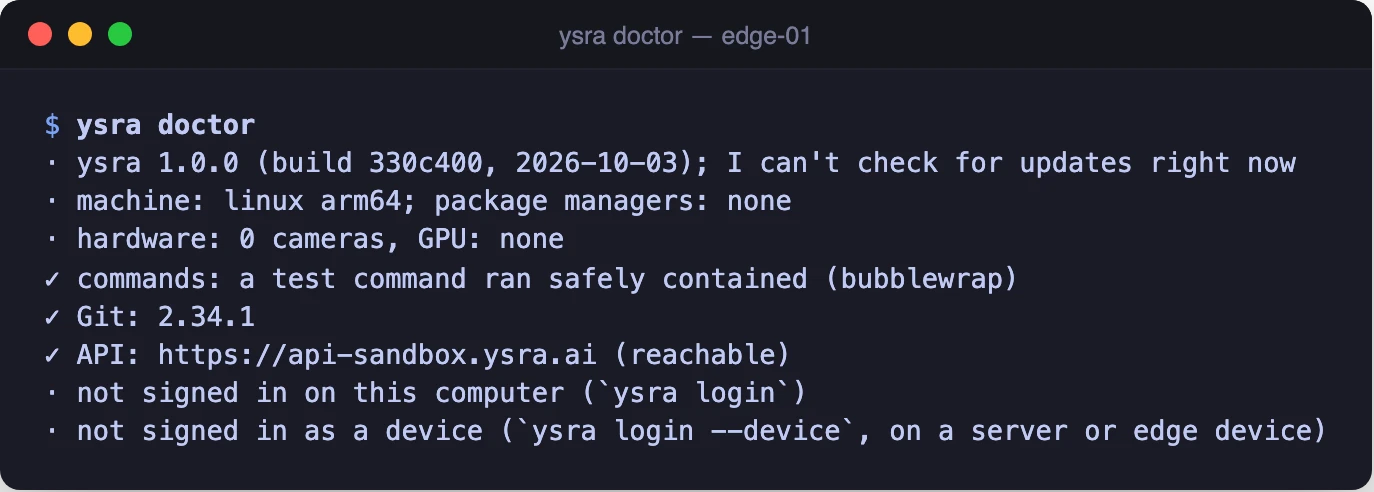
ysra doctor on a fresh Linux device, before it is signed in
3. Sign the device in#
ysra login --device
The device shows a short code such as ABCD-EFGH. It's valid for 10 minutes.
On your own computer, open the desktop app → Settings → Devices → Approve a device, type the code and choose Find it. You see the device's name and system before you choose Approve.

The code a device shows; you approve it from your own computer
A device's sign-in is separate from yours. It can work on folders on that device and nothing else: it can't see or change your account, your balance or your other devices.
4. Make a folder available#
Work there right away, in your SSH session:
cd /opt/app && ysra
Or keep the folder available so you can start work from your laptop:
ysra serve --folder /opt/app
Share more than one with --folder repeated. While this runs, the folder
appears in the desktop app under Settings → Devices.
5. Keep it available after you log out (Linux)#
ysra serve --folder /opt/app --install-service
I show you the exact service file first and ask before writing anything:
- it's a systemd user service (
~/.config/systemd/user/ysra-serve.service), so it runs as you, not root; - it only connects out to Ysra. No port is opened on the device;
- to keep it running after you log out, run
loginctl enable-lingeronce; - stop and remove it any time with
systemctl --user disable --now ysra-serve.
On macOS there's no background service: keep ysra serve running in a
terminal.
Update#
ysra --version   # ysra 1.0.0 (build 330c400, 2026-10-03)
ysra update
ysra update checks the download against its published checksum before
replacing itself. A device never updates on its own.
Remove a device#
On the device:
ysra uninstall
This removes the device from your account, stops and removes the background
service, deletes its stored sign-in and removes the ysra program. It then
asks whether to delete my local data in ~/.ysra (the default is to keep it;
--purge deletes without asking, --keep-data keeps without asking). It never
touches your project folders or ~/.ssh.
Can't get to the device? In the desktop app choose Settings → Devices → Remove. The device is signed out at once, wherever it is.