Ysra Desktop
Find your way around the Ysra desktop app for macOS, Windows and Linux: where work runs, the rail and panel, and the pages for each task.
On this page
Ysra Desktop is the app that lets Ysra work on a folder on your own computer: you describe what you want, and Ysra reads the code, changes it, runs your checks and shows every step. Use it when the code should stay on your computer, or to start threads on your devices and in Ysra’s cloud from one window. This page maps the app; the pages linked below cover each task.
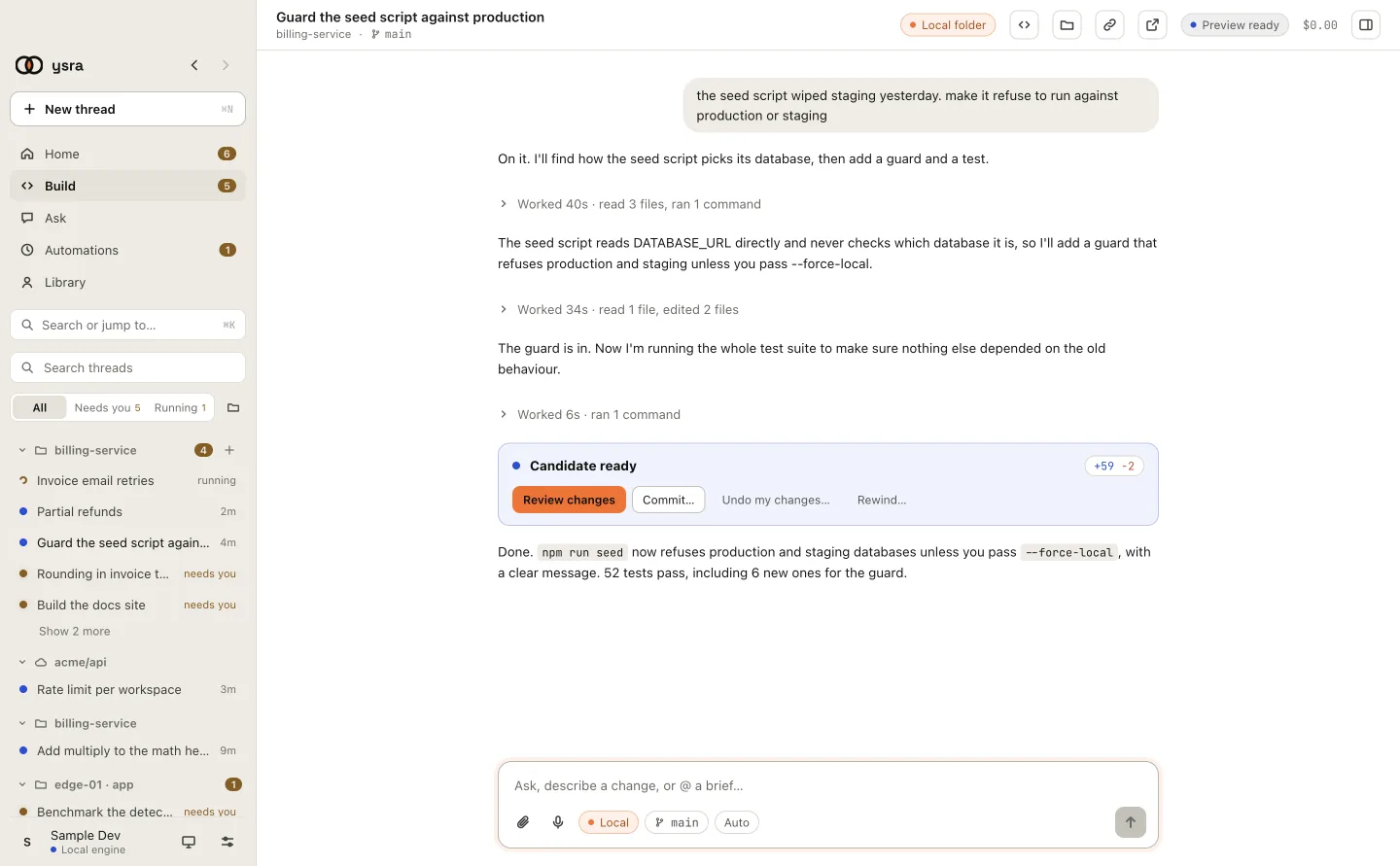
A thread: what you asked, what Ysra did, and the finished change.
The rule#
Nothing is committed, pushed or deleted without you. On your computer, Ysra works only in the folder you opened, and anything that reaches outside it asks first.
Start here#
-
Downloads for macOS, Windows and Linux, and first launch.
-
Sign in, open a folder, first change, in five minutes.
-
Where it runs, how much Ysra may do alone, and the model.
Where work runs#
| Place | What runs there | Needs this app open? | More |
|---|---|---|---|
| A folder on this computer | Ysra’s commands, contained to the folder | Yes | Start a thread |
| A folder on a device | Ysra on the device itself | No | Devices & machines |
| A machine through a gateway | One approved command at a time over SSH | Yes, for a machine this computer reaches | Machines |
| Ysra’s cloud | A cloud machine of its own, on a repository or a cloud project | No | Code in Ysra’s cloud |
The app at a glance#
The sidebar is a narrow rail of sections, each named under its icon, with a panel beside it for the section you’re in. The app opens on the section you left, if that is still there, or on Home.
The rail#
A count on a section marks something waiting for you: threads in Code, reviews in Mayz, visitors in Team, approvals in Routines. Cmd+1 to Cmd+9 go to the sections in the rail’s order.
| Section | What it’s for |
|---|---|
| Home | What is going on, the message box, and what waits for you. See Home |
| Code | Threads that work on a folder, a device or Ysra’s cloud. This is what these pages cover |
| Mayz | Mayz reviews: what to fix, with evidence. Shown when Mayz reviews are on for the account. See Mayz reviews |
| Ask | Questions answered with sources. See Ask |
| Learn | Study notebooks, today's review and topics. See Learn |
| Team | Your colleagues, and the questions visitors asked your public ones. See Colleagues |
| Routines | Jobs that run on a schedule or on demand, with approvals. See Routines |
| Library | Memory, files, and rules & instructions. See Library |
| Machines | Every machine the workspace’s gateways reach. See Machines |
| Runbooks | Procedures kept once and run on any machine. See Runbooks |
| At the foot of the rail | What it does |
|---|---|
| The bell | Counts your unread notices: what your routines did, such as a run that failed or waits for your approval |
| Help (Cmd+/) | Opens a panel on the right, from every screen, that answers questions about Ysra and this account. See Help |
| Your account | Settings (Cmd+,), Get the apps (the Phone app and the Command line (CLI)), and Appearance (Match System, Light, Dark) |
The panel#
At the top of the panel is the workspace switcher, as in the web app: everything in the panel belongs to that workspace. Open it to switch workspace, choose New workspace, or Files & settings for the workspace’s files and settings.
The panel’s head has Back (Cmd+[), Forward (Cmd+]), search (Cmd+K, “Jump to a thread, chat, routine, or action…”) and Hide the panel (Cmd+\). The first row starts something new (Cmd+N): New thread in Home and Code, New review in Mayz, New chat in Ask, New routine in Routines.
| Section | The panel shows |
|---|---|
| Home | Needs you (each thread with what it waits for), Running and Earlier (the last 8, then Show N more) |
| Code | Filter threads, and Time, Folder or Device to group them. Time shows Needs you, Running and Earlier; Folder and Device show Needs you first, then each folder or device with its threads |
| Ask | Answering and Earlier |
| Routines | Needs you (runs waiting for your approval), then Routines |
| Team | Team and Visitor questions |
| Library | Memory, Files and Rules & instructions |
| Machines and Runbooks | One line about the section; the panel starts hidden |
Every group and folder folds away when you click its name, and the app remembers it on this computer.
| At the foot of the panel | What it does |
|---|---|
| A pill such as “3 devices · 2 waiting” | Opens your devices: This computer, each device with how many threads wait or whether it’s offline, and Ysra cloud when you have cloud threads. Click one to show only its threads; + starts a new thread there |
| Invitations and the low-credits line | Just above the pill |
| A docs link, such as How Code works | The docs page for the section (in Library, in the page’s header) |
| Verify the email address you@example.com: open the link in the mail that was sent to it. | Shown until the email is verified. Send the link again sends a new one (Sent. It can take a minute to arrive.) |
Home#
Home opens with the date (and the workspace’s name, when you have more than one), a greeting such as “Good morning, Sam”, and chips: how many Routines are running, how many colleagues are public, and the credits left. The message box comes next: type there to start a Code thread. See Start a thread.
| Under the box | Shows |
|---|---|
| Waiting for you · N | A card for each thing that needs you: 1 to approve for a routine’s run, A visitor needs a person for a public colleague, a watched site that went down, a thread with a question |
| A card per part with something to say | Ask conversations today, Visitor questions this week (“N answered by your colleagues”), Routines on with the next run and the last runs, Files Ysra knows |
| What happened lately | Newest first |
A part with nothing to say isn’t shown.
Ask#
Ask with no chat open shows What do you want to know? and the same message box: attach files, dictate, and two choices in the box’s row. Colleague chooses who answers (Ysra, or one of your workspace’s colleagues), and the second chooses Answer or Deep dive. A colleague’s starter questions sit under the box. See Ask.
Under the latest answer, Take this further: offers Hand to Code, which turns the conversation into a brief for a Code thread. See Hand an answer to Code. Where an answer fits a routine, a card for one appears under it by itself.
Team#
| Page | Holds |
|---|---|
| Team | Cards with Chat and Configure, and + Hire. See Colleagues |
| Visitor questions | What people outside your team asked your public colleagues. See Public link |
Library#
Library opens with a header: Library, your account’s domain and Ysra’s release, and a link to the docs for the open page, such as How memory works. It keeps Memory, Files and Rules & instructions, which holds the rules every Code thread loads. See Rules & instructions.
Settings opens as a page; ← Back or Esc returns. See Settings.
Working with Ysra#
-
Questions, changes, briefs, attachments, steering.
-
How to read what Ysra is doing, step by step.
-
What Ysra always asks first, and what auto mode covers.
-
Stopping, pausing, credits running out, and picking up again.
Your changes#
-
See exactly what changed, comment on lines, preview the app.
-
New or existing branch, never forced, your CI read back.
-
Put everything back exactly as it was.
Questions about your computer#
In a thread on a folder, you can ask about the rest of the computer:
What's taking up space on my disk?
With Settings → Code → Let Ysra look at this computer on, Ysra looks, read only: it never installs, changes or deletes anything there, and doesn't use the network for it. For storage, it measures the disk and what fills it. On a Mac, folders macOS protects are included only if you gave Ysra Full Disk Access. Ysra works on the computer only while the app is open.
With the switch off, Ysra tells you where to turn it on. In the CLI, type
/computer look on. See Settings.
Beyond this folder#
-
Missing tools, with your OK and nothing hidden.
-
Work on servers and edge devices from this window.
-
When something doesn’t work, and where the record is.
What Ysra promises on your computer#
| Promise | Detail |
|---|---|
| Only the folder you opened | Ysra works there and nowhere else. See Start a thread |
| Contained commands | On macOS and Linux, commands are contained to the folder; anything that reaches outside your computer asks first, every time. On Windows, see Windows |
| Secret files | Never read |
| Exact undo | Or a refusal, never a guess. See Undo |
The details are in Security on your computer, on the Platform tab.
Related#
- Desktop quickstart: a first change in five minutes.
- How a Code thread works: tasks, checks and what is kept.
- Keyboard shortcuts: every shortcut in the app.
- Troubleshooting: when something doesn’t work.