Install tools with your OK
Let Ysra install Node.js, Python or Git for a task when your computer doesn't have them, see where they go, and remove them later.
On this page
When a task needs Node.js, Python or Git and this computer has none of it, Ysra pauses and offers to install it into its own folder, never system-wide. For any other tool (Go, Docker, a hosting tool), Ysra proposes one specific step instead; see Machine setup.
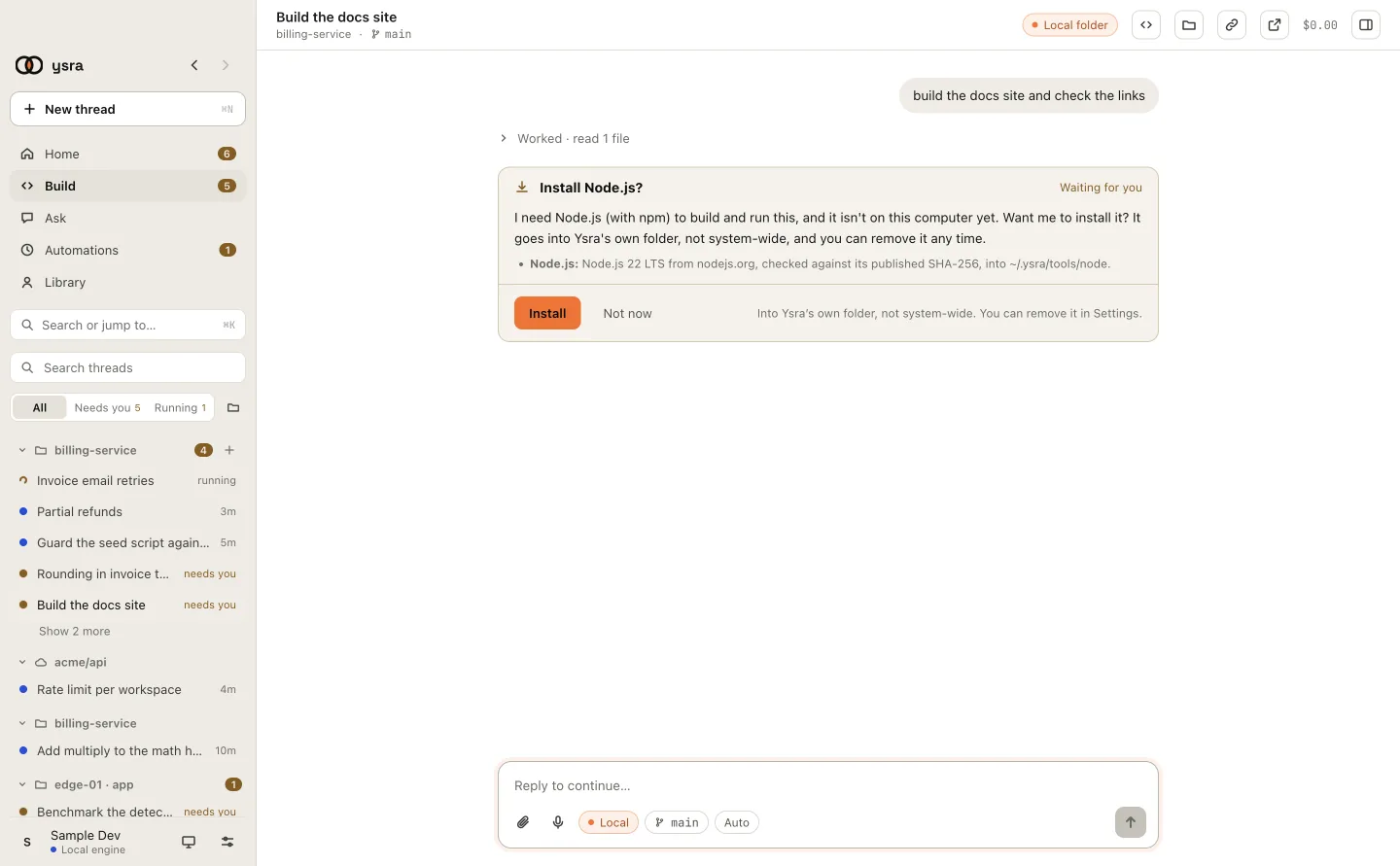
The question, how it would be installed, and two answers.
The rule#
Nothing is installed without your OK, and nothing Ysra installs touches your system or your shell. Auto mode never answers this card.
What each answer does#
| Answer | What happens |
|---|---|
| Install | Ysra downloads the official build, checks it against its published checksum, and puts it in ~/.ysra/tools (“Into Ysra’s own folder, not system-wide. You can remove it in Settings.”). The card shows progress, then Installed, and the task continues |
| Not now | Ysra carries on without it where it can, and tells you what it couldn’t do |
When the install fails#
| The card shows | What to do |
|---|---|
| Why it failed, and Try again | Try again; check your connection |
Plain steps instead, for example “Install it from nodejs.org (the LTS version), or run winget install --id OpenJS.NodeJS.LTS -e in PowerShell” |
Ysra can’t install it here: follow the steps, then tell Ysra to continue |
This works the same on macOS, Linux and Windows. On Windows, npm, npx and
other .cmd programs run wherever Ysra starts them, and the next command
finds what was just installed without restarting Ysra.
See and remove them#
Settings → General → Installed tools lists each one with its version. Remove deletes it; Ysra asks again the next time a task needs it.
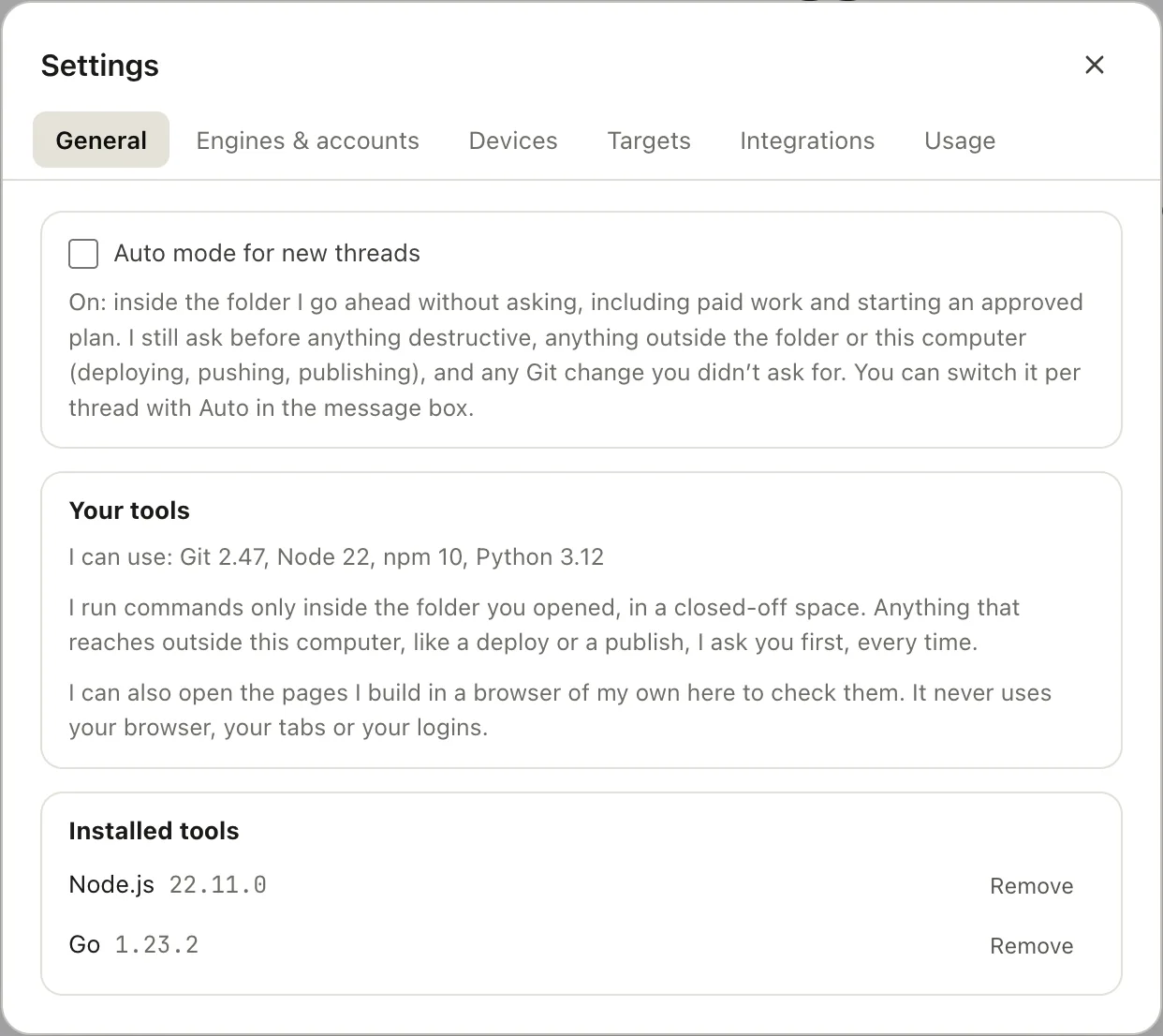
Your tools, and the ones Ysra installed for you.
Related#
- Machine setup: any other missing, stopped or signed-out tool.
- Approvals and auto mode: what auto mode never answers.
- Settings: the installed tools list.