Start a session
Every control in the Build composer — repository, branch, mode, quality, budget, attachments and review options — and how to write a brief Ysra can hold itself to.
On this page
Open New session (Cmd+N / Ctrl+N) or the Build tab on the home screen. One brief starts the work.
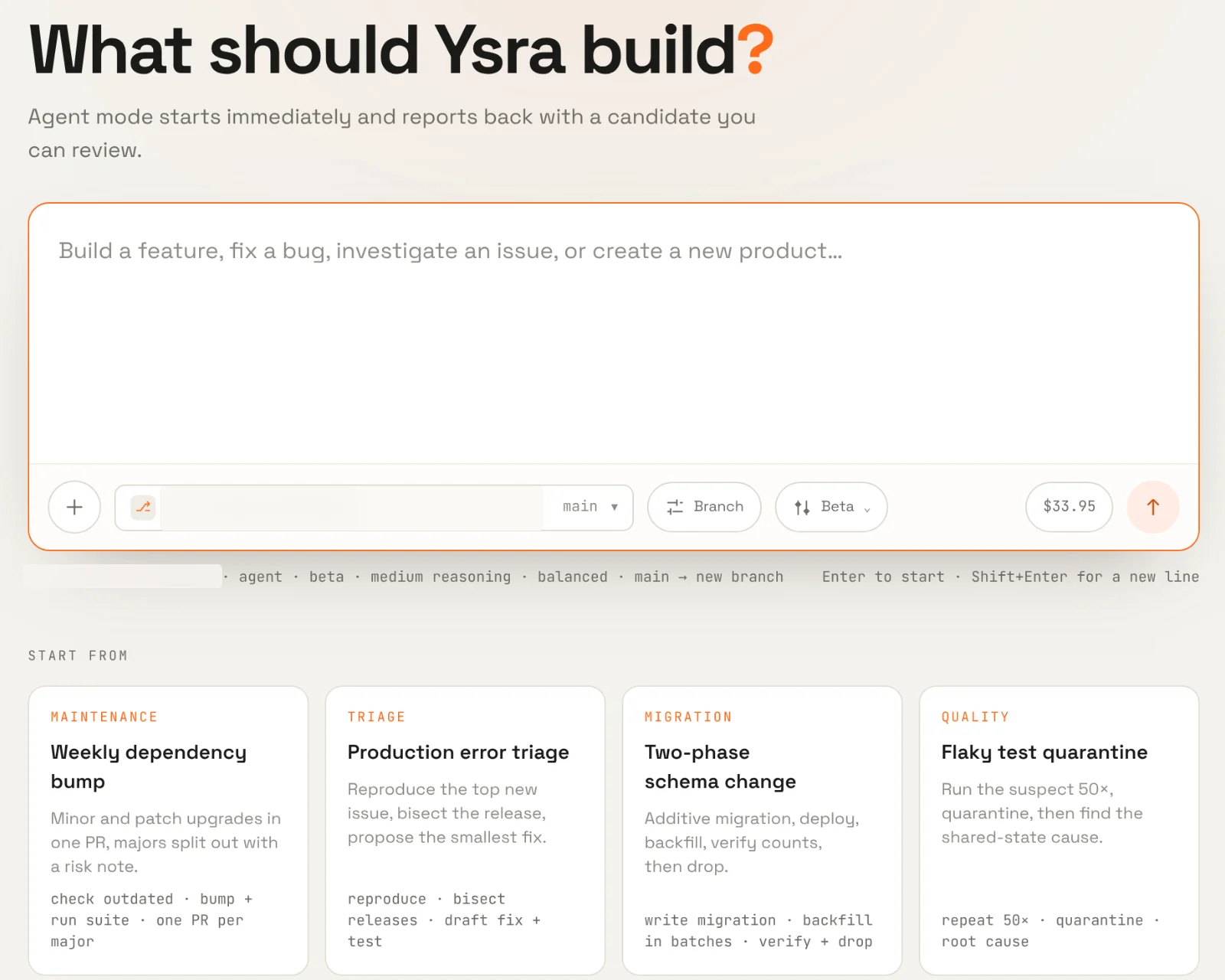
The composer. The line under the brief summarises what the session will use: repository, mode, quality, reasoning, compute, and the branch it will write to.
The controls#
| Control | What it does |
|---|---|
| Brief | What should be true when the work is done. Paste a long brief freely — it becomes a chip you can expand. |
| + Attach | Add files and images from your workspace or your device: specs, screenshots of a bug, a design to match. Images are analysed and bound to this session. |
| Repository | The repository to work in. Only repositories you granted to Ysra appear. See GitHub. |
| Branch | The branch to start from. Ysra always writes to a new branch; it never edits your base branch. |
| Quality | How thorough the session is. Higher quality spends more on review and proof. |
| Budget | The ceiling for this session. It shows what your wallet has available; Ysra stops before exceeding it and asks. |
| Agent / Plan first | Agent starts immediately. Plan first produces a specification to review and approve before any code runs (where available on your account). |
Advanced options — in the session launcher and on the portal's New session dialog — let you choose:
- Compute profile — Balanced for everyday work; a more intensive profile for large or hard changes.
- Reasoning depth — how much deliberation each step gets.
- Acceptance review and browser review — whether criteria are reviewed independently, and whether interactive behaviour is proven in a real browser.
- Hosted or local runtime — hosted by default; local where enabled.
- Delivery — what should happen to the candidate when it's done, within your autonomy policy.
Turn on browser review for anything a person clicks
Without it, interactive requirements — forms, filters, modals — are reported as unproven, not passed.
Start from a playbook#
The Start from cards under the composer are playbooks: repeatable briefs for common jobs — a weekly dependency bump, production error triage, a two-phase schema change, a flaky-test quarantine. Choosing one fills the composer; you can edit before sending.
Write a brief Ysra can hold itself to#
Ysra turns your brief into acceptance criteria — a checklist it is reviewed against at the end. The clearer the brief, the sharper the checklist.
Describe outcomes, not steps.
Add pagination.
Paginate the invoices page: 25 per page, archived invoices sorted last.
Keep the URL shareable (?page=3). Existing filters must keep working.
Add tests for the first page, the last page, and an empty result.
Name what must not change. "Keep the public API unchanged", "don't touch the billing module", "no backend". Exclusions become constraints Ysra is reviewed against — never extra work.
Paste the criteria you already have. If a ticket lists acceptance criteria, paste them. Your own criteria are reviewed one by one; Ysra only derives criteria when you didn't give any.
Be explicit about technology when it matters. "Use the existing DateRange
type" or "must be a Next.js app" is binding. A technology you merely mention in
passing is not treated as a requirement, and "A or B" stays a choice.
Attach what a person would need. A screenshot of the bug, the design, the error log, the API contract.
What happens when you press send#
- The session opens immediately in the workroom with your message.
- Ysra restates the goal and the plan in the conversation.
- Your budget is reserved and your autonomy policy is frozen for this session — changing settings later won't change a running session.
- Work starts as soon as an isolated workspace is ready.
Budgets#
The budget is a hard ceiling, not an estimate:
- Ysra stops before the next paid step that would exceed it and asks you.
- From the portal or the mobile app you can extend it, steer instead, or stop.
- Unused budget returns to your wallet.
See Wallet and usage.
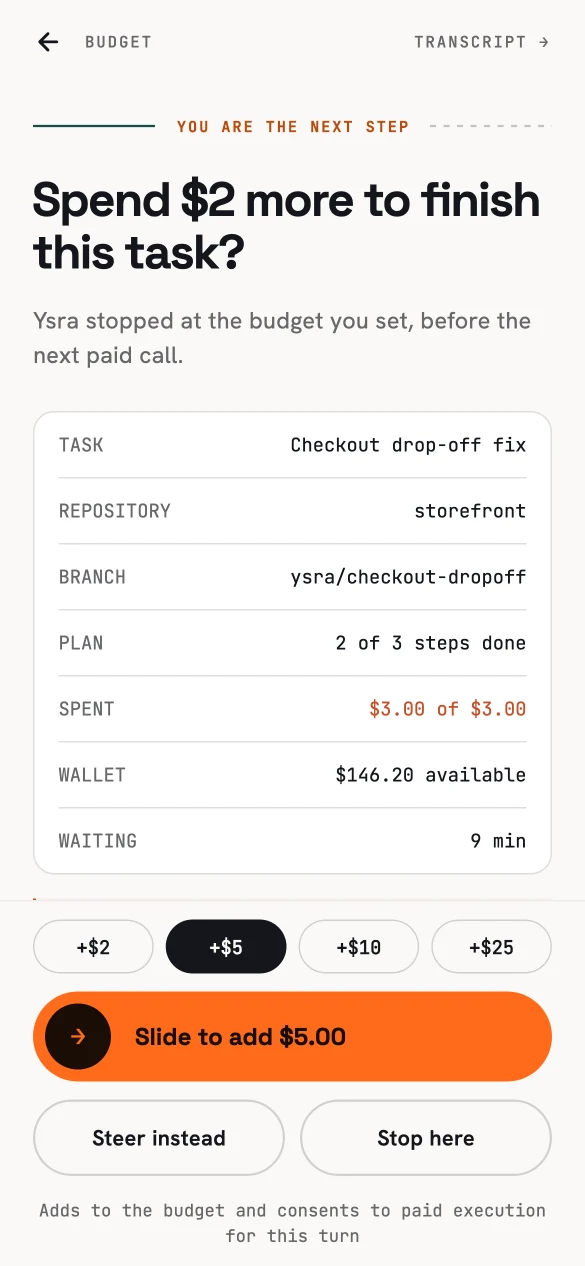
When a session reaches its budget, you decide — here on the phone.