The workroom
The session workroom — the conversation, the live canvas, and the Mission, Editor, Plan, Review, Checks, Shell and Audit panels — and how to read each one.
On this page
Every session opens in the workroom: the conversation on the left, a canvas in the middle, and panels on the right that show exactly what Ysra is doing and has done.
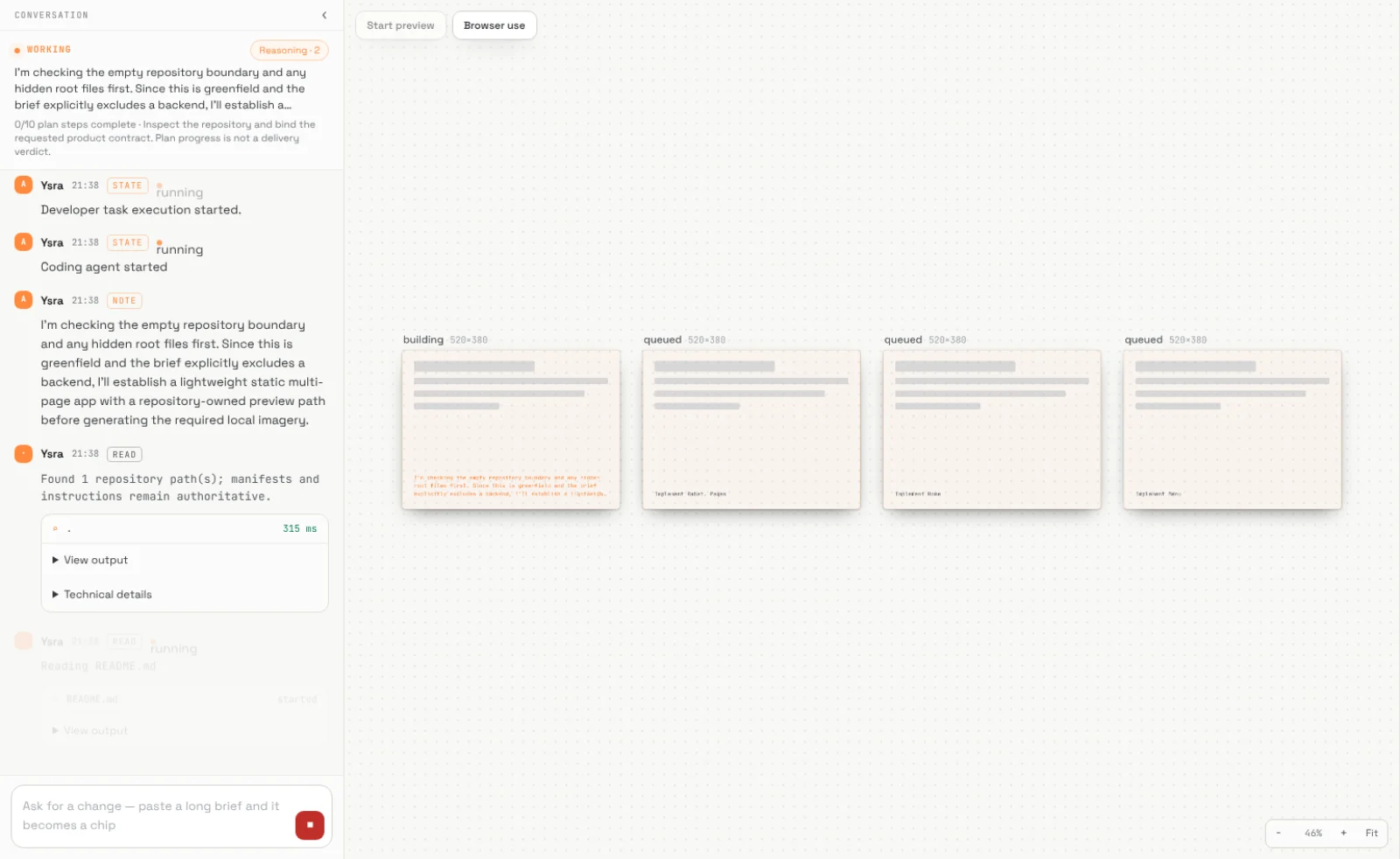
Early in a session. Each planned page gets a frame on the canvas: building, then queued until its turn.
The conversation#
The conversation is what you said and what Ysra said back. Machine work between two messages is grouped into collapsible steps, so the thread stays readable:
- Status line at the top — Working, Completed, Awaiting you — with a one-line summary and plan progress.
- Messages tagged by kind: a reply, a note about what Ysra is doing, state changes, a review result, completed.
- Steps — each command, file read or check, with its duration. Open View output to see what it returned, or Technical details for the full record.
- Suggested follow-ups under the thread, such as What changed, and why? or Run the full verification suite.
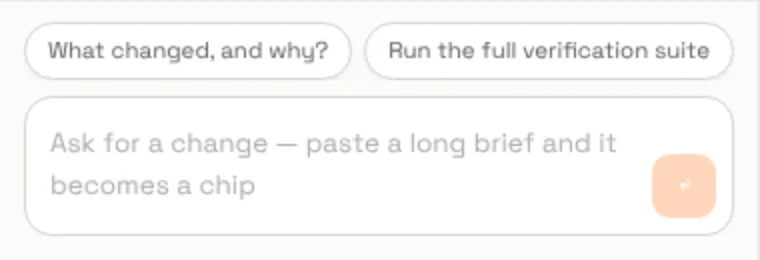
The message box accepts anything you'd tell an engineer: a correction, an answer, a new request. See Steering and checkpoints.
Reasoning, in plain sight#
Ysra shows its stated hypotheses, actions and observations — what it believed, what it did, what it saw — as a durable record. Turn this on or off with Session timeline in Account settings. Internal model reasoning is never exposed; what you see is the reviewed, recorded trail.
The canvas#
The canvas is a zoomable board of what the change looks like:
- Frames for each page or surface being built, with their state.
- A summary card for the change: files changed, criteria proved, review verdict, browser rounds.
- Live previews at desktop and mobile widths once a preview is running.
- Start preview and Browser use at the top. See Previews.
The panels#
The panels on the right show the work in detail. Switch with the tabs, or with a single key while the workroom has focus.
| Panel | Key | What it shows |
|---|---|---|
| Mission | M | A summary: the goal, plan progress, files changed, verification, spend and call count — with links to inspect each. |
| Editor | F | Every changed file as a tree with line counts, and a syntax-highlighted diff. Images and other binary files are viewable too. Filter by file; copy the diff. |
| Plan | P | The goal restated, the mode, and the task plan with each step's status. See Plans and criteria. |
| Review | A | Each acceptance criterion with its verdict and evidence, and findings from independent review. The badge shows criteria proved out of total. |
| Checks | C | Your project's commands — install, lint, type-check, test, build — with exit codes and output, and browser verification rounds with screenshots. |
| Shell | The commands run in the workspace and their output. | |
| Audit | The complete event record for the session: steps, tool activity, usage and costs. |
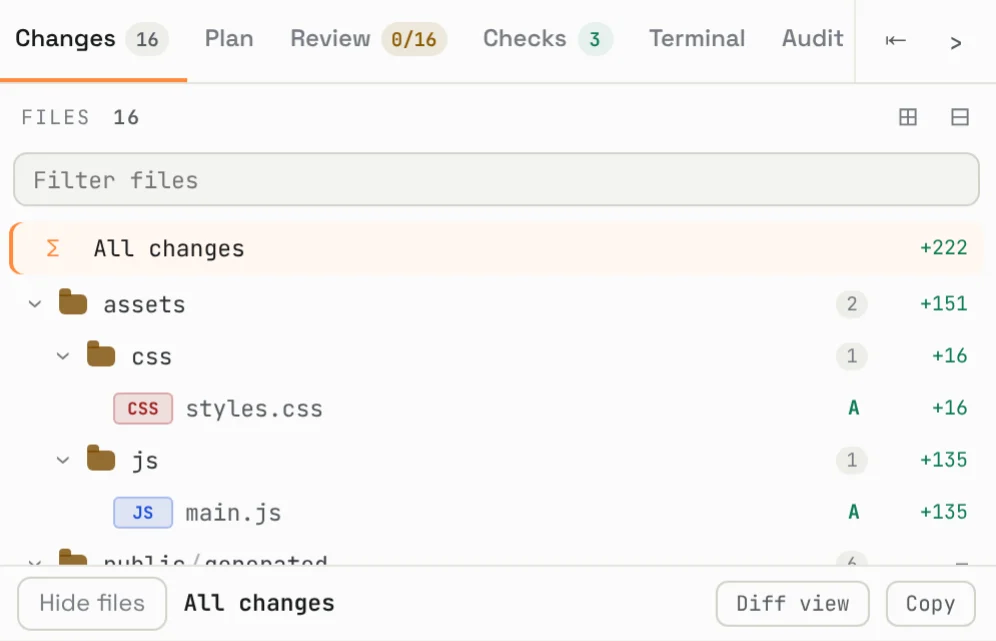
The panel tabs with the changed-file tree open. Earlier releases labelled Editor as Changes and Shell as Terminal.
The same information is in the header: the goal, the branch Ysra is writing to,
and spend against budget (for example $2.26 / $20.00). Deploy in the
header starts a deployment, which is always a separate,
explicit step.
Reading a finished session#
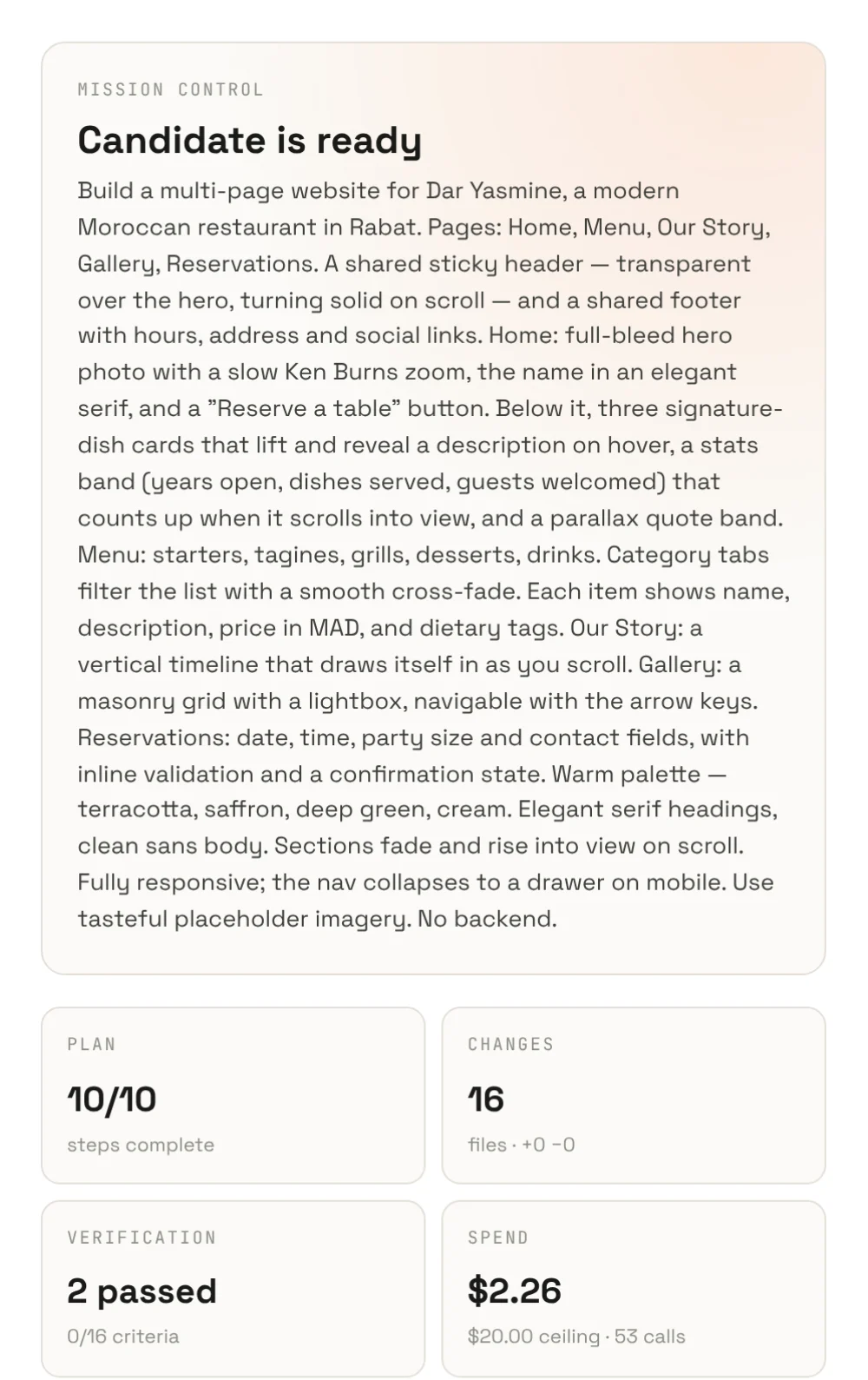
Read three things before you deliver:
- Checks — did your own commands pass, on this exact candidate?
- Review — how many criteria are proven, and are any findings open?
- Editor — does the diff do what you asked, and nothing else?
Then choose: deliver, ask for changes, rewind, or stop.