Devices and targets in the app
Approve a device, start a thread on its folder, allow its camera and GPU, and manage targets and their approval cards from the desktop app.
On this page
Two ways to work beyond this computer, both run from the app:
- a device is another machine of yours with Ysra installed, such as a server or an edge box. The work happens there; you follow it here;
- a target is a machine where nothing can be installed. I reach it from this computer over your own SSH or command-line sign-in.
This page covers what you do in the app. The full guides are Devices and Targets in the CLI docs.
Devices#
Approve a device#
On the device, run ysra login --device. It shows a short code. Then, in the
app, open Settings → Devices:
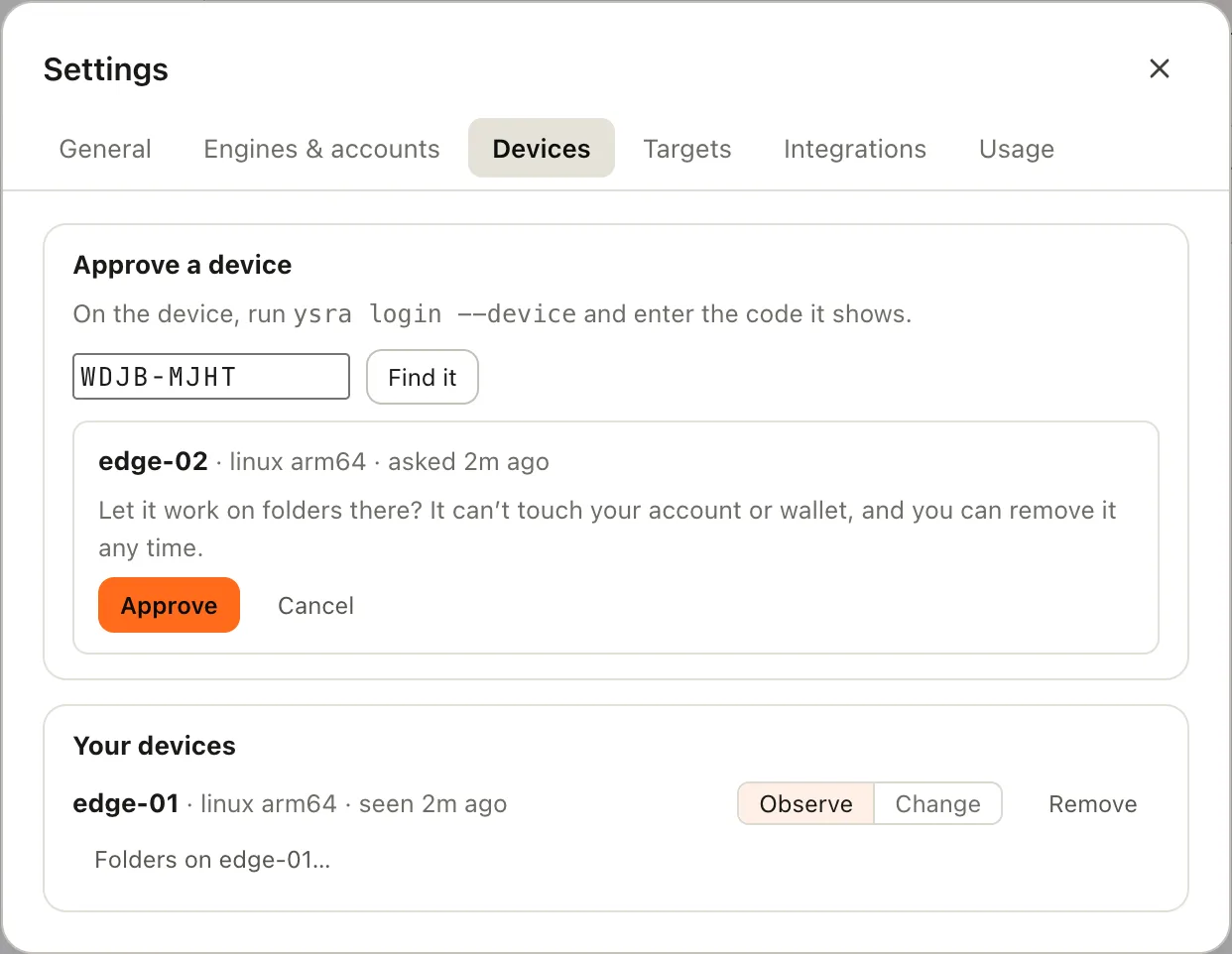
You see what is asking before you approve it.
- Type the code and choose Find it.
- Check the name and system shown.
- Choose Approve.
A device can't touch your account or your balance, and you can remove it at any time.
Start a thread on a device's folder#
The device shares folders with ysra serve --folder <path>. In Settings →
Devices, choose Folders on edge-01…, then New thread beside a folder.
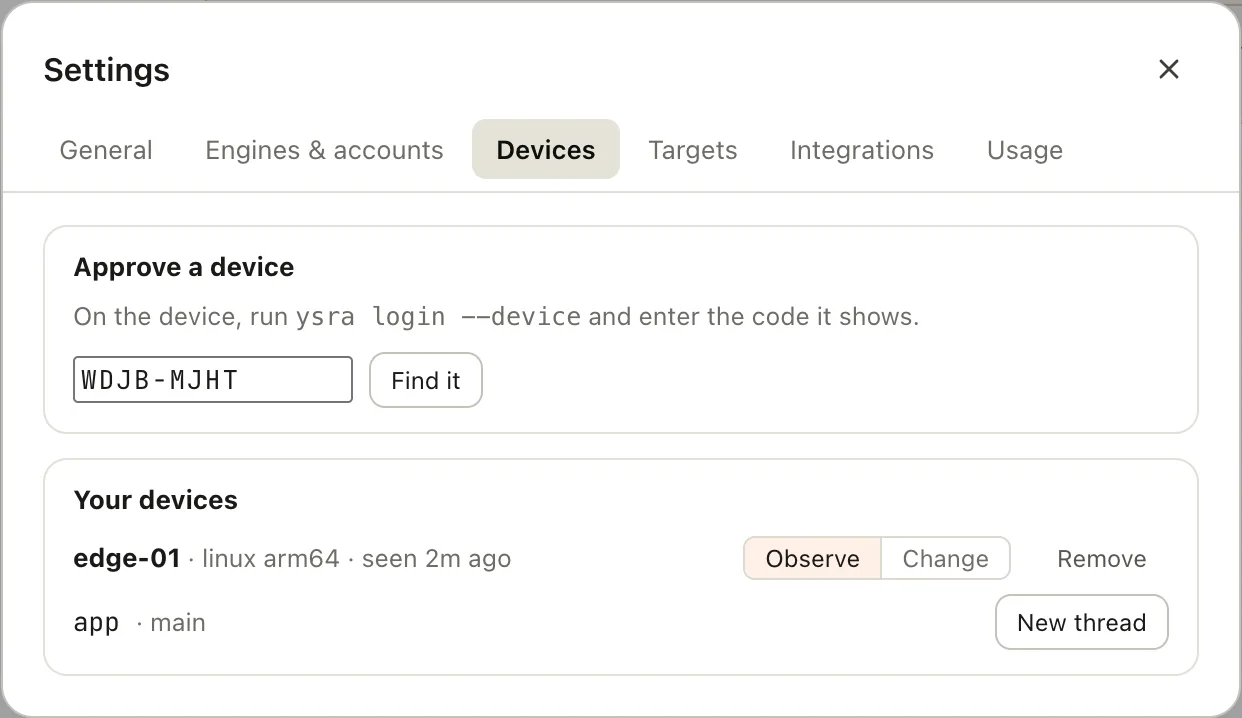
Folders the device is sharing.
The thread looks like any other, with on edge-01 in its header: the work runs on the device, and this computer only shows it.
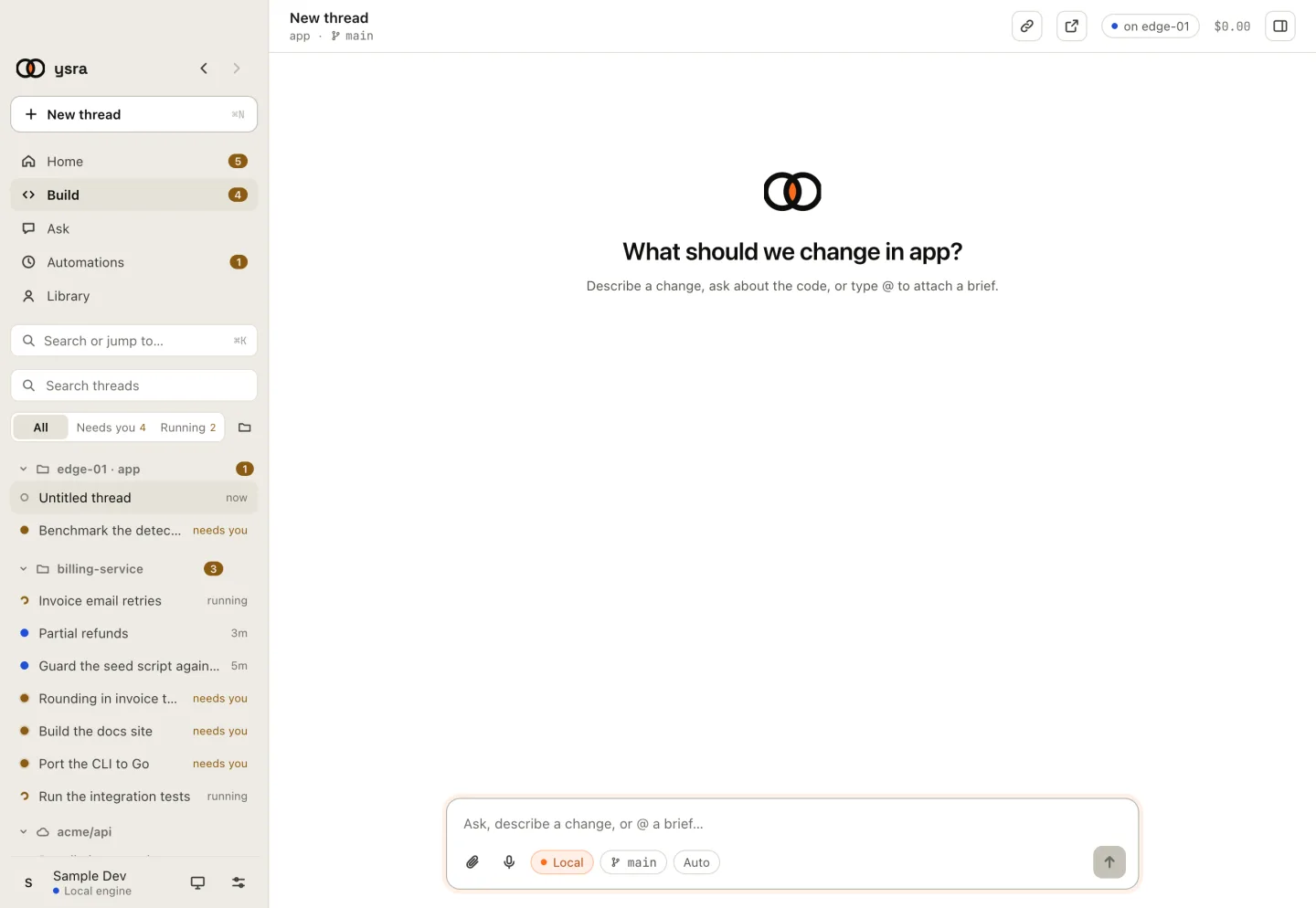
"on edge-01" marks a thread that runs on a device.
Observe or change#
Each device has a switch: Observe (I only look around and run checks there) or Change (I may also edit there, with your OK). Devices start in observe.
Camera and GPU#
My commands can't see a device's hardware until you allow it, once per thread:
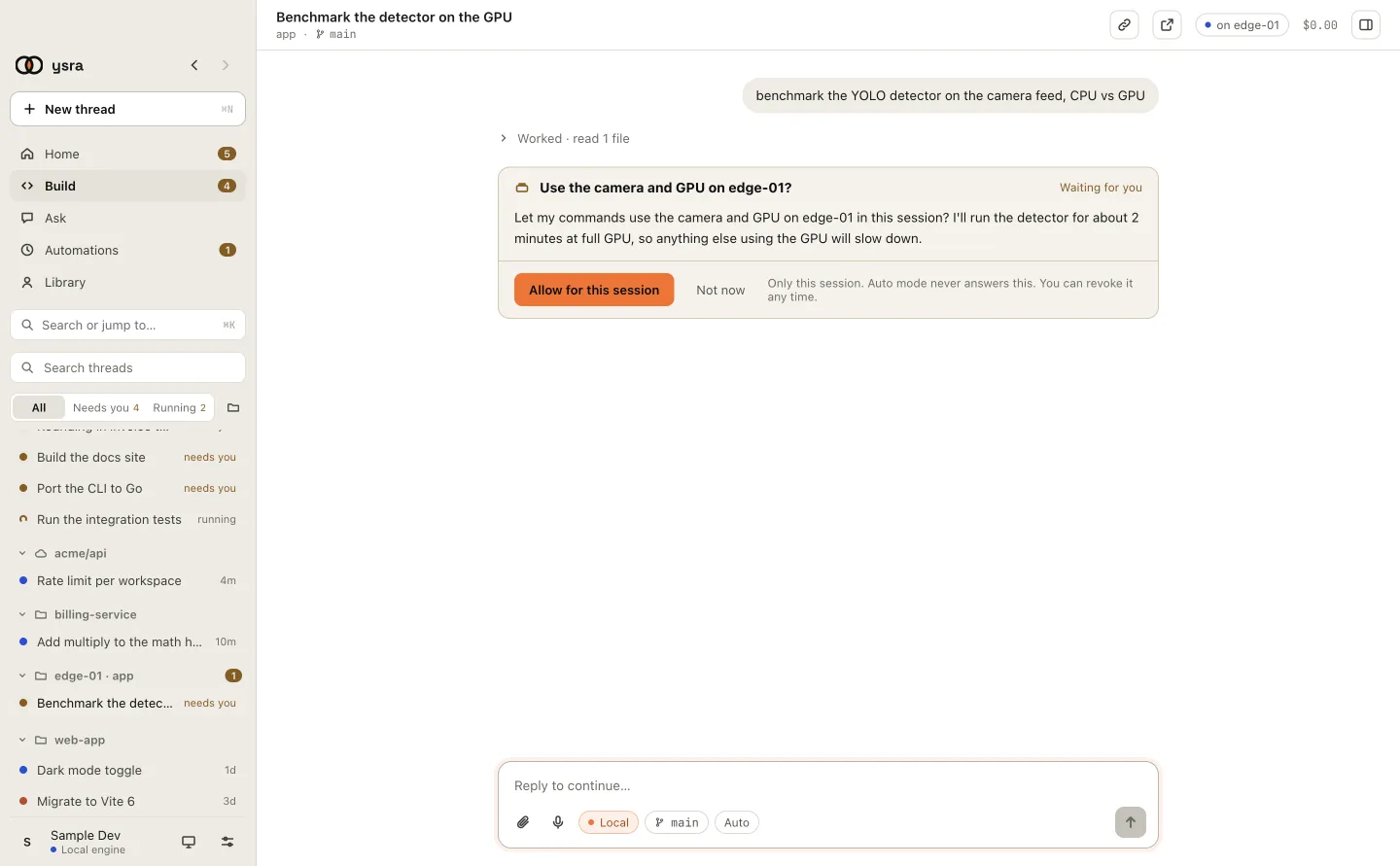
The card names the impact before you allow it.
If a device shows as offline#
| The app says | Do this |
|---|---|
edge-01 is offline. Run ysra serve there. |
Start ysra serve on the device |
edge-01 isn't sharing a folder. Run ysra serve --folder … there. |
Share a folder from it |
Remove signs the device out at once.
Targets#
Add and manage targets#
Settings → Targets lists your targets. They are stored only on this computer.
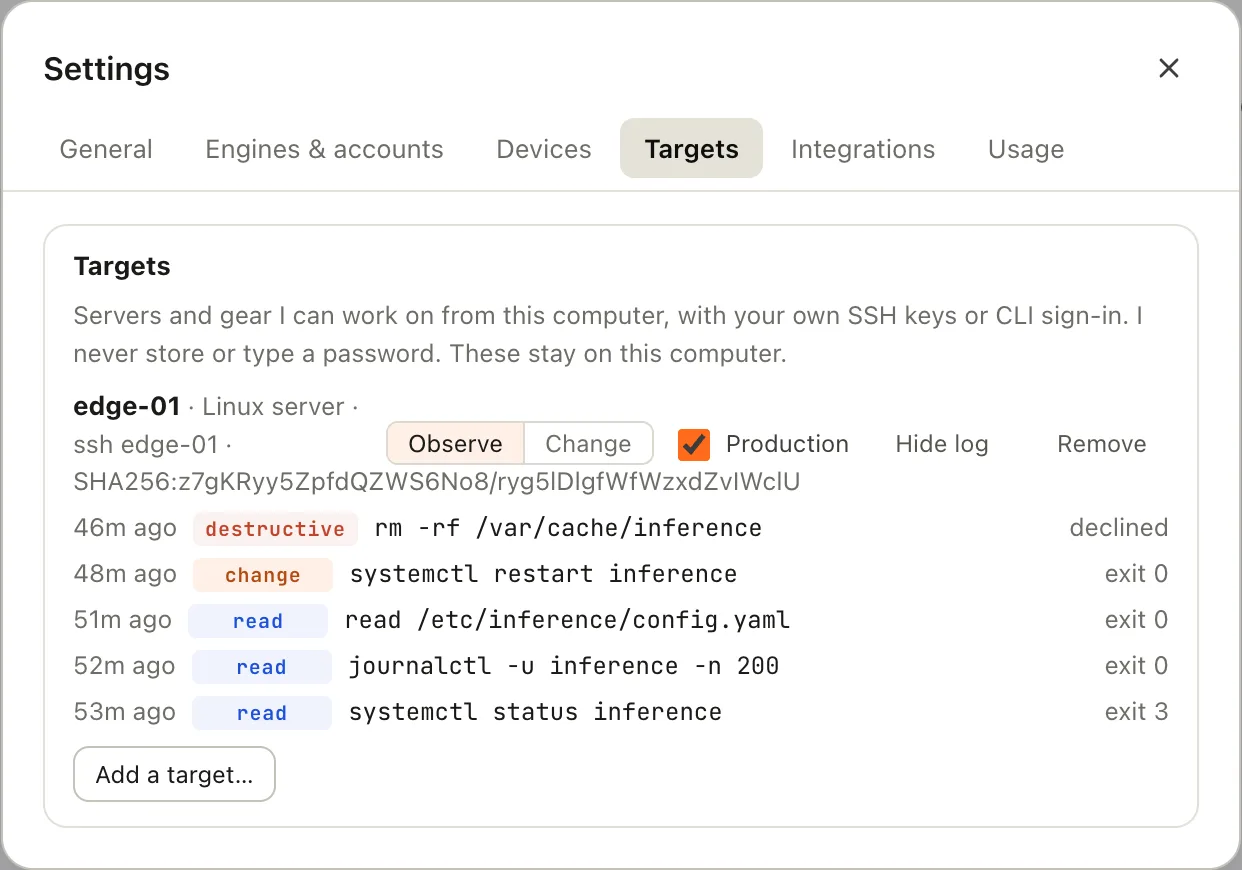
A target, its mode, and its log.
Add a target… asks for a name, a kind and how I reach it. For SSH, choose Check its host key, compare the fingerprint with the server's own, and tick Yes, this is my server.
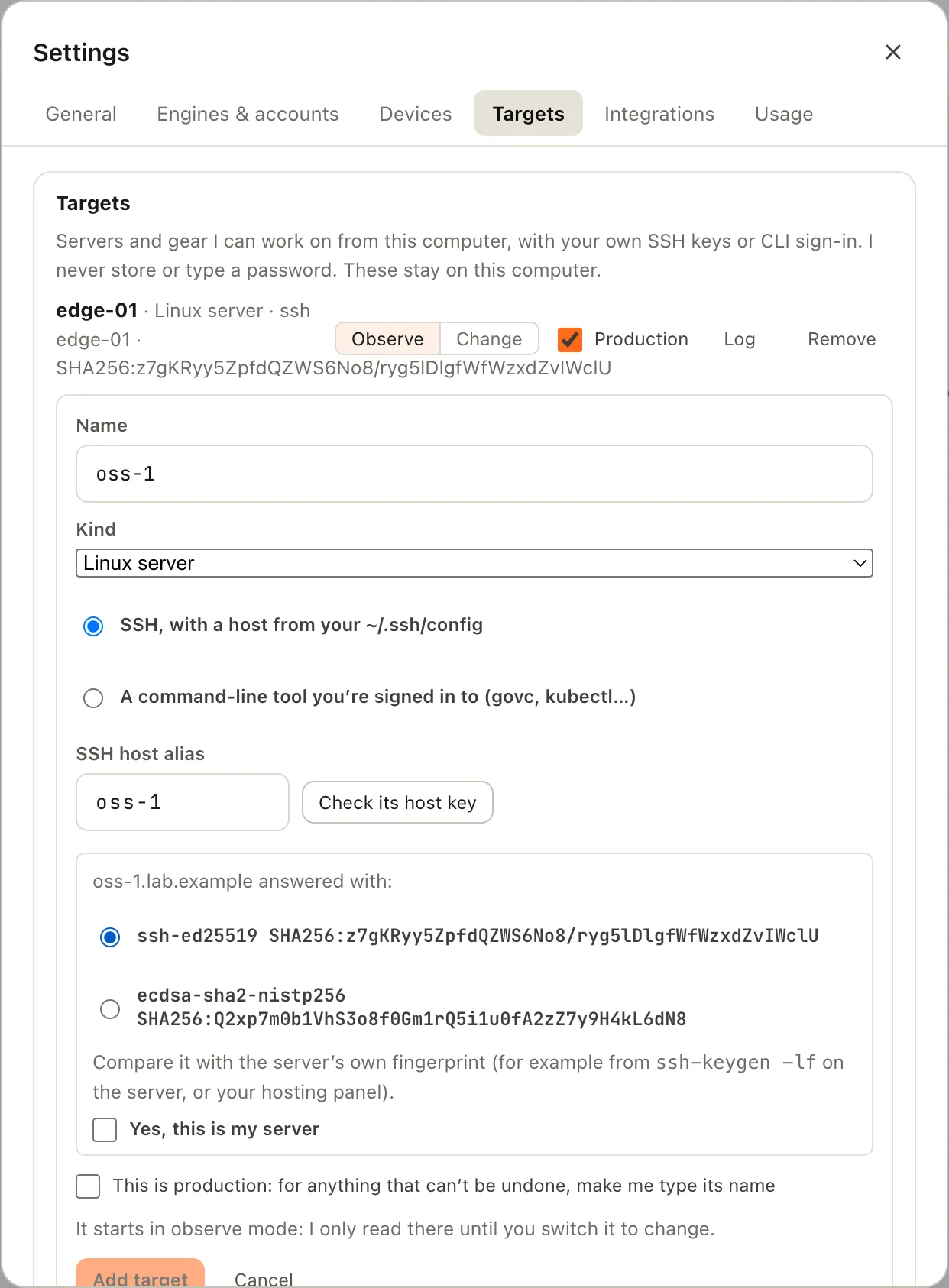
Confirm the host key before the target is added.
A new target starts in observe mode. Each row has Observe / Change, Production, Log and Remove.
Approval cards#
| Card | When | Answers |
|---|---|---|
| Look around edge-01? | The first read in a thread | Allow for this session · Not now |
| Run this on edge-01? | Every change | Run it · Skip |
| This can't be undone on edge-01 | A destructive command | Run it · Skip |
A change card shows On, Runs, Why, Expect and Undo:
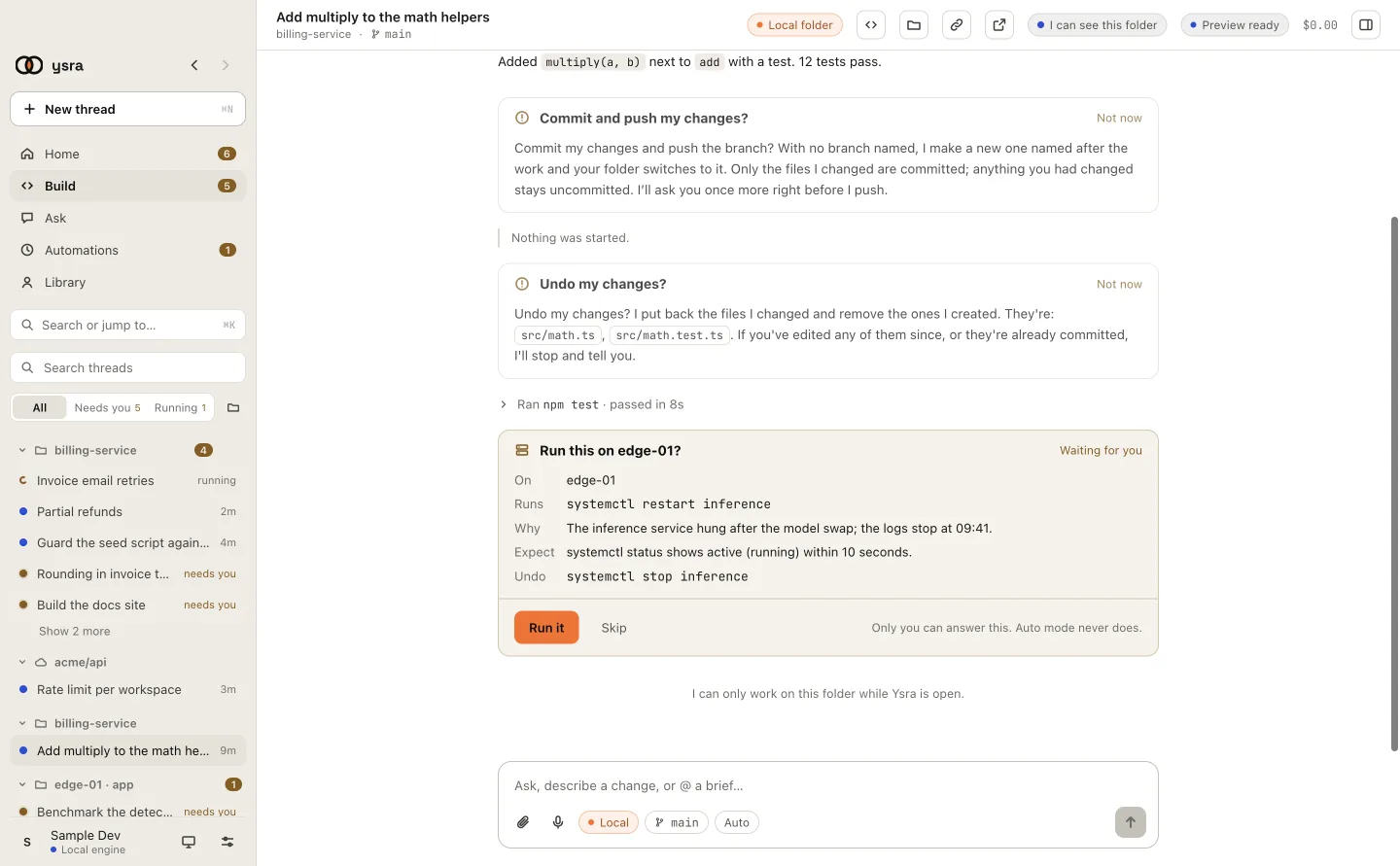
The exact command, why, what to expect, and how to undo it.
On a production target, a destructive command also needs its name typed. Run it stays off until it matches exactly:
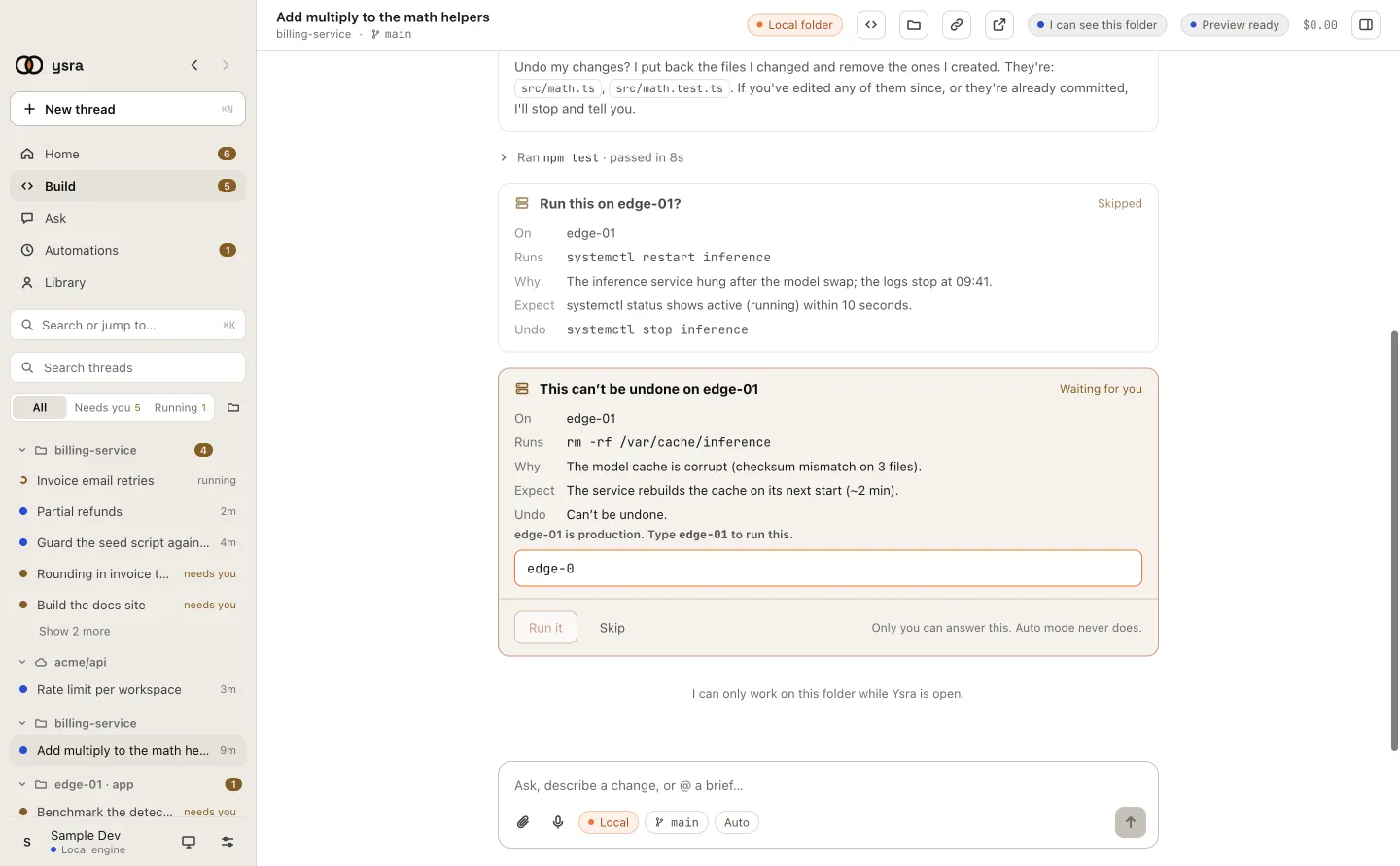
Type the target's name to run it.
Only you can answer these cards; auto mode never does. A card left unanswered for 15 minutes counts as declined. If you quit the app, every waiting target question is declined.
Runbooks#
A runbook's plan appears as one card with every step, its check and its recovery step. Start runs the read-only checks first, then asks before each step and stops at the first check that fails.
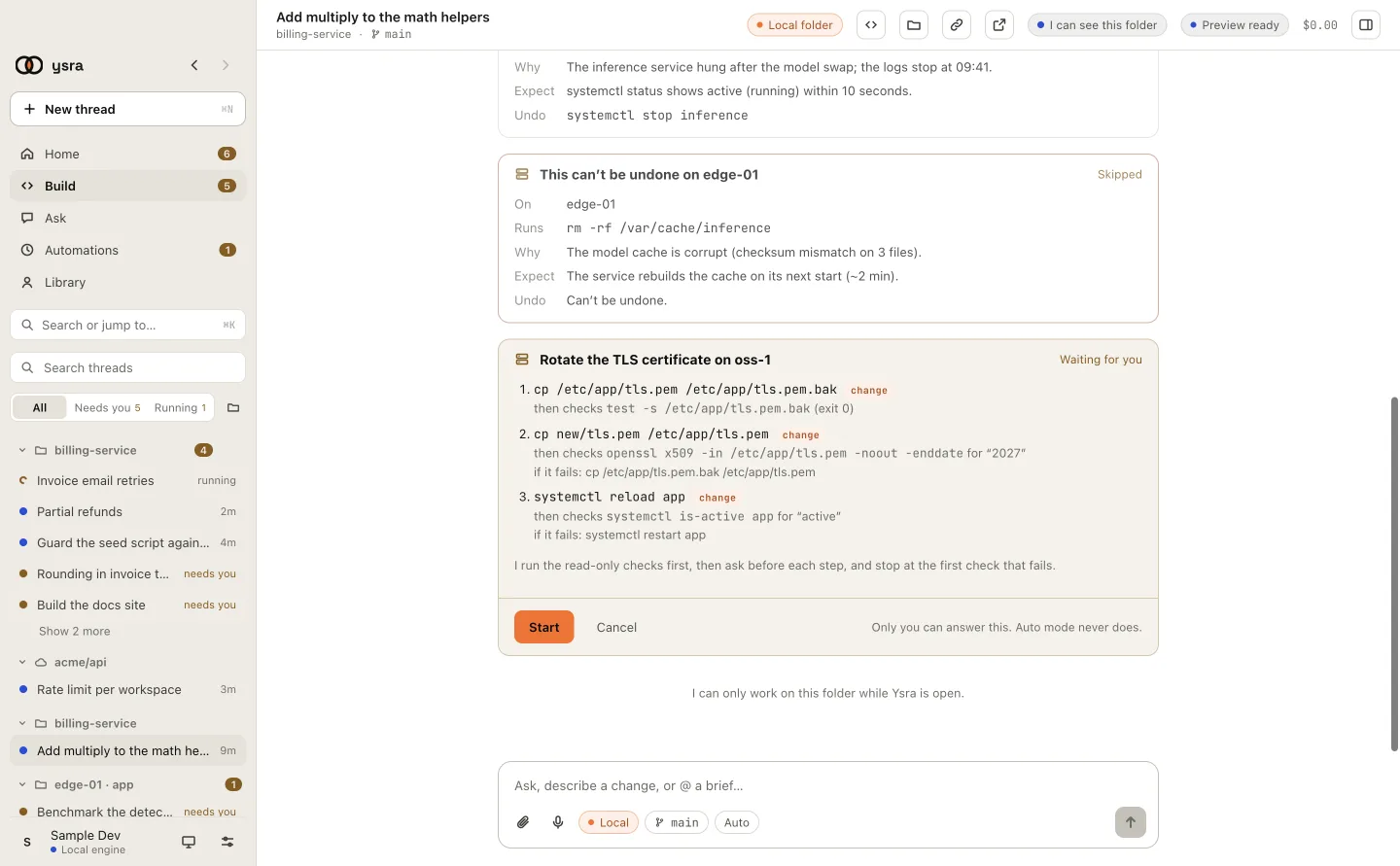
The whole plan, before anything runs.
More: Runbooks.