Settings
Auto mode, your tools, installed tools, Devices and Targets in the desktop app.
On this page
Open Settings from the sliders button at the bottom of the sidebar, or with ⌘K → Settings.
Tabs: General, Engines & accounts, Devices, Targets, Integrations, Usage.
General#
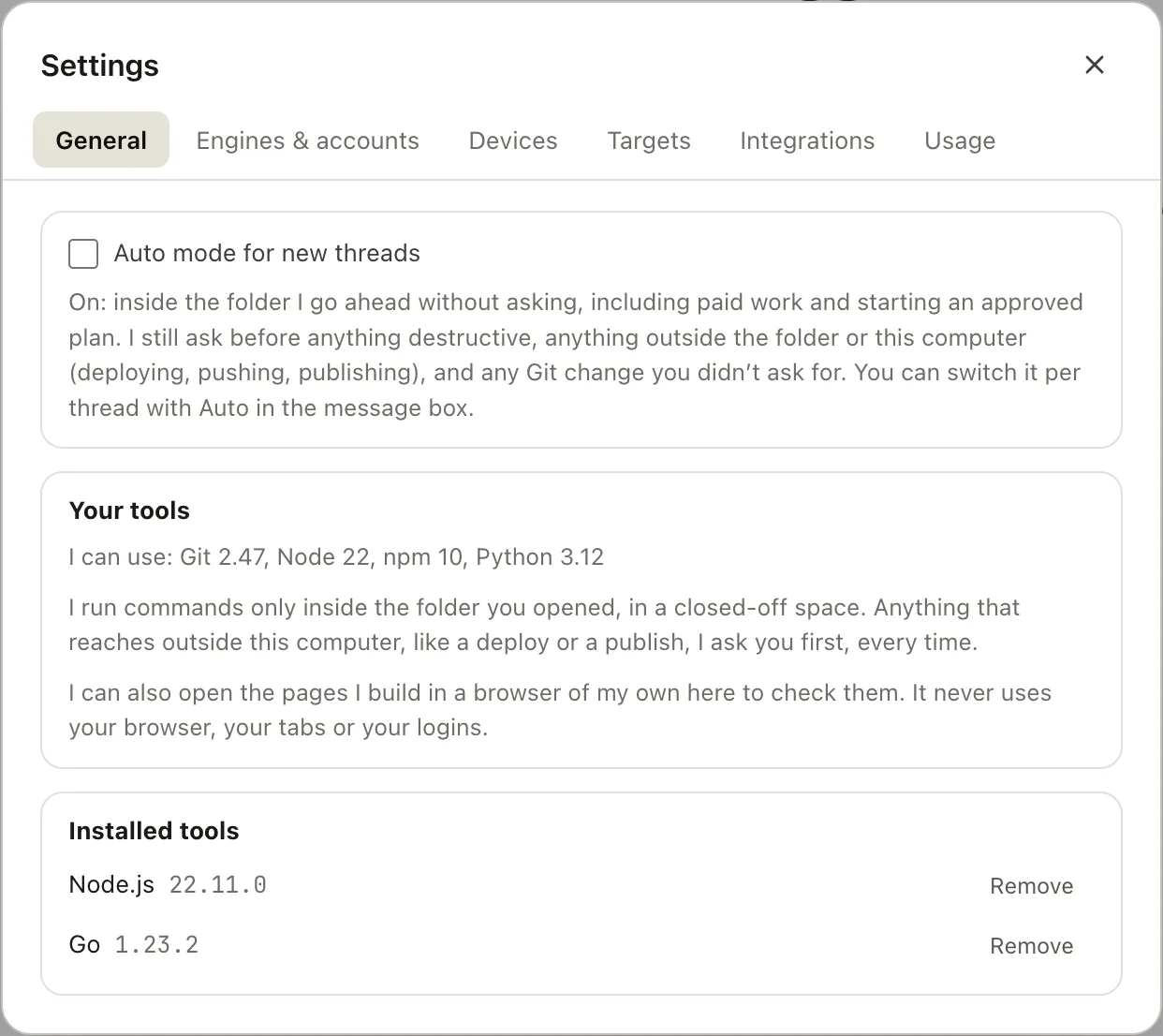
Settings → General
Auto mode for new threads#
Sets the default for new threads. You can still switch it per thread with Auto in the message box. What auto mode covers and never covers: Auto mode.
Your tools#
The tools I found on this computer, by name and version: git, node,
docker, gh and so on. I never see paths or account names.
This section also says whether I can run commands here. If I can't, I only read and edit files in the folder you opened.
Installed tools#
Tools I installed for you with your OK (Node.js, Python, Git). They live in my own folder, not system-wide. Remove deletes one; I'll ask again the next time a task needs it.
Engines & accounts#
Your account. This tab shows whether Ysra can be reached and who you are signed in as.
| Action | What it does |
|---|---|
| Check connection | Tests that Ysra can be reached from this computer |
| Sign in / Sign out | With your email and password, or Use my ysra CLI login if you have signed in with the CLI here |
| Workspace | Chooses the workspace new threads belong to, when you have more than one |
Devices#
Machines you've signed in with ysra login --device.
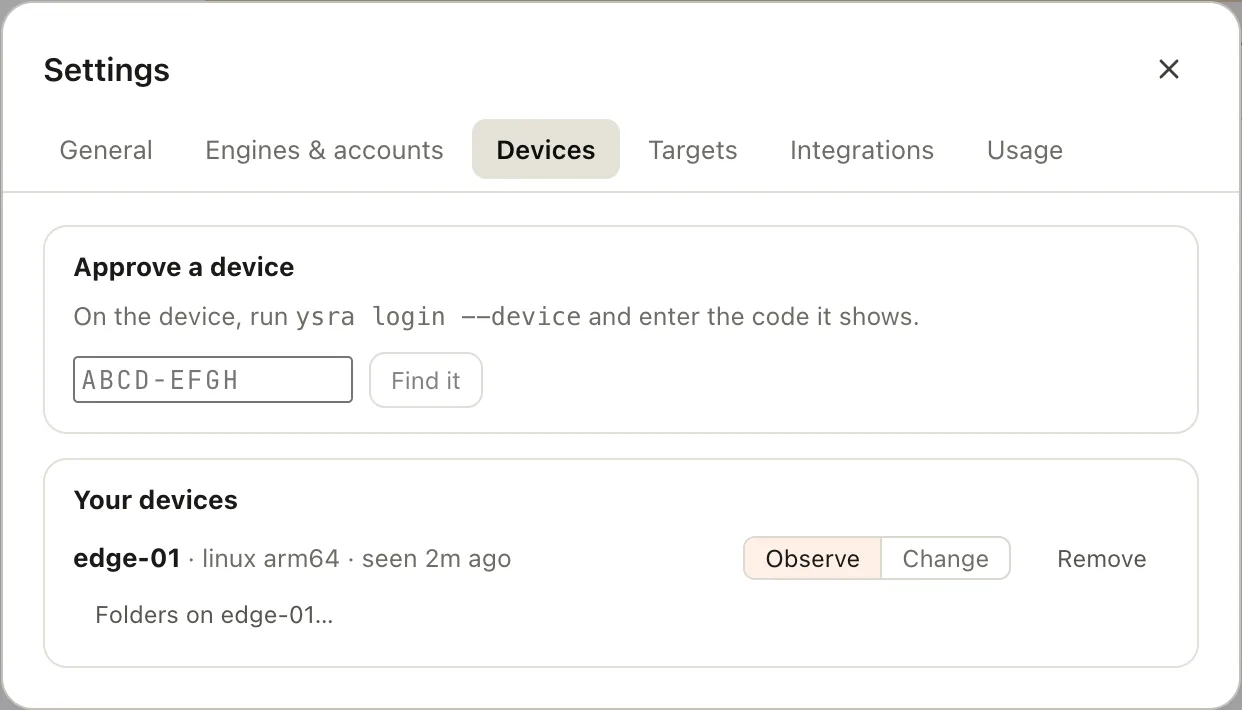
Settings → Devices
Approve a device
- On the device, run
ysra login --device. It shows a code likeABCD-EFGH. - Type the code here and choose Find it.
- Check the name and system shown, then choose Approve.
Your devices
Each row shows the device's name, system, and when it was last seen.
| Control | What it does |
|---|---|
| Observe / Change | Observe: I only look around and run checks there. Change: I may also edit there, with your OK |
| Folders on device… | Lists the folders that device is sharing. New thread starts work on one |
| Remove | Signs the device out at once |
A device that says offline isn't running ysra serve. Start it there.
More: Devices.
Targets#
Servers and equipment I can work on from this computer, through your own SSH keys or command-line sign-in.
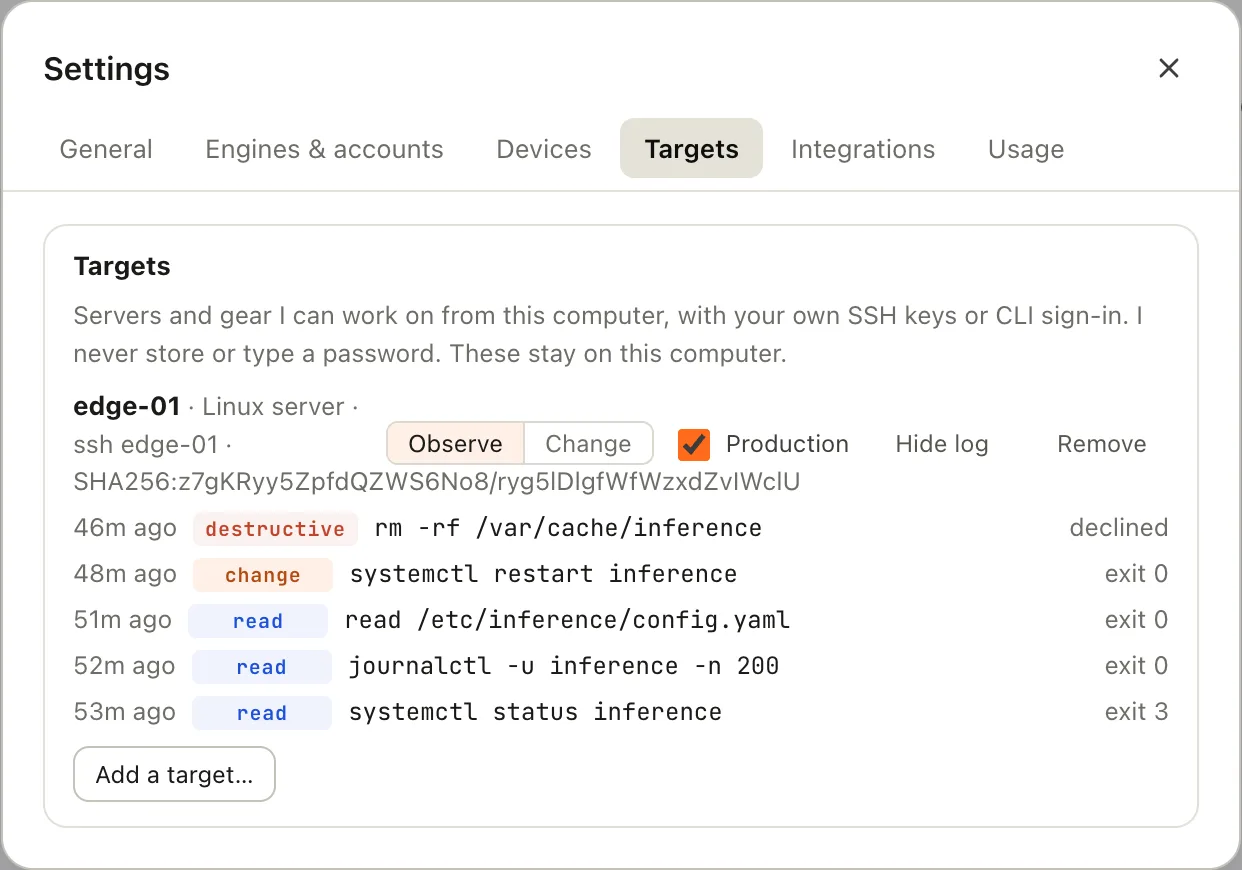
Settings → Targets, with a target's log open
Add a target… asks for:
| Field | Notes |
|---|---|
| Name | Lowercase letters, digits, dots, dashes or underscores. For example edge-01 |
| Kind | Linux server, ESXi host, Network gear, OSS, Other |
| How I reach it | SSH, or a command-line tool |
| SSH host alias | A host from your ~/.ssh/config. I fetch its host key and show the fingerprint; compare it with the server's own, then confirm |
| Command-line tool | For example govc or kubectl. I use your existing sign-in |
| Production | Adds a typed confirmation for anything that can't be undone |
A new target starts in observe mode: I only read there until you switch it to change.
Each row then has:
| Control | What it does |
|---|---|
| Observe / Change | Observe: I only read there. Change: I may run changes, each one after your OK |
| Production | On production, anything that can't be undone needs you to type the target's name |
| Log | Everything that ran there: when, the command, read / change / destructive, and whether you approved, declined, or typed the name |
| Remove | I forget the target and its pinned host key. Its log stays |
Targets are stored only on this computer. More: Targets.
Integrations and Usage#
Integrations lists what Ask and Automations can read from the services connected to your account. Connecting a new one happens in the Ysra web app; Sync now refreshes one that is connected.
Usage shows what your account has spent and the balance your threads draw from. Adding credit and the full history are in the web app.
Version and help#
The bottom of Settings shows the version, for example
Ysra 1.0.0 (build 3ef04a8, …), and a Download link when a newer one is
out. See Update and uninstall.
The Help menu opens these docs: the desktop guide, Settings, remote targets and the install page.
View → Appearance switches between light, dark and your system's setting.