Devices & machines
Add a Linux server to Ysra from the desktop app, as a device or as a machine, start working on it, and remove it again.
On this page
Ysra can work on your servers in two ways: as a device, where Ysra is installed and does the work itself, or as a machine, which Ysra reaches over SSH through a gateway, one approved command at a time. Use this page to pick one and set it up from the desktop app, start to finish; the reference for each is in Devices and Machines.
| Word | Means |
|---|---|
| Device | A computer with Ysra installed and signed in |
| Gateway | A device that reaches other computers over SSH. Your own computer acts as a gateway when it reaches machines over your SSH |
| Machine | A computer you manage through a gateway. Older versions called machines “targets” |
Device or machine?#
Ask one question: can Ysra be installed on the computer?
- Yes → make it a device. Ysra is installed on the computer and does the work itself, like a colleague logged in on it.
- No → make it a machine. Ysra reaches it over SSH or an admin tool, through a gateway, and asks you before each command it sends. When you add the machine from the desktop app, your own computer is the gateway.
| Device | Machine | |
|---|---|---|
| Ysra installed there | Yes, the CLI | No, nothing |
| Where the work happens | On the computer itself | The gateway sends commands over your SSH or tool |
| Coding, builds, tests, GPU and camera | Yes, fully | No. It works command by command, for operations work |
| Who connects | The device connects out to Ysra. No port is opened on it | The gateway connects to the machine |
| Approvals | Edits in its folder, after you switch it to Change | Every change command. Destructive ones on production need the name typed |
| Best for | Projects, development, builds, tests, machine learning and GPU work | Checking status and logs, careful configuration changes, step-by-step runbooks |
Examples#
| The computer | Pick | Why |
|---|---|---|
| A Linux VM with your web app’s code, where you want features or fixes | Device | Ysra edits and tests where the code runs |
| A GPU box for a model to benchmark or tune | Device | The work needs the computer’s own hardware |
| Your build server or CI runner | Device | Builds run where the tools are |
| A production database server where nothing may be installed | Machine | Ysra reads logs and status, and makes careful, approved changes over SSH |
| A VMware ESXi host | Machine, kind ESXi host, through govc |
Nothing can be installed on ESXi |
| A switch or router | Machine, kind Network gear | It offers only SSH or a vendor’s command line |
| A server managed by a hosting company | Machine | Only their SSH access is available |
Using both is normal#
A common setup: the app server as a device, where Ysra develops, and the database and load balancer as machines, which Ysra checks and adjusts carefully. One conversation can use both, asking you at each step.
If your own computer runs Windows and the servers run Linux, the choice is the same: devices for the servers Ysra should work on code on, where you’re allowed to install; machines for the ones you look after, or where nothing may be installed.
Either way, every change is approved by a person — one at a time, or ahead of time with a signed approval — and you can remove access at any time.
Add a Linux server as a device#
Install Ysra on the server#
SSH in as the user who owns the project, then:
curl -fsSL https://ysra.ai/install.sh | sh -s -- --device
Let Ysra run commands there#
sudo apt install bubblewrap socat ripgrep
These let Ysra keep its commands contained to the folder you share. You can skip this step; without them Ysra reads and edits files on the server but doesn’t run commands.
Ask to sign in#
ysra login --device
The server shows a code such as ABCD-EFGH. It is valid for 10 minutes.
Approve it in the desktop app#
On your computer, open Settings → Devices → Approve a device.
- Type the code and choose Find it.
- Check the server’s name and system.
- Choose Approve.
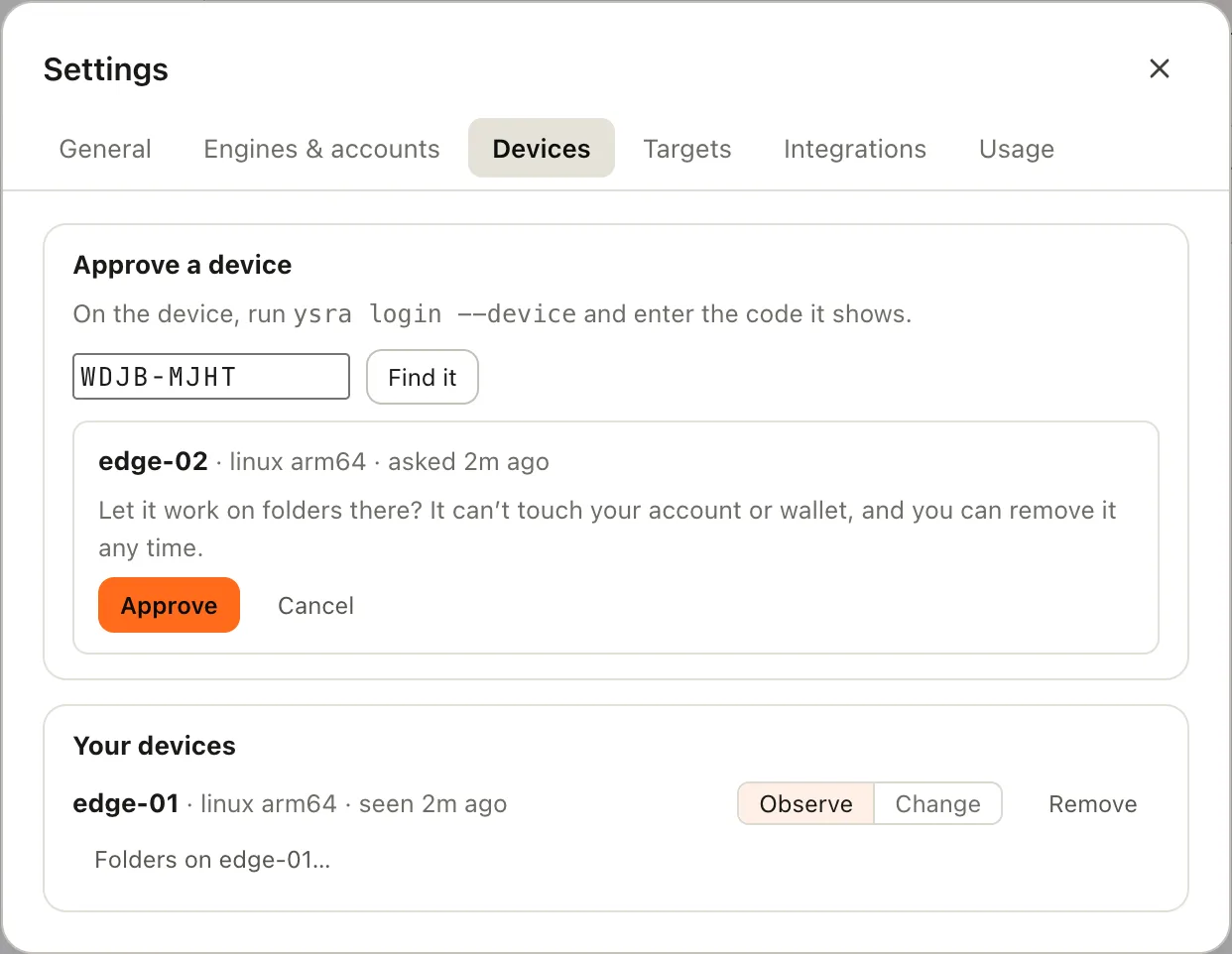
The app shows what is asking before you approve it.
Share the project folder#
Back on the server:
ysra serve --folder /opt/app --install-service
Replace /opt/app with your project’s folder. --install-service keeps the
folder available after you log out; Ysra shows the service file and asks before
installing it. Repeat --folder for each folder you want to share.
Start working#
In the desktop app, open Settings → Devices, choose Folders on server name…, then New thread next to the folder.
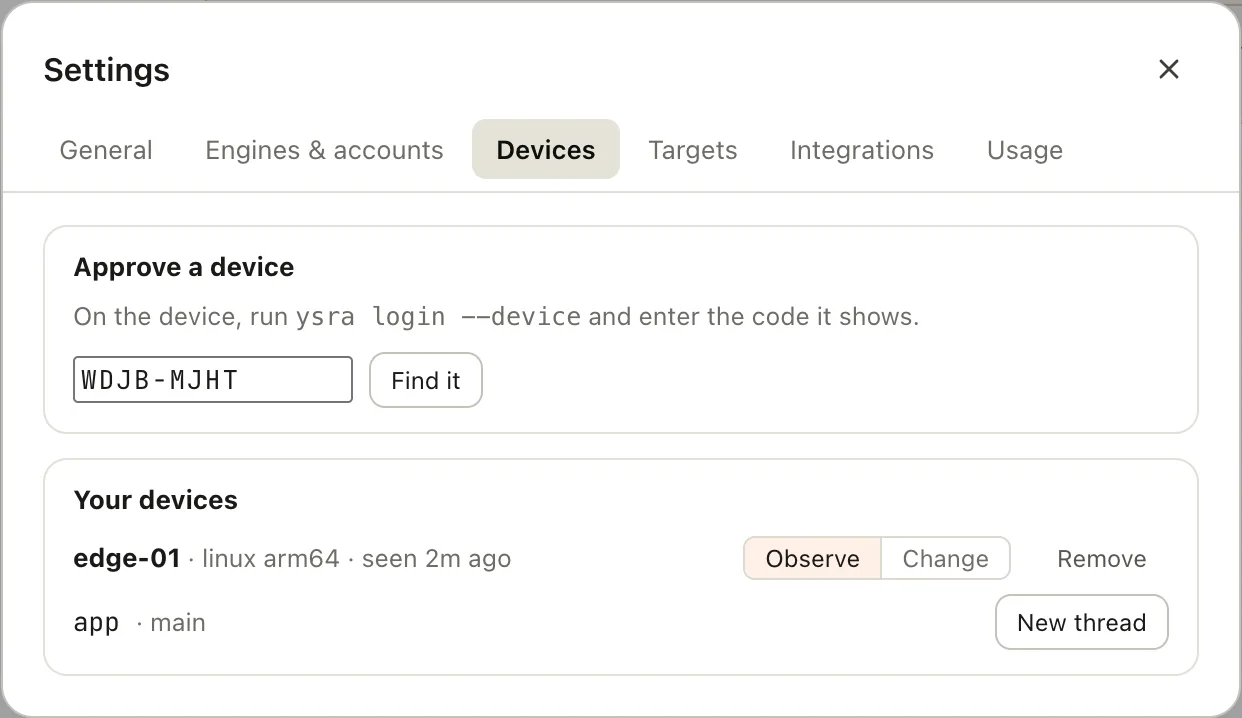
The folders the server is sharing.
The thread shows on server name in its header: the work runs on the server, and your computer only shows it.
Allow changes when you’re ready#
A new device starts in Observe: Ysra can look around and run checks, but can’t edit anything. To let it make changes, switch the device to Change in Settings → Devices. Each change still asks for your OK.
To remove a device: Settings → Devices → Remove → Remove it. It is signed out at once.
| The app says | Do this |
|---|---|
edge-01 is offline. Run ysra serve there. |
Start ysra serve on the server, or check the service is running |
edge-01 isn’t sharing a folder. Run ysra serve --folder … there. |
Share a folder from it |
More: Devices and Install on a server or edge device.
Add a server as a machine#
Nothing is installed on the server. Ysra runs on your computer, which acts as the gateway, and reaches the server through your own SSH, one approved command at a time. It never asks for, stores or types a password.
Make sure SSH works on its own#
Add the server to your SSH config, then check that you can log in without being asked for a password.
OpenSSH is built into Windows 10 and 11. Edit
C:\Users\<your name>\.ssh\config:
Host web-01
  HostName 10.0.0.12
  User deploy
  IdentityFile ~/.ssh/id_ed25519
In PowerShell:
ssh web-01
If it asks for a password, start the SSH agent and add your key:
Get-Service ssh-agent | Set-Service -StartupType Automatic
Start-Service ssh-agent
ssh-add
Edit ~/.ssh/config:
Host web-01
  HostName 10.0.0.12
  User deploy
  IdentityFile ~/.ssh/id_ed25519
ssh web-01
If it asks for a password, add your key to the agent with ssh-add.
Add the machine#
In the desktop app, open Settings → Machines → Add a machine…. From a
terminal, ysra machines add asks the same questions.
| Field | Example |
|---|---|
| Name | web-01 |
| Kind | Linux server |
| How I reach it | SSH |
| SSH host alias | web-01, the Host name from your SSH config |
| Production | Tick it if this is a production machine |
Confirm the server’s host key#
Choose Check its host key. Ysra shows the server’s fingerprint. Compare it with the server itself:
ssh-keygen -lf /etc/ssh/ssh_host_ed25519_key.pub
If it matches, tick Yes, this is my server and add the machine. The key is then pinned: if a different computer ever answers at that address, Ysra refuses to connect.
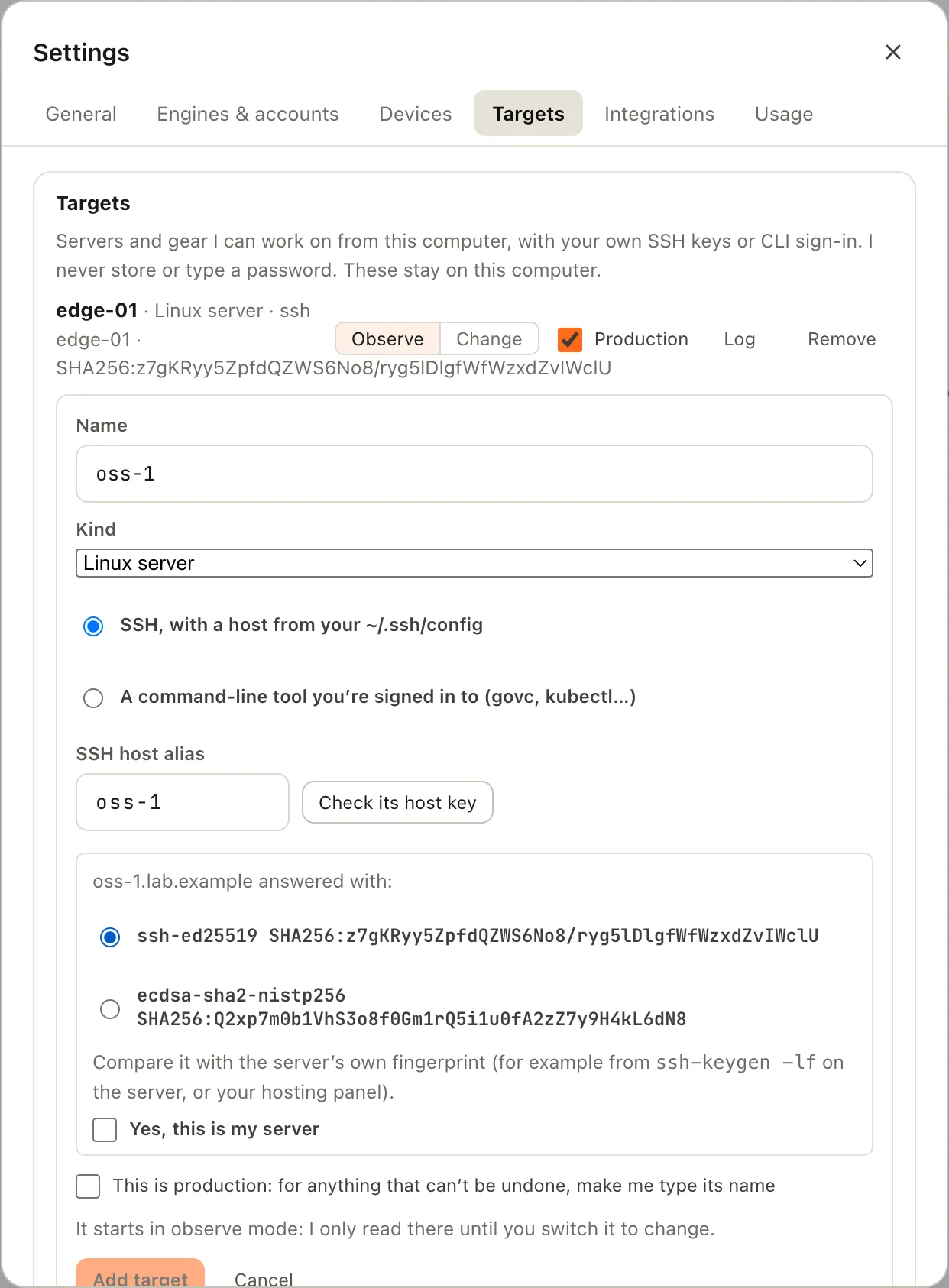
Confirm the host key before the machine is added.
Ask Ysra to look#
In any thread, name the machine:
check why nginx keeps restarting on web-01
The first time, a card asks Look around web-01? Choose Allow for this session. Reading changes nothing on the server.
Allow changes when you’re ready#
A new machine starts in Observe, which is read-only. To allow changes, use the Observe / Change switch in Settings → Machines, or:
ysra machines mode web-01 change
Each change then shows a card with the exact command, why, what to expect and how to undo it. On a production machine, anything that can’t be undone also needs you to type the machine’s name.
To remove a machine: Settings → Machines → Remove, or
ysra machines rm web-01. Its log stays on your computer.
More: Machines.
Once it’s connected#
Cards for a machine#
| Card | When | Answers |
|---|---|---|
| Look around edge-01? | The first read in a thread | Allow for this session · Not now |
| Run this on edge-01? | Every change | Run it · Skip |
| This can’t be undone on edge-01 | A destructive command | Run it · Skip |
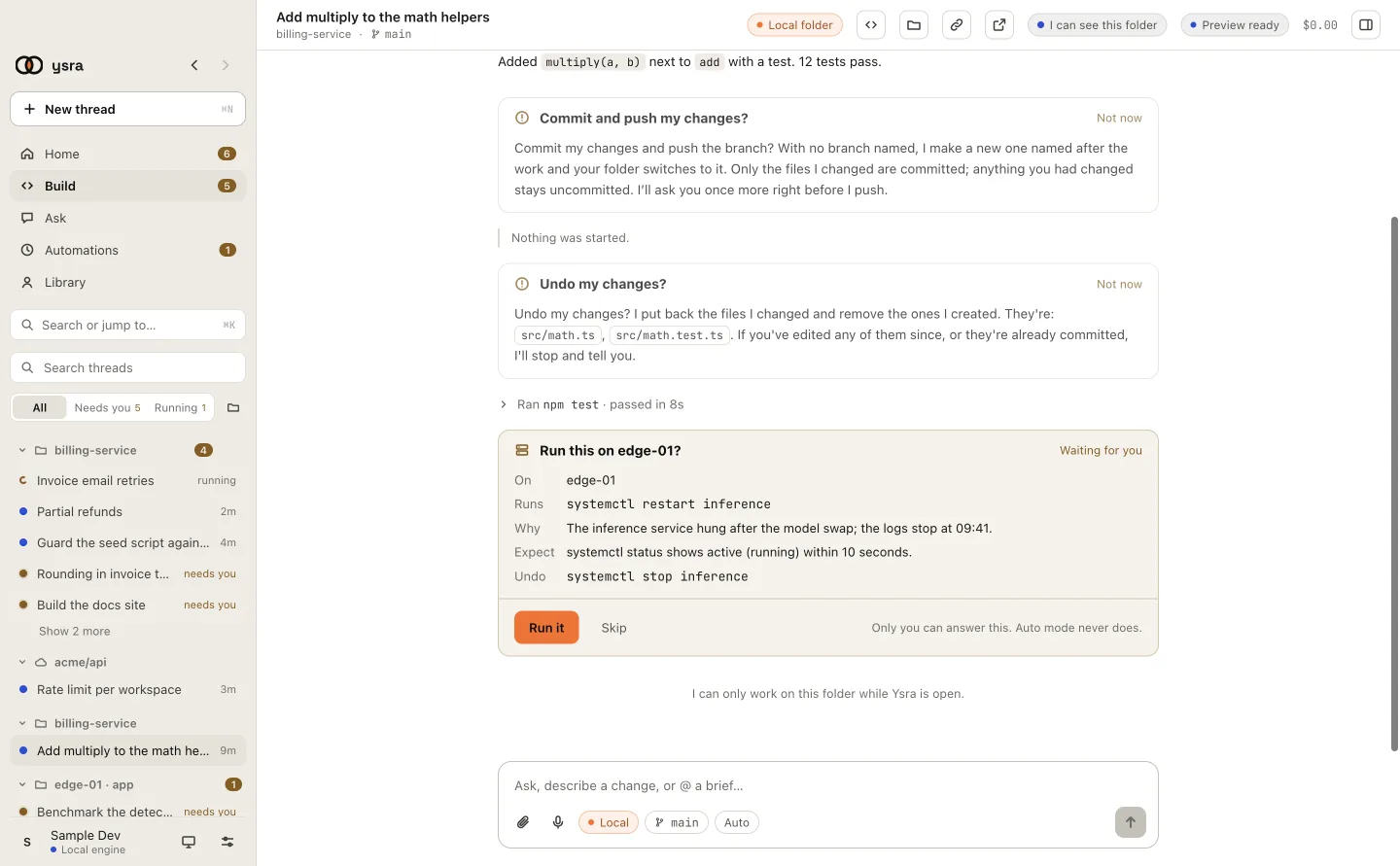
The exact command, why, what to expect, and how to undo it.
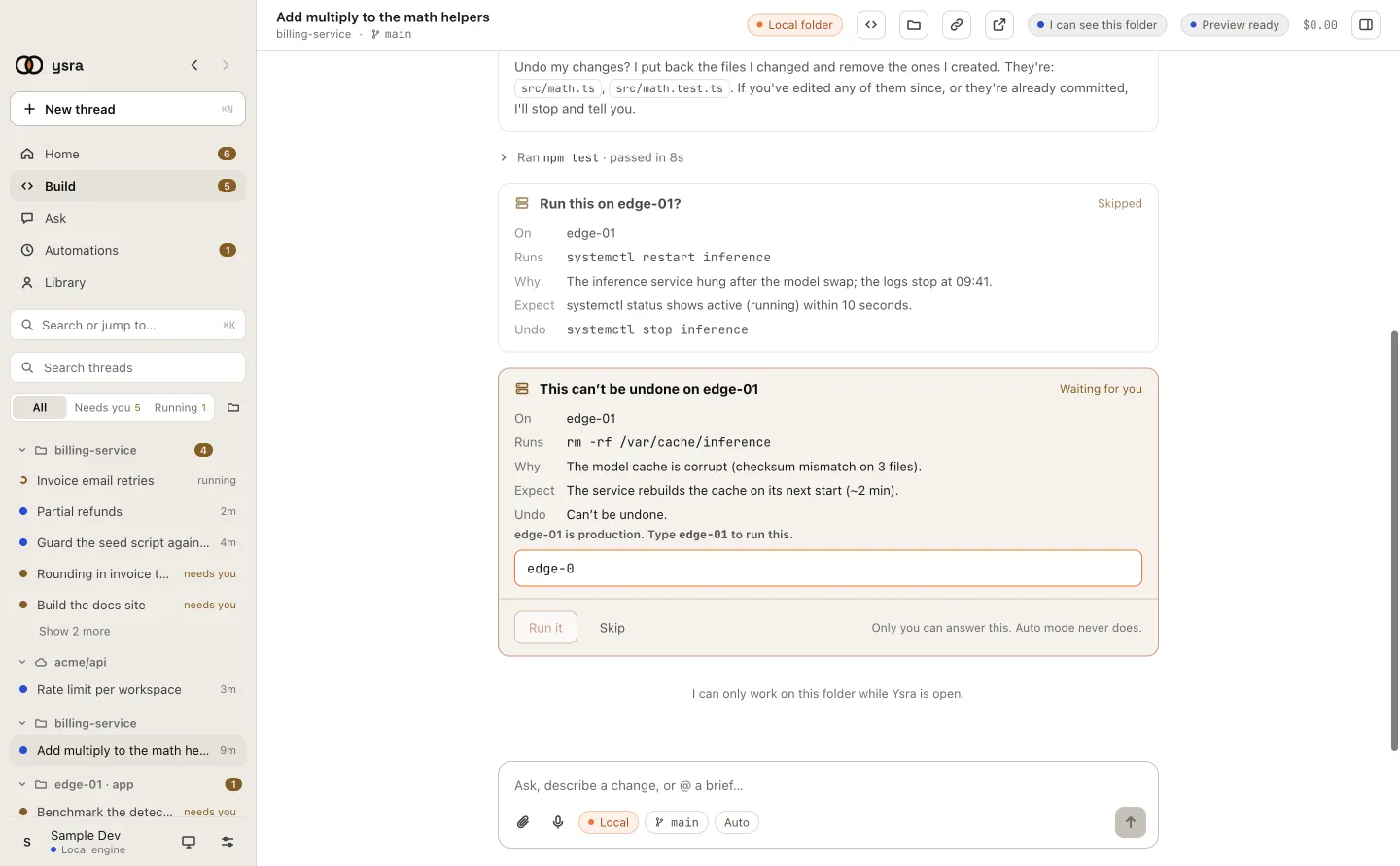
On production, Run it stays off until the name is typed exactly.
Only you can answer these cards; auto mode never does. A card left unanswered for 15 minutes counts as declined, and quitting the app declines every waiting one.
What ran on a machine#
Settings → Machines → Log lists every command: when, what ran, whether it was a read, a change or destructive, and whether you approved it.
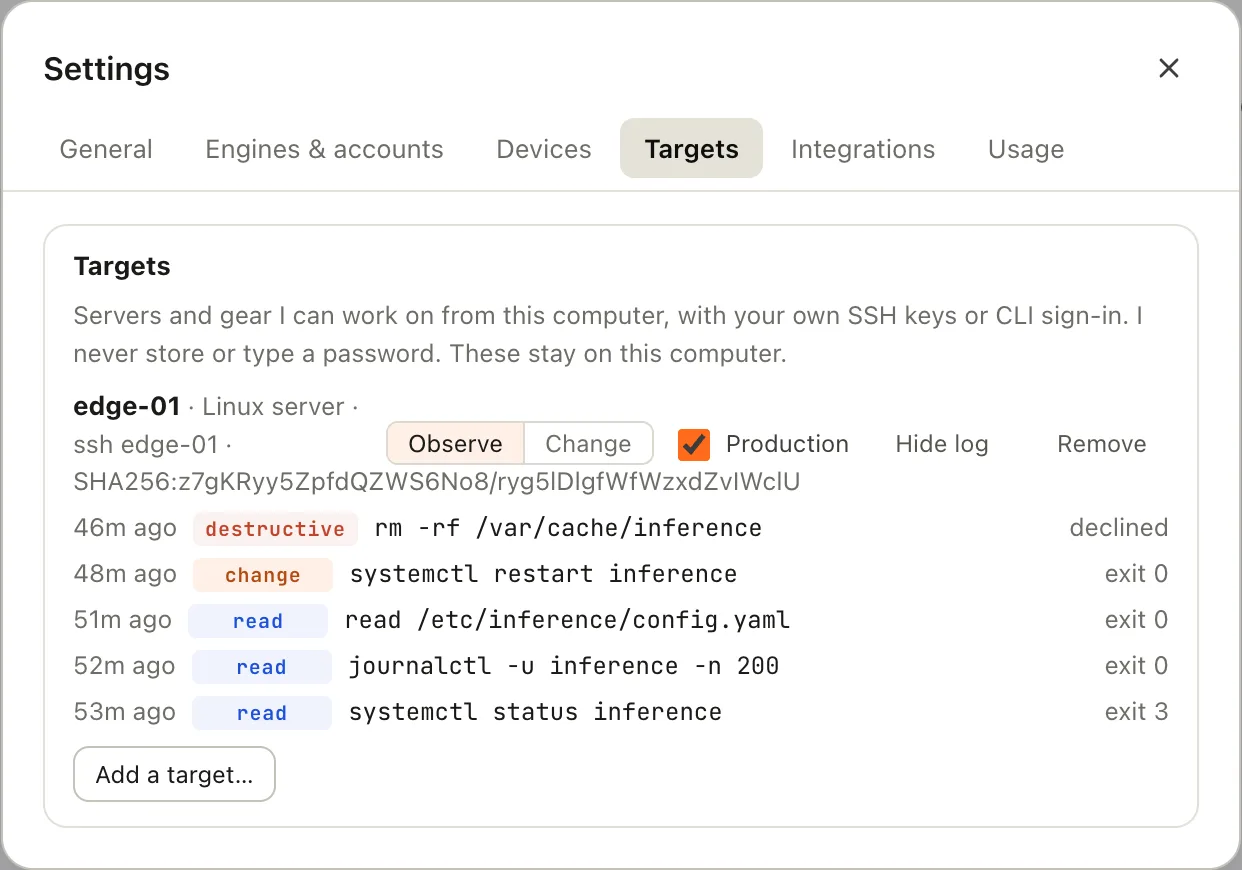
A machine, its mode, and its log.
Camera and GPU on a device#
Ysra’s commands can’t see a device’s hardware until you allow it, once per thread.
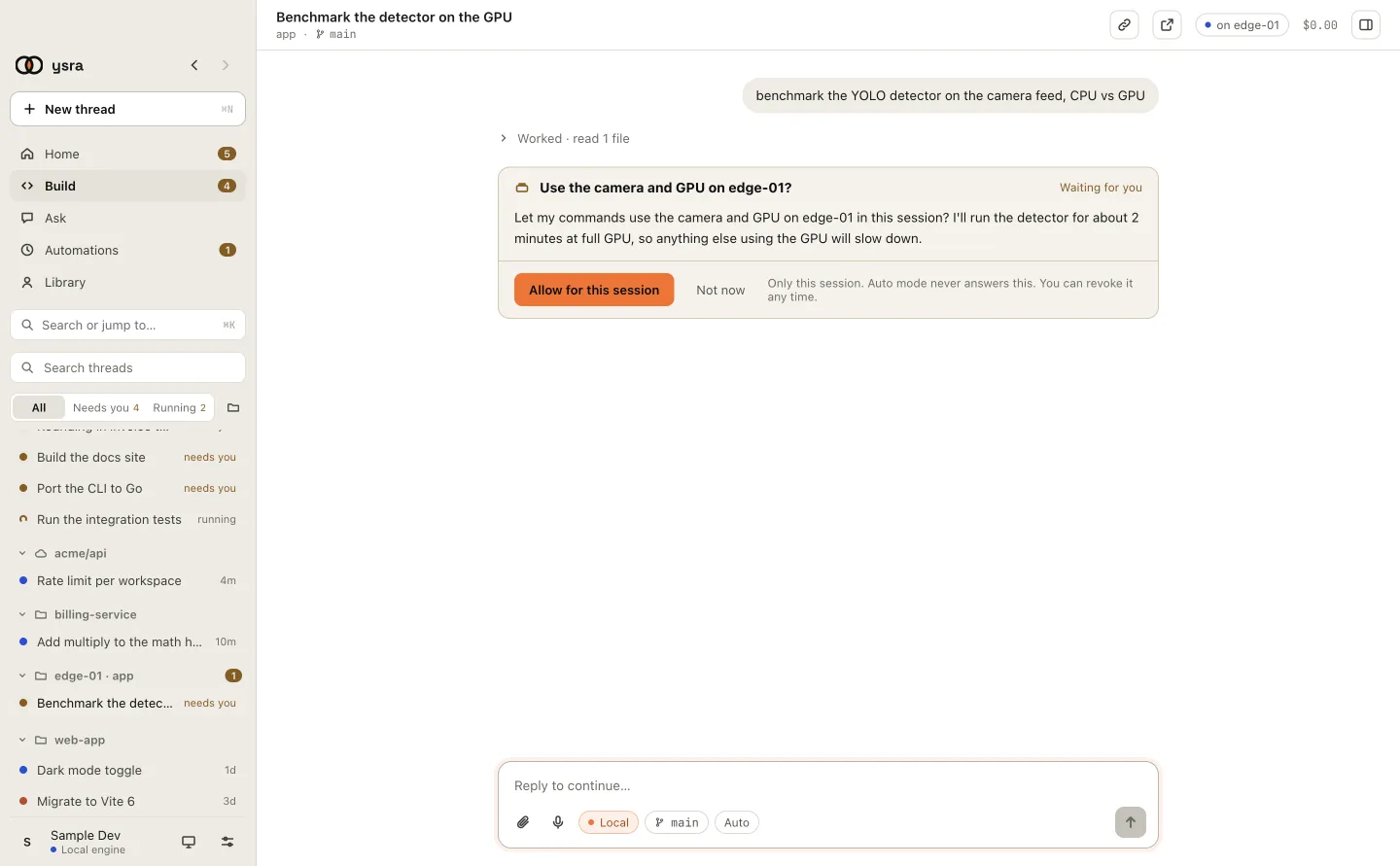
The card names the impact before you allow it.
Runbooks#
Give Ysra a written procedure and a machine. The plan appears as one card with every step, its check and its recovery step. Start runs the read-only checks first, then asks before each step and stops at the first check that fails.
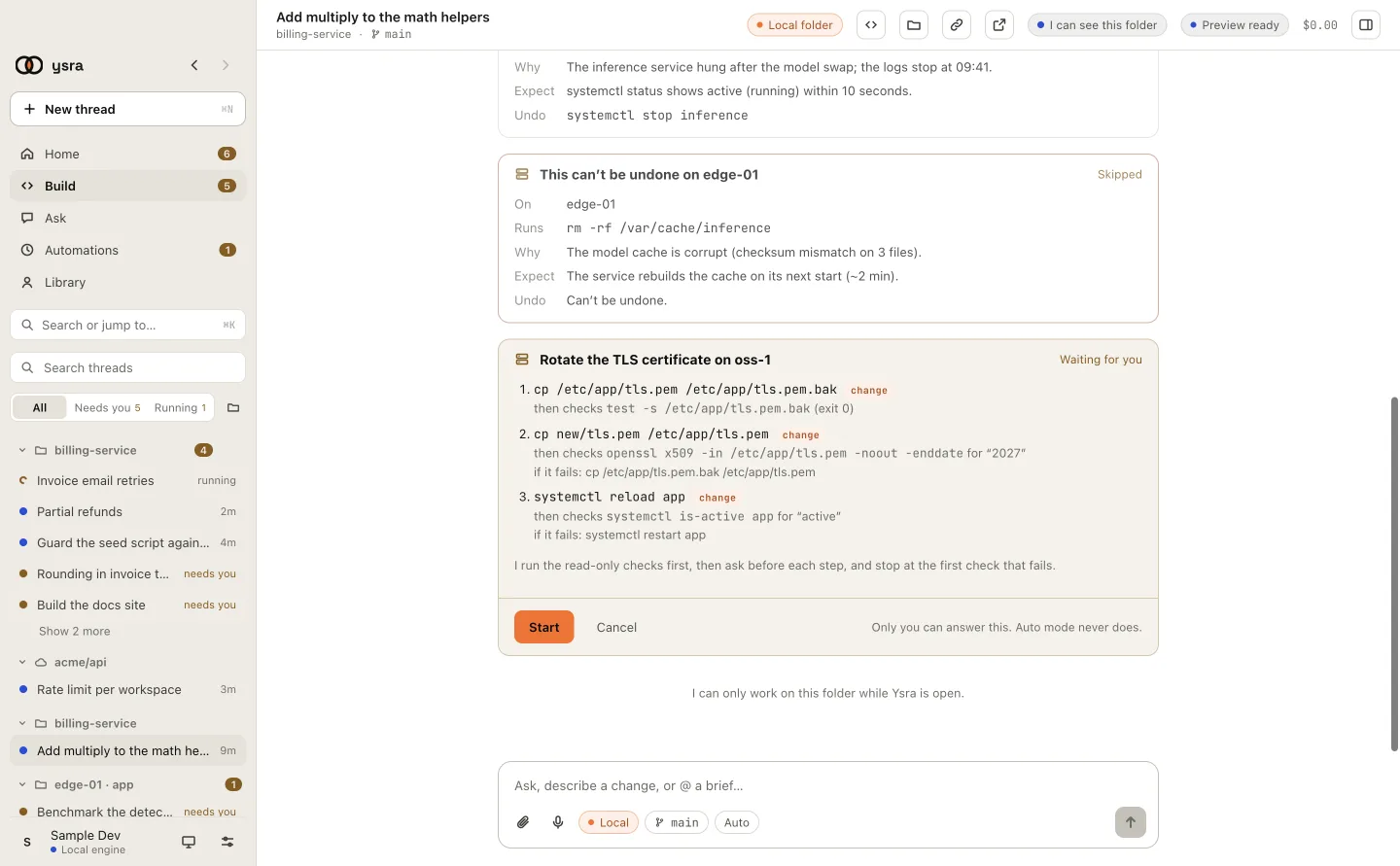
The whole plan, before anything runs.
More: Runbooks.
Good to know#
| Point | Detail |
|---|---|
| Your credentials stay yours | A device signs in with a code you approve. A machine is reached with your own SSH keys |
| What Ysra’s servers know about a machine | Only its name, kind and mode, never its address, user or SSH details |
| Switching a device or machine to Change | Always your action. Ysra can’t do it |
Related#
- Approvals and auto mode: the cards for devices and machines.
- The Machines panel: work on many machines from one thread.
- Install on a server or edge device: the device install in full.
- Runbooks: step-by-step procedures on machines.